
Overview
What JoomClock is, how it works, where each setting lives and a five-step quick start.
JoomClock is a clock, calendar and world-clock module for Joomla 4.4, 5 and 6, made by JoomForge. It works anywhere a Joomla module can go: a sidebar, a header or footer bar, or a full-width section on your home page.
This guide explains every setting and shows what each one looks like. Sample screenshots use made-up events (a small community calendar), not real data.
How editions are marked. Anything with no mark is in both the Free and the Pro edition. Anything marked (Pro) needs JoomClock Pro; in the Free edition it is shown locked with a PRO badge. Where a heading covers both, the individual options are marked. Screenshots of Pro features have "(Pro)" in their caption.
In one paragraph
JoomClock is a Joomla module: you create it under Content › Site Modules, give it a position and pages, and it draws a clock, a calendar, a world clock, or a combination. You choose everything in the module's settings; there is no code to write. It runs on Joomla 4.4, 5 and 6 from one package.
At a glance
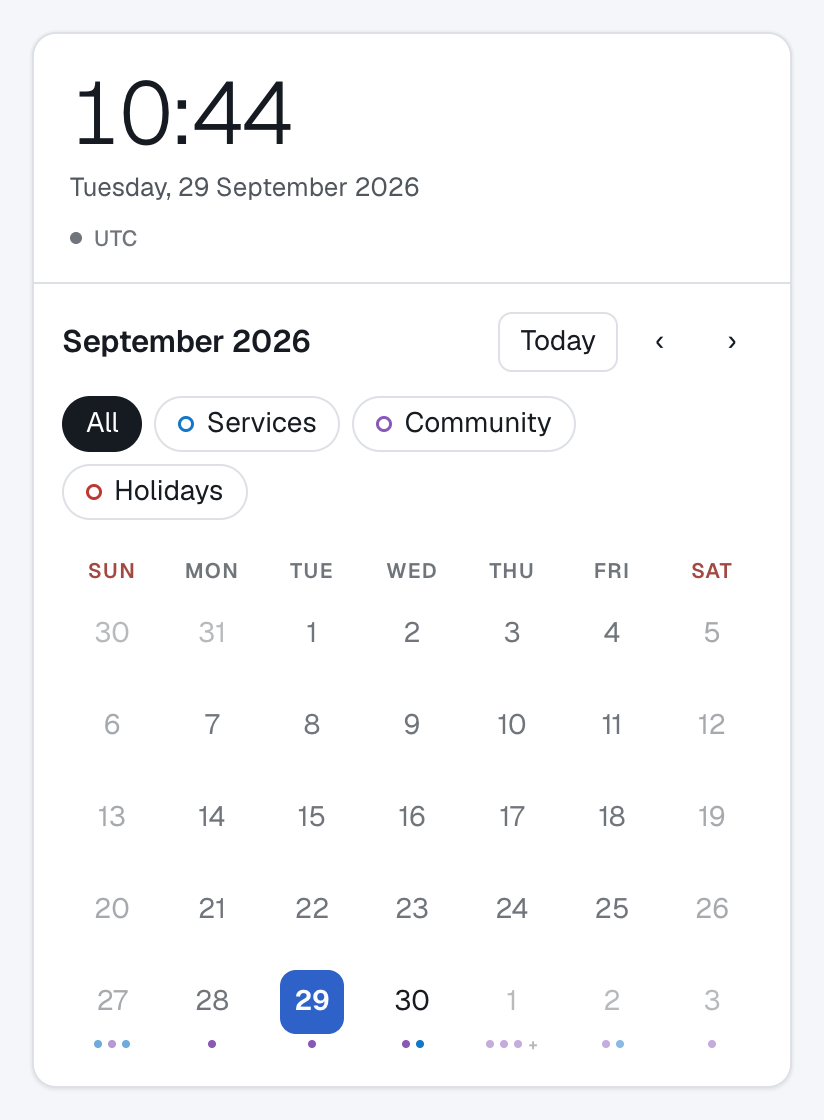
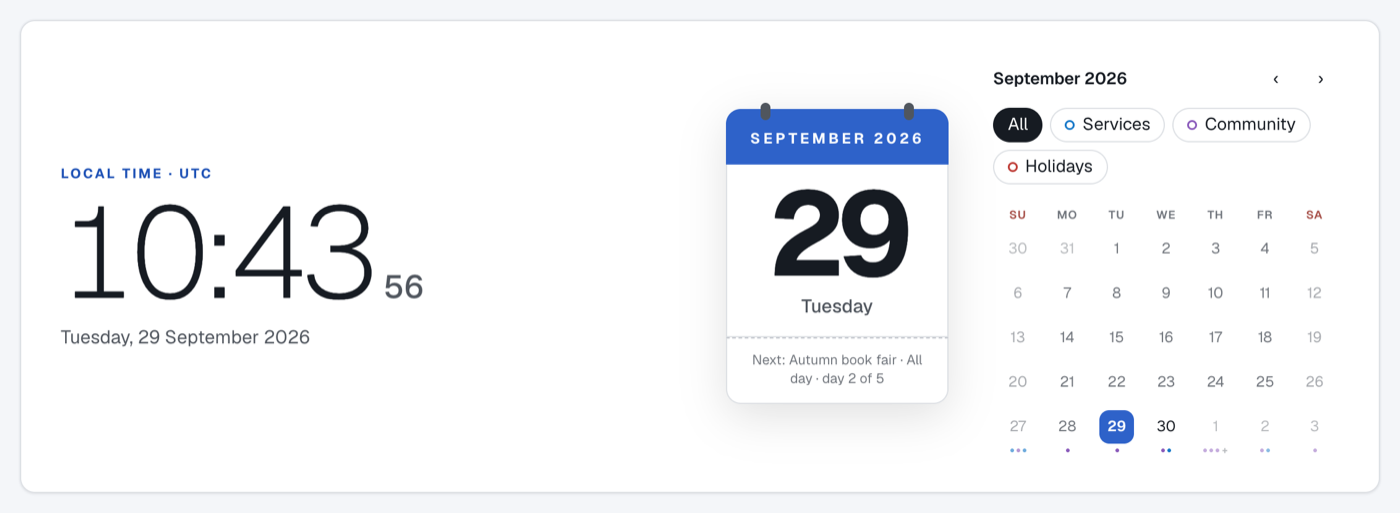
| Clock and month calendar together in a sidebar card (Free) | Hero Card for a full-width section (Pro) |
|---|---|
 |
 |
- Clocks — Free: Minimal, Classic Bold and Analog Classic, plus the one-line "top bar" and "footer" clocks. (Pro): 10 more digital and 7 more analog designs.
- Time zones — a fixed zone (default: your site's zone). (Pro): each visitor's own zone, the logged-in user's Joomla profile zone, or a server-corrected clock.
- World clock (Pro) — a list of cities in four layouts, with the difference from the visitor's own time.
- Calendars — the month view is Free and can sit under a clock (the Stacked layout). (Pro): week, mini, date card and agenda views, and the Side by Side and Hero Card layouts.
- Events and holidays (Pro) — from any calendar that publishes an ICS / webcal link (Google Calendar, Outlook, Apple iCloud and others), with a filter chip per feed and a details popup for every event.
- Alternate calendars (Pro) — Hijri, Bengali, Nepali, Persian and Chinese lunar, in their own script.
- Look — Free: Light and Dark themes, corner styles, card shadow / border / padding, module width and alignment. (Pro): extra colour schemes, a fully custom colour scheme and custom feed colours.
- Languages — English, German, French, Spanish and Italian, with dates written in the visitor's language.
How it works
- You configure a module in the Joomla administrator. The settings are grouped into tabs (see the table below).
- Joomla renders plain markup for the module on the server. It contains no time, because a page may come from a cache.
- The visitor's browser fills in the time. A small script draws the clock and today's date, and keeps them ticking. That is why JoomClock is safe with Joomla's page cache and always shows the right time.
- Calendar feeds are read by your server, never by the visitor's browser. The server downloads each feed, keeps a cached copy, and gives the page only the events. Feed addresses are never sent to visitors.
The module uses no jQuery, no frameworks, no cookies and no third-party services. Fonts are bundled with it.
Where each setting lives
| Tab | What you decide there |
|---|---|
| JoomClock Style | Whether to show a clock and/or a calendar, the clock and calendar styles, the combined layout, and the world clock. |
| Time & Format | Which time zone (Pro: or time source) to use, 12/24-hour time, seconds, the date format and the time zone label. |
| Calendar | First day of the week, weekend days, muted past dates, and alternate calendars. |
| Calendar Feeds (Pro) | The calendar links that provide events and holidays, their colours and how often they refresh. |
| Appearance | Theme, colour scheme (Pro: extra schemes and custom colours), corner style, shadow, border, padding, module width and alignment. |
| Licence (Pro) | Your JoomForge licence, used only to download updates. |
Settings that make no difference to your current choices are hidden, so each tab only shows what applies.
Quick start
- Install the ZIP under System › Install › Extensions (details).
- Go to Content › Site Modules › New and choose JoomClock.
- On JoomClock Style, pick a clock style. Switch Calendar on if you want one.
- Choose a Position and the Menu Assignment on the right, then Save.
- Open your site. To go further, jump to Recipes for ready-made setups.
Words used in this guide
| Term | Meaning |
|---|---|
| Module | One JoomClock instance. You can create as many as you like, each with its own settings and position. |
| Position | A named area in your Joomla template (sidebar, top bar, footer…) where modules are placed. |
| Feed | A calendar link (ICS / webcal) that JoomClock reads to get events. |
| Holiday feed | A feed coloured Holiday red; its dates are filled in rather than marked with a dot. |
| Pro | Features that need JoomClock Pro. In Free they appear locked with a badge. |
| Stacked / Side by Side / Hero Card | The three ways to combine a clock and a calendar in one module. |