
Using the calendar on your site
What visitors can do: filter feeds, hover summaries, click a date, "+N more" and event details.
(Pro) This whole section needs calendar feeds, so it applies to Pro only. In the Free edition the month view shows dates but no events.
When a module has feeds, the calendar becomes interactive.
Filter chips
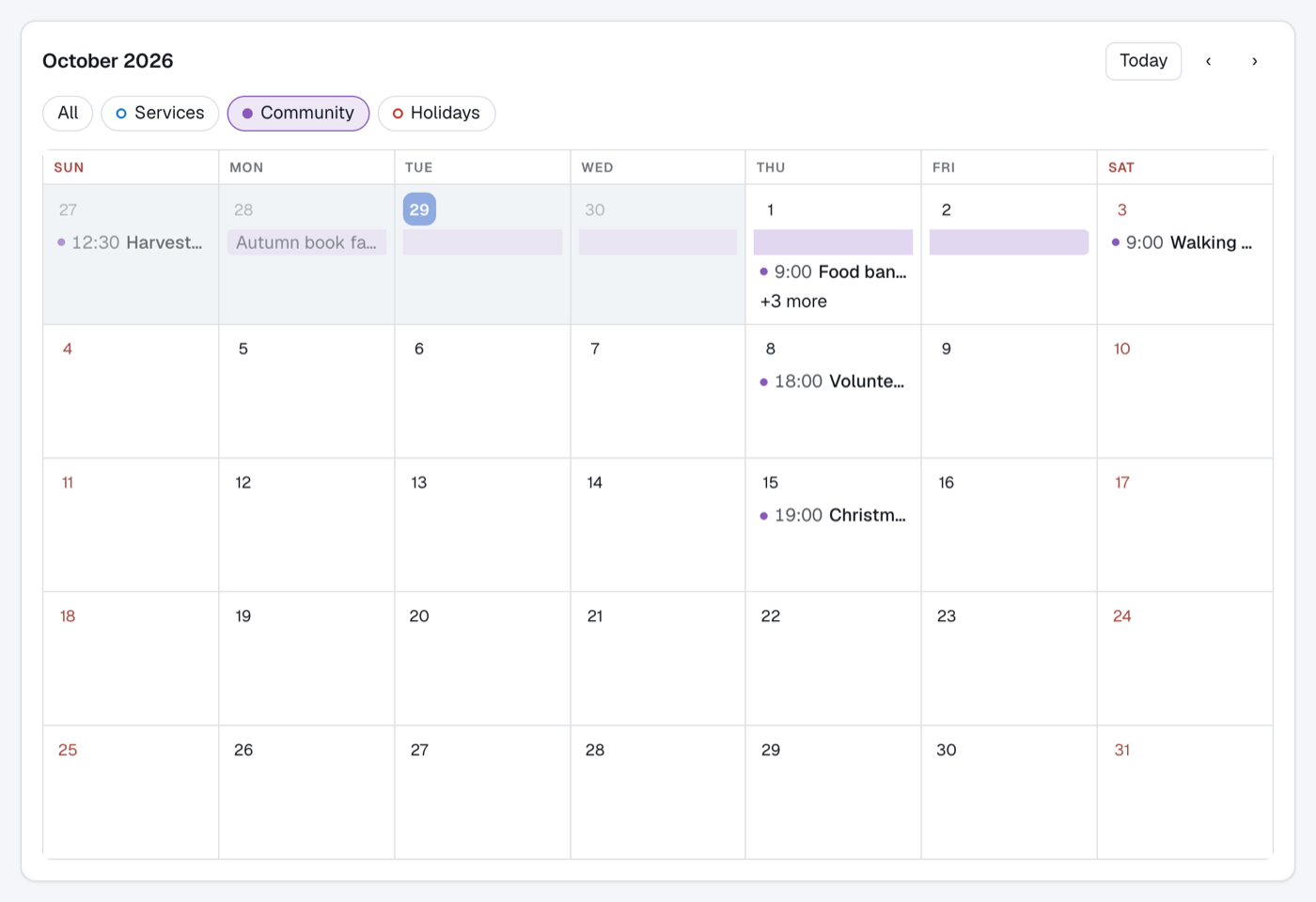
With two or more feeds, a chip for each feed appears above the calendar. Click a chip to show only that feed; click All to show everything again. Chips include Holidays when you use a Holiday-coloured feed.
Hover: a summary
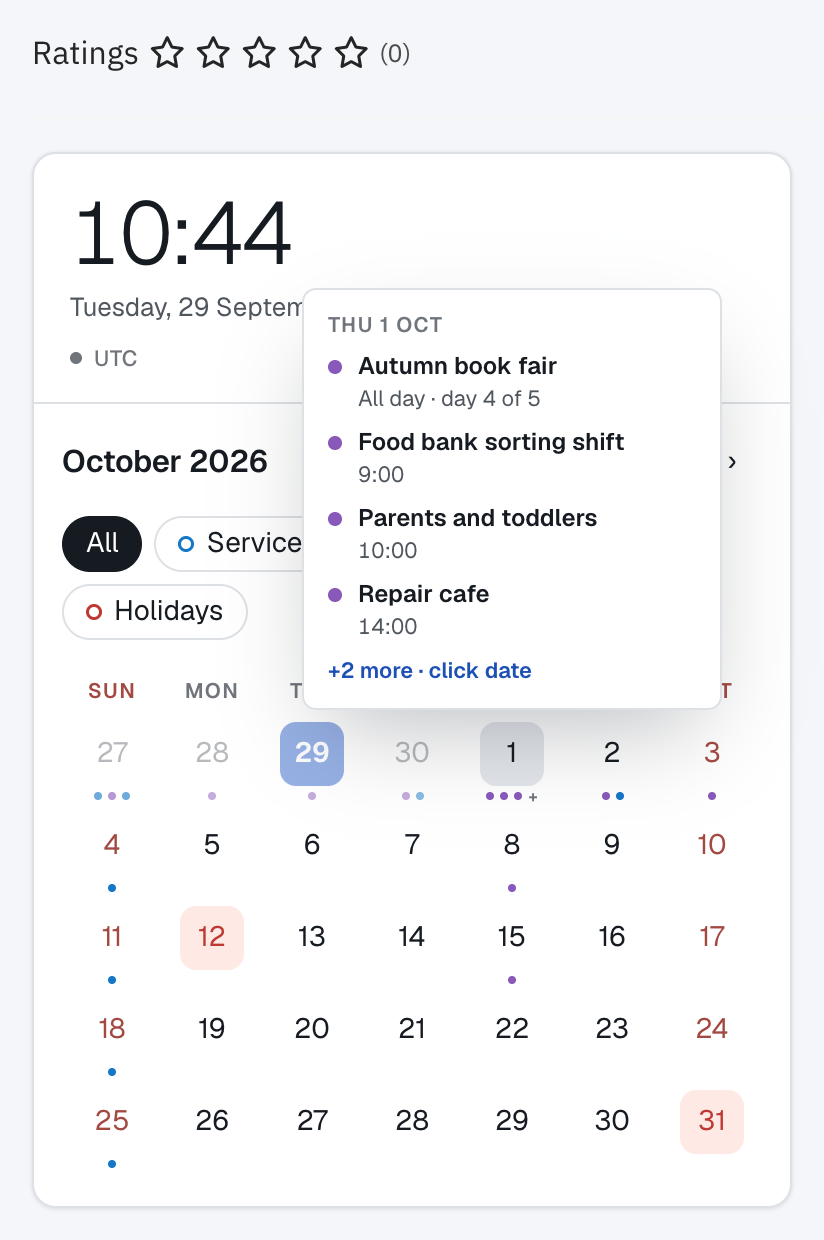
Point at a date in a compact calendar to see a small summary card with the day's first events. It is only a preview.
Click a date: the event list
- Compact month, week, agenda: clicking a date shows the day's events in a list under the calendar.

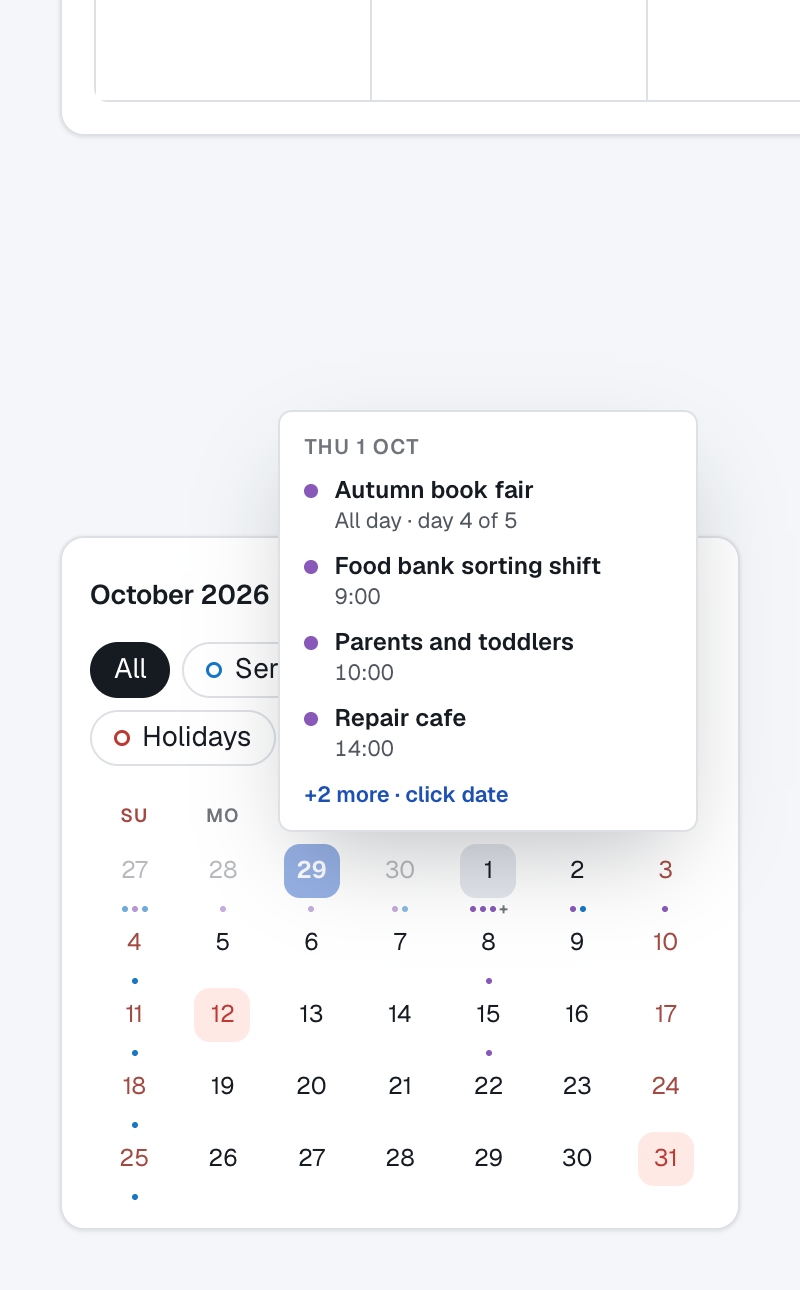
- Mini calendar: clicking a date opens a card that looks the same as the hover summary, but it stays open, lists every event for the day, and each event can be clicked. Close it by clicking anywhere outside it, pressing Esc, or changing month.
| Mini calendar: hover | Mini calendar: after clicking the date |
|---|---|
 |
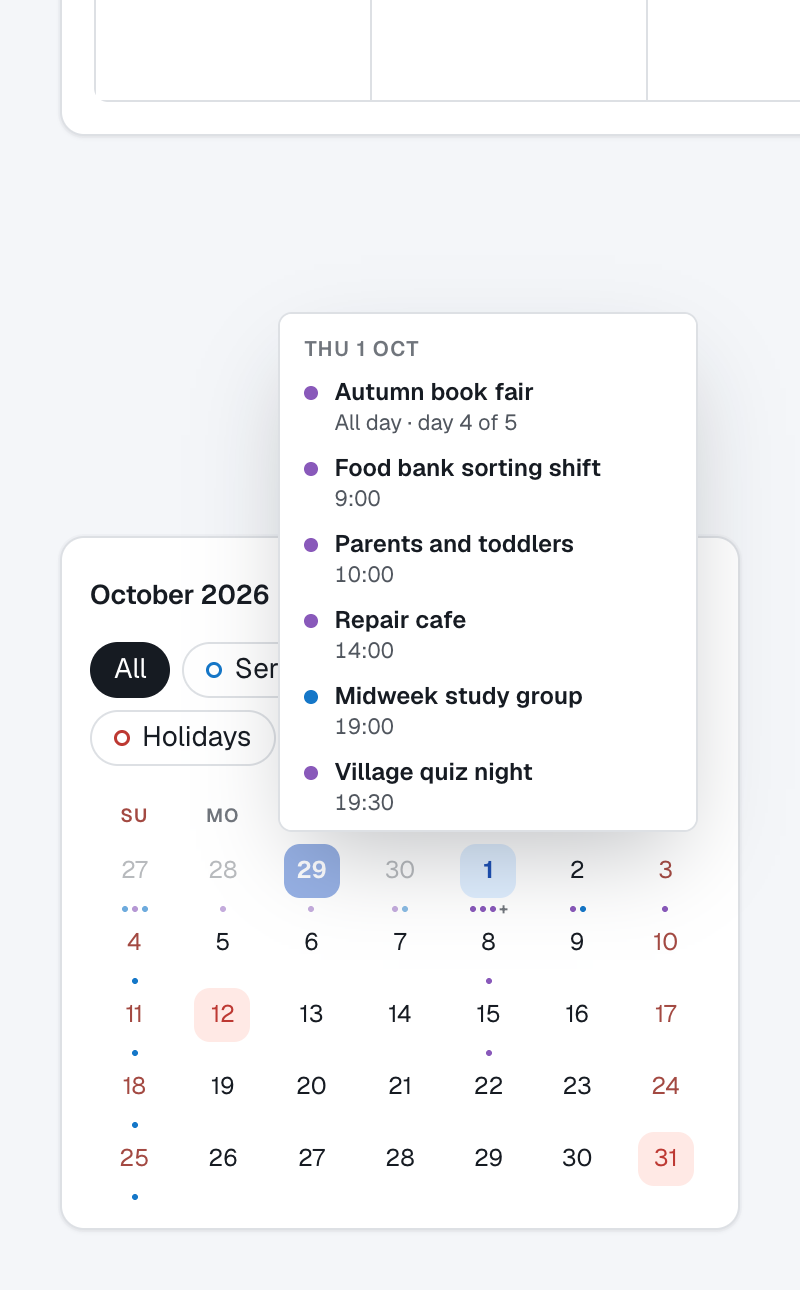 |
"+N more"
When a day has more events than fit, a +N more button appears (in the large month view and in Week view). Click it to open a popup listing every event for that day.
| Month view: +N more | Week view: +N more |
|---|---|
 |
 |
Event details
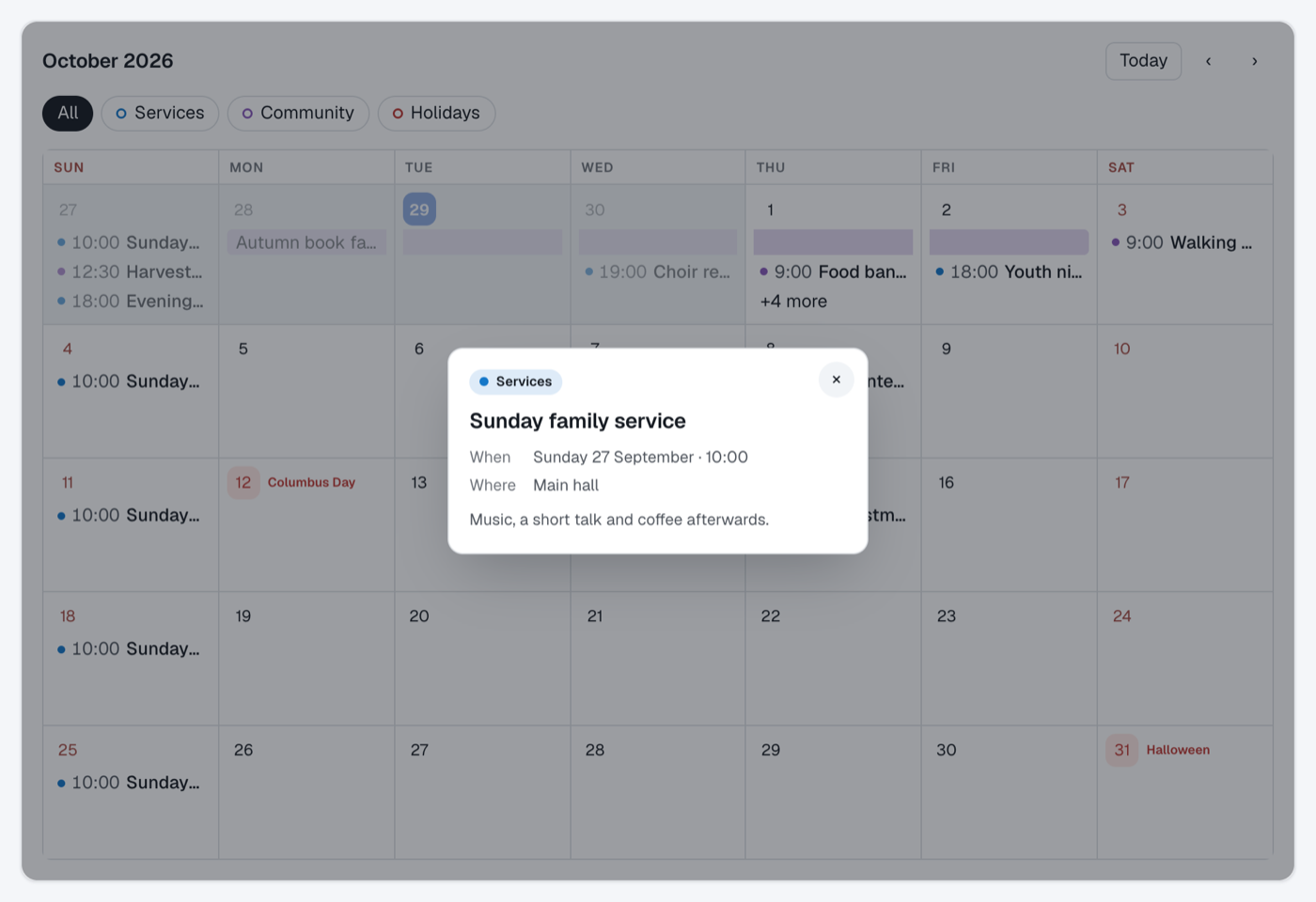
Click any event to see its details: date and time (or "All day" and "day 2 of 5" for multi-day events), location, a short description, the feed label, and a View event link when the calendar provides one. Press Esc or click outside to close.