

Exporting data
How to export modules, menus, articles, contacts or users, and what each export file contains.
- Open a tab — go to Components → JoomShift and choose Modules, Menus, Articles, Contacts or Users.
- Narrow the list (optional) — search, or filter by client, position, menu, category, group or state.
- Choose what to export — tick rows and click Export Selected, or open Export All for everything or one scope: Site modules, Administrator modules or both (Modules), a menu (Menus), a category (Articles, Contacts) or a user group (Users).
- Download — the file downloads straight away. Scopes over 500 items show one link per batch.
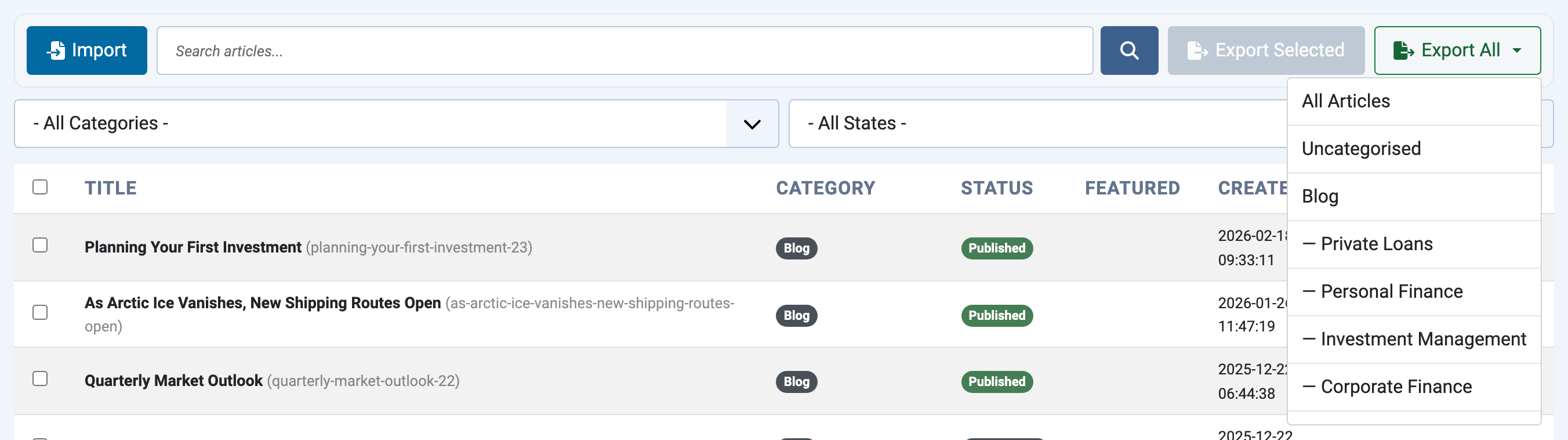
On the Articles and Contacts tabs, the Categories section has its own Export Selected and Export All Categories buttons for exporting the category tree without any content.
What each export contains
| Tab | Contents |
|---|---|
| Modules | Settings, position, ordering, access, language, the pages each module is shown on, and SP Page Builder layouts for SP Page Builder modules |
| Menus | Menu types and items with their hierarchy, links, access, parameters and alias targets |
| Articles | Articles, their categories and parent categories, intro/full/inline images, featured flag and custom fields |
| Contacts | Contacts, their categories and parent categories, contact images, custom fields, and the username and email of a linked user |
| Users | Accounts with their password hashes, profile data, user groups and parent groups |
Every file also records the site it came from, its Joomla version and the export date; the dry run report shows these.