

Importing data
How to import a JoomShift file, what Overwrite existing does, the order to import in, and how items are matched.
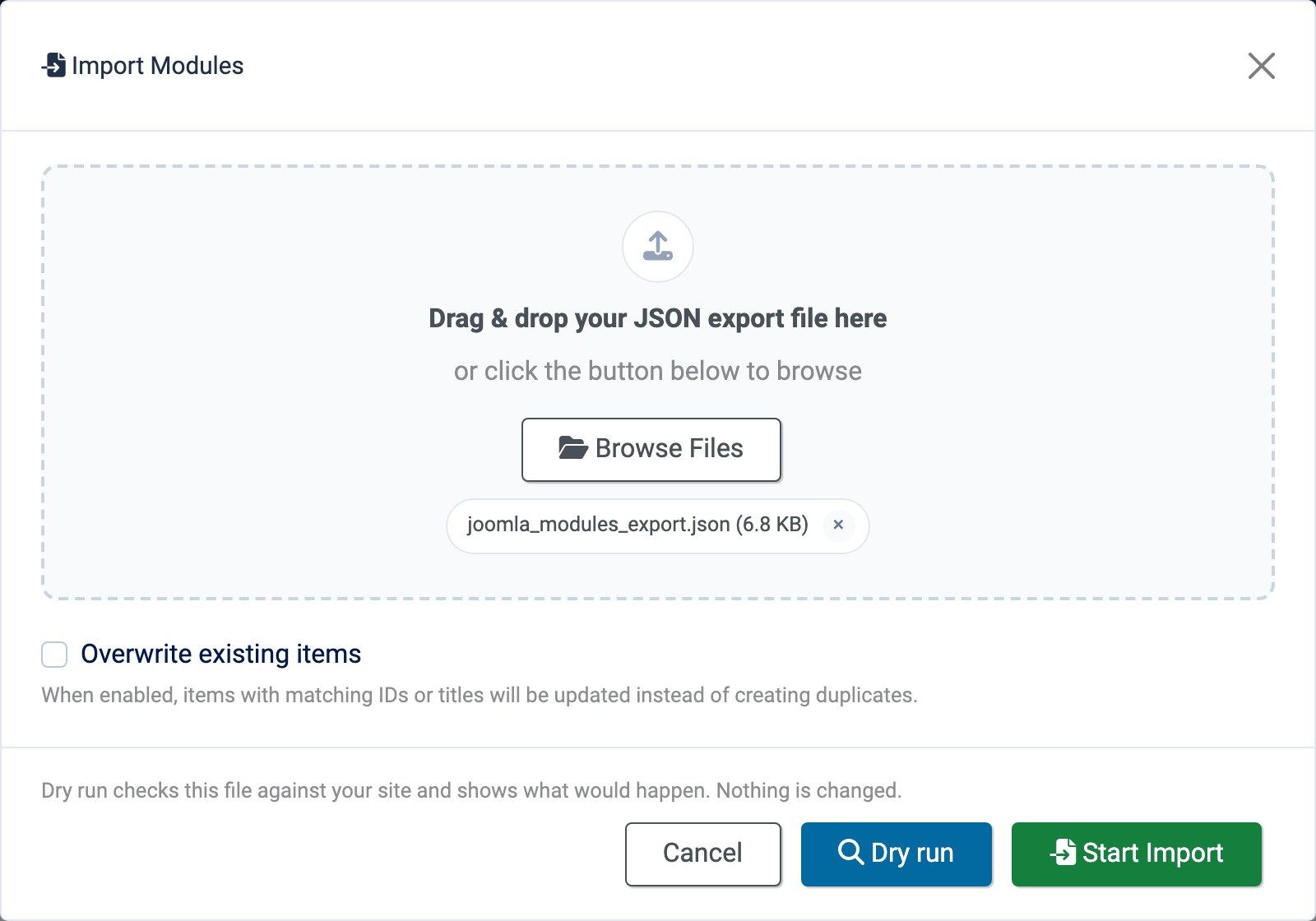
- Open the matching tab on the site you are importing into, and click Import (on the tab or in Joomla's toolbar).
- Add the file — drag it onto the drop area or click Browse Files.
- Choose Overwrite existing — leave it off to skip items that are already on the site; tick it to update them.
- Click Dry run to see what would happen first (recommended), or Start Import to import straight away.
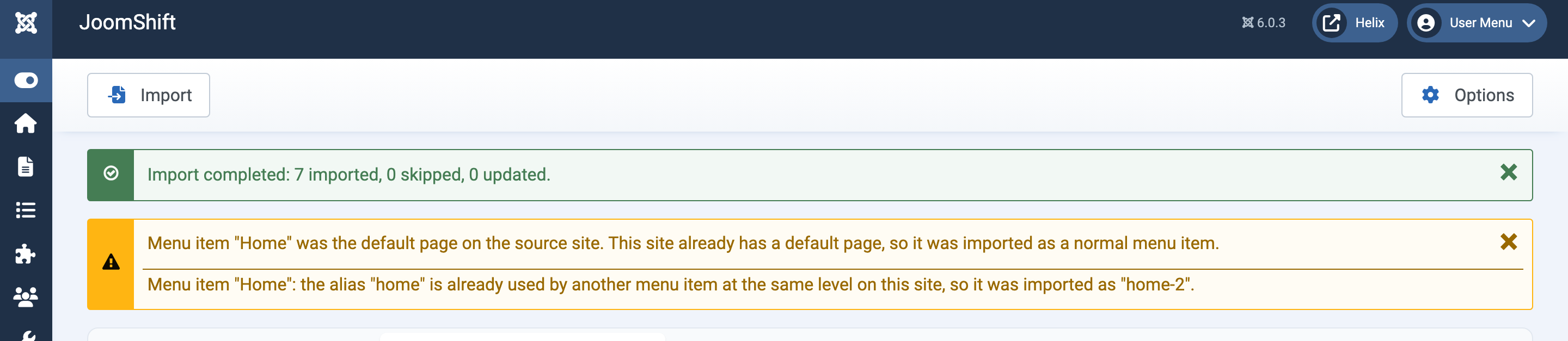
When the import finishes, JoomShift reports how many items were imported, skipped and updated, followed by a warning for anything it had to adjust or skip.
Import in this order
Some data refers to other data, so import the referenced data first:
- Menus before Modules — modules are assigned to pages by menu and path.
- Users before Contacts — contacts are linked to users by username or email.
Categories travel inside article and contact files, and user groups inside user files, so they need no separate step. The dry run tells you when something is missing.
What happens to items that already exist
| Data | Same item when… | Overwrite off | Overwrite on |
|---|---|---|---|
| Modules | Same ID with the same type and client, or same title, type and client | Skipped when the same title, type and position is already on the site, otherwise imported as a copy | Updated |
| Menu items | Same alias under the same parent in the same menu and language | Skipped | Updated |
| Articles | Same ID and alias, or same alias in the same category | Skipped | Updated |
| Contacts | Same ID and alias, or same alias in the same category | Skipped | Updated |
| Categories | Same alias under the same parent | Existing category used | Updated |
| Users | Same ID with the same username or email, or same username, or same email | Skipped | Updated |
| User groups | Same title under the same parent | Existing group used | Existing group used |
Adjustments JoomShift makes on the new site
- Menu item IDs, component IDs and template styles are replaced by the new site's own.
- Menu alias taken — if another menu item already uses the alias at the same level, the item is imported with a numbered alias such as
home-2, and its children and module assignments follow it. - Default page — if the new site already has a default page, the imported one becomes a normal menu item.
- Missing parent — a category or menu item whose parent is not in the file or on the site is placed at the top level; a user group goes under the registration group (normally Registered).
- Missing category — an article or contact whose category is missing goes into Uncategorised.
- Administrator modules — Joomla builds its own administrator (menu, header, dashboard, toolbars) from administrator modules, and every site already has them. An administrator module is skipped when the site already has one of the same type in that position, and administrator modules from another Joomla generation (Joomla 3 versus Joomla 4/5/6) are always skipped. To move a site's modules, export Site modules.
- Not installed — modules of a type, and menu items for a component, that are not installed on the new site are skipped.
- Users keep their password hashes, so they can log in with their existing passwords.