

Extensions
Sidebar → Extensions. The list of everything AutoPilot tracks. This is where you turn auto-update on and off.
Sidebar → Extensions. The list of everything AutoPilot tracks. This is where you turn auto-update on and off.

Finding extensions
The bar above the list filters it instantly as you type or click; the page does not reload.
- Search extensions searches the name and the technical name. Type
ID:123to find an extension by its ID. - All types limits the list to one type: Component, Module, Plugin, Template, Library, Language, Package or File. Only the types installed on your site are offered.
- Show Joomla core extensions adds Joomla's own extensions to the list. They are hidden by default to keep the list readable; Settings → Hide Core Extensions sets whether the box starts ticked.
- The quick filters below the bar show how many extensions each one matches:
| Quick filter | Shows |
|---|---|
| All | Every extension (except Joomla core, unless you show it). |
| Updates available | Extensions with a newer version on their update server. |
| Auto-update on | Extensions that are updated automatically. |
| Failed | Extensions whose last update attempt failed, and extensions whose update site is disabled. |
| Not supported | Extensions without a standard update server. AutoPilot cannot update these. |
The search, the type and the quick filter work together. The line under the table shows how many extensions match, for example "3 / 37 · 247 Joomla core hidden". When nothing matches, Clear filters resets the search, the type and the quick filter. The list is sorted by name and shows every extension on one page.
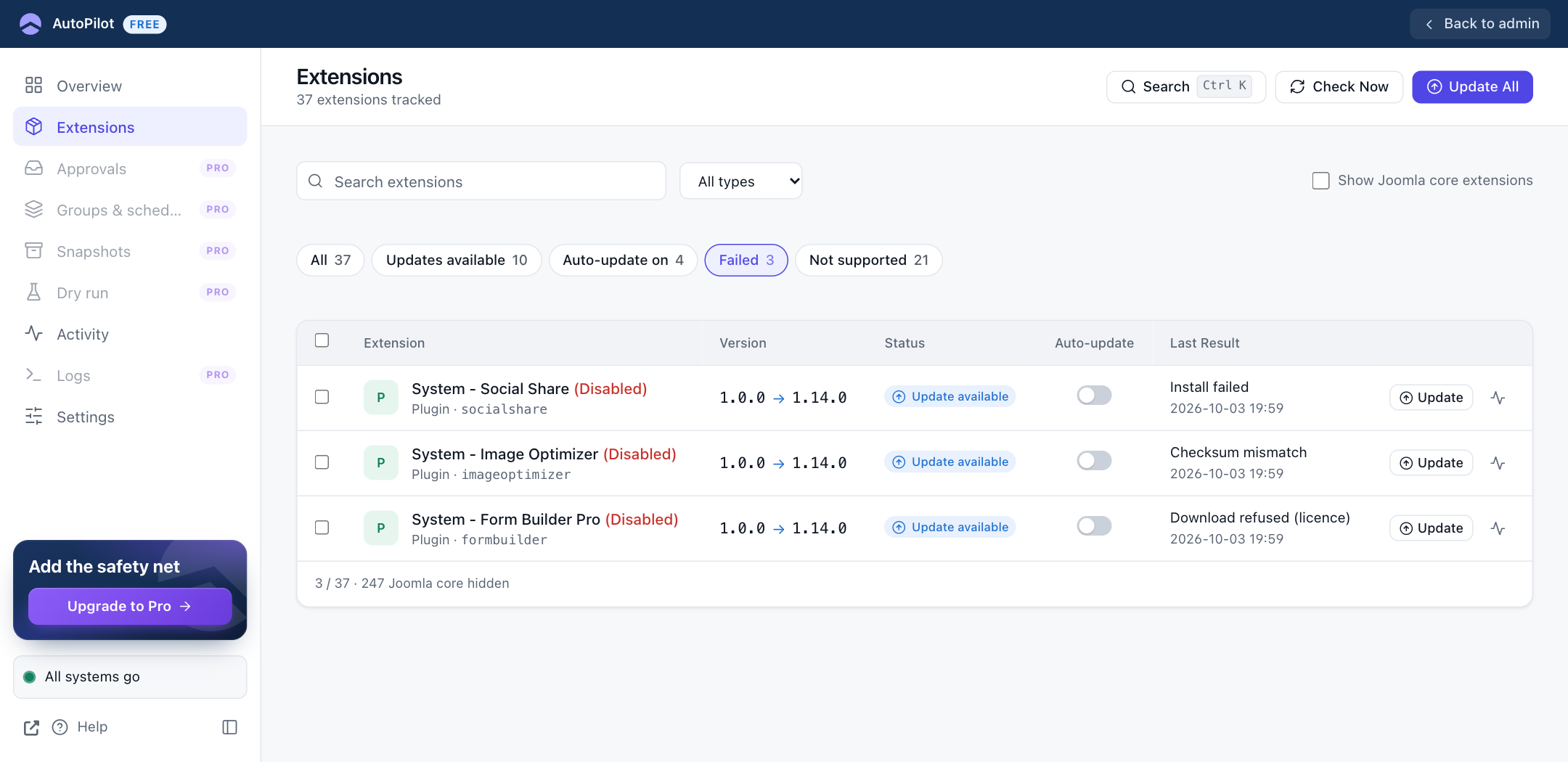
The filters are not remembered: Extensions in the sidebar always opens the full list. The counters on the Overview open the list with their quick filter already selected. After a bulk action the list comes back with the same filters.
The columns
| Column | Shows |
|---|---|
| Extension | The name, the type and the technical name. The coloured letter marks the type (C component, M module, P plugin, T template, L library, F files, Pk package). A red "(Disabled)" appears when the extension is disabled in Joomla. |
| Version | The installed version. When an update exists: installed → available. The arrow is highlighted for a major version jump. |
| Status | See below. |
| Auto-update | The switch. Click it to turn automatic updates on or off for this extension. |
| Last Result | The result of the most recent update attempt and its date. See Results. |
| (buttons) | Update installs this extension's update now, when one is available. The small activity icon opens Activity for this extension. |
| Status | Meaning |
|---|---|
| Update available | A newer version exists on the extension's update server. |
| Up to date | No newer version is known. |
| Update site disabled | The extension's update site is disabled in Joomla, so AutoPilot cannot check it. A link takes you to System → Update Sites to enable it. |
| Not supported | The extension has no standard Joomla update server. AutoPilot cannot update it; update it by hand. |
| Core | Part of Joomla. Updated together with Joomla. |
Extensions that were on the site before AutoPilot always start with auto-update off. Extensions you install later also start off, unless you turn on Settings → Auto-update New Extensions.
Changing several extensions at once
Tick the boxes of the rows you want. A bar appears at the bottom:
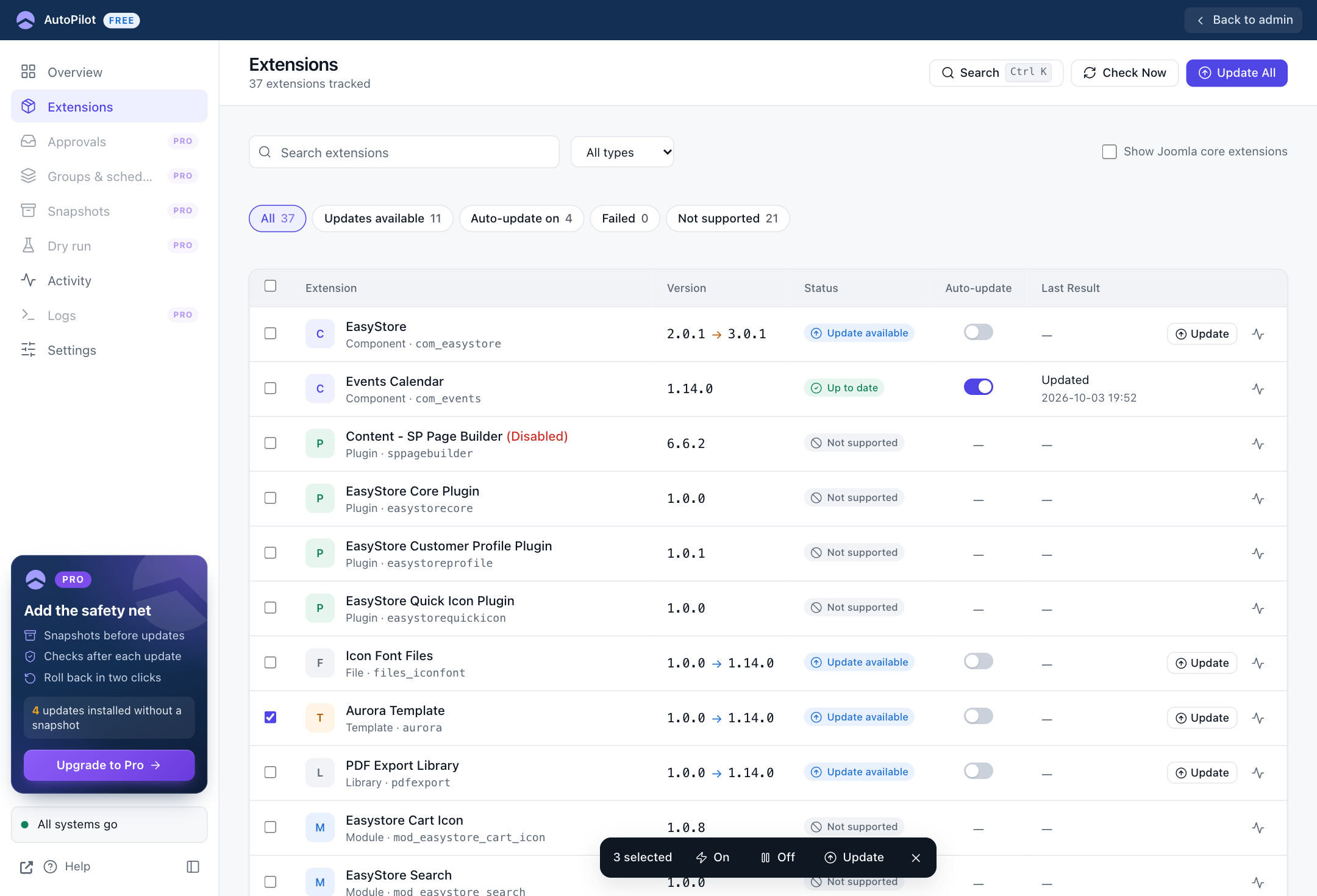
- On / Off turns auto-update on or off for all selected extensions.
- Update installs the available updates of the selected extensions now.
- × clears the selection.
The box in the table header selects all rows that are shown. Combine it with a filter: for example, choose the type "Plugin", tick the header box, and click On. Rows hidden by the filters are not selected.