Overview
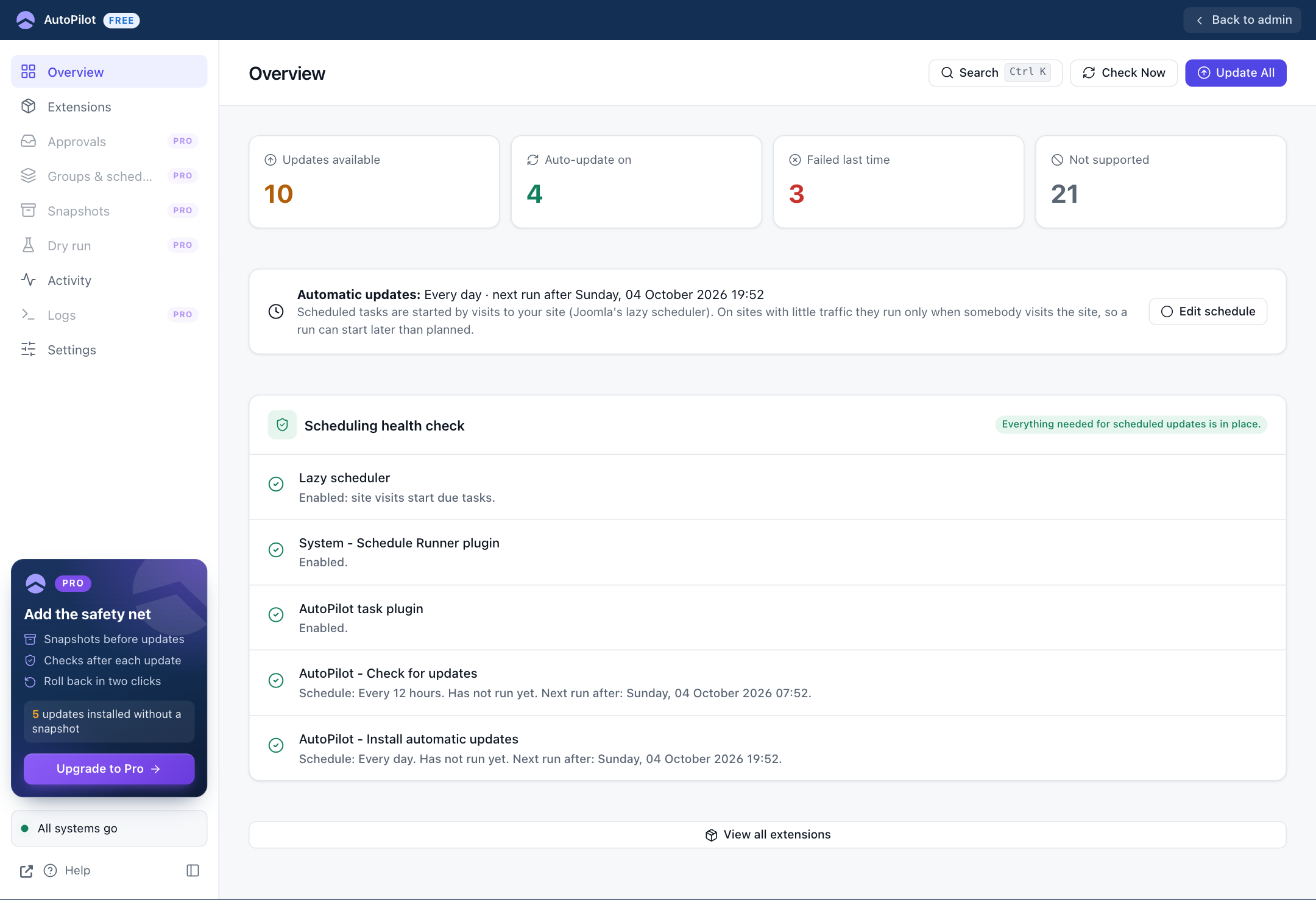
Sidebar → Overview. Your starting point. Each counter is a link: click it to open the Extensions list with the matching quick filter selected.
Sidebar → Overview. Your starting point.
The four counters
Each counter is a link: click it to open the Extensions list with the matching quick filter selected.
- Updates available: extensions with a newer version on their update server.
- Auto-update on: extensions that are updated automatically.
- Failed last time: extensions whose most recent update attempt failed.
- Not supported: extensions without a standard update server. AutoPilot cannot update these.
Automatic updates
This line tells you when the next automatic update run is due, for example "Every day · next run after Saturday, 03 October 2026 20:34". Edit schedule opens the task in Joomla's Scheduled Tasks, where you can change the time or the interval.
The note below it is a reminder: with the Lazy Scheduler, a run starts with the next visit after that time, not exactly at it. Without a visit there is no run. See The Lazy Scheduler needs visitors.
Scheduling health check
Five checks, each with a green mark when it is fine:
| Check | What it verifies |
|---|---|
| Lazy scheduler | Joomla starts due tasks on site visits. |
| System - Schedule Runner plugin | Joomla's plugin that runs scheduled tasks is enabled. |
| AutoPilot task plugin | AutoPilot's task plugin is enabled. |
| AutoPilot - Check for updates | The task exists and is enabled. Shows its schedule, last run and next run. |
| AutoPilot - Install automatic updates | The same, for the task that installs the updates. |
A task check also warns when the task's last run ended with an error, when it is more than a day overdue, or when it has been locked for more than 15 minutes. While an update run is active, an Update run line shows its progress. If a manual run stopped before it finished, that line offers Release lock.
View all extensions at the bottom opens the Extensions screen.
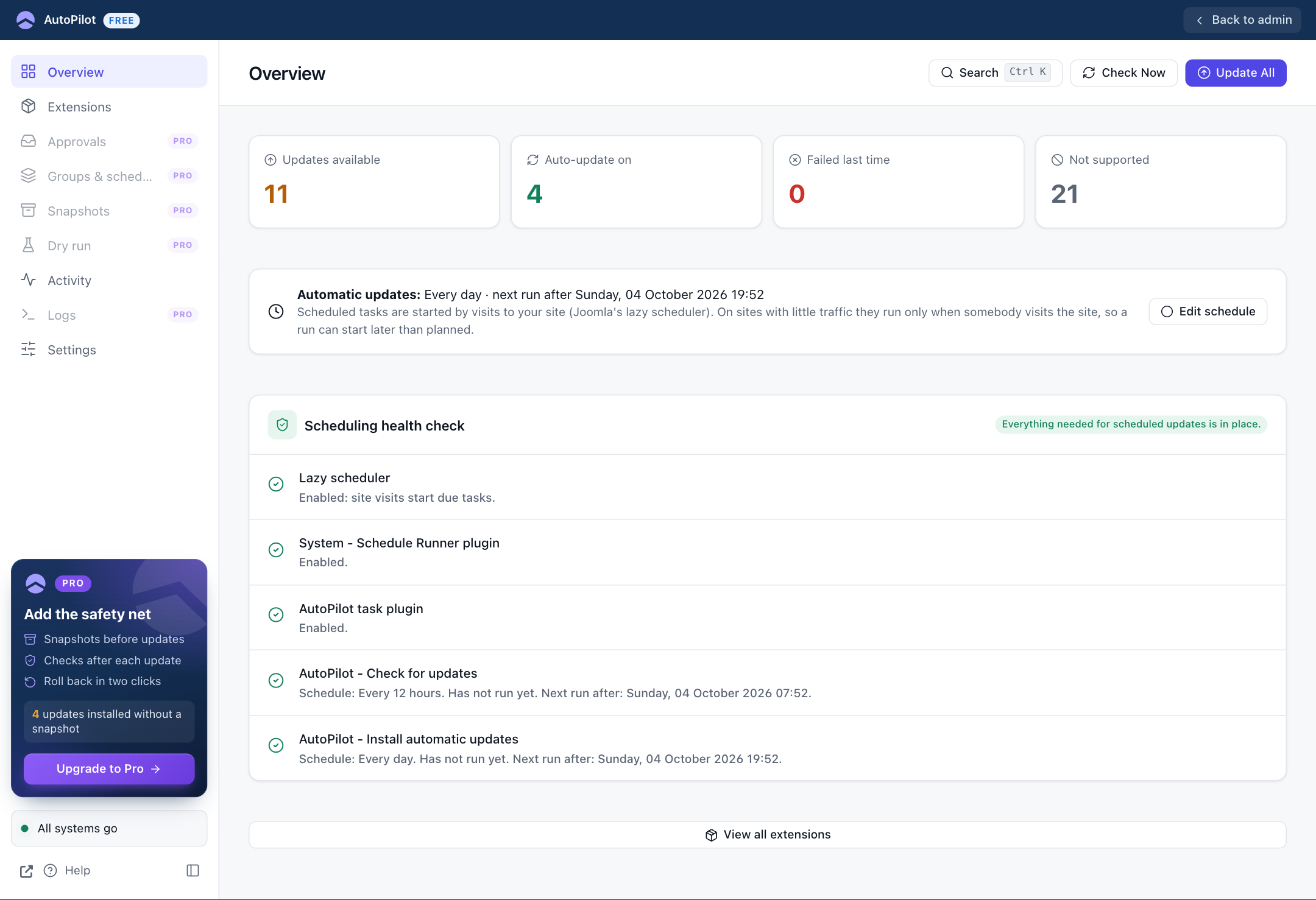
After a few updates the counters show the results: