

Setting up Scheduled Tasks
AutoPilot uses Joomla's own Scheduled Tasks. Four things must be in place.
AutoPilot uses Joomla's own Scheduled Tasks. Four things must be in place. The installer sets them up, and AutoPilot keeps checking them:
| What | Where to check it in Joomla |
|---|---|
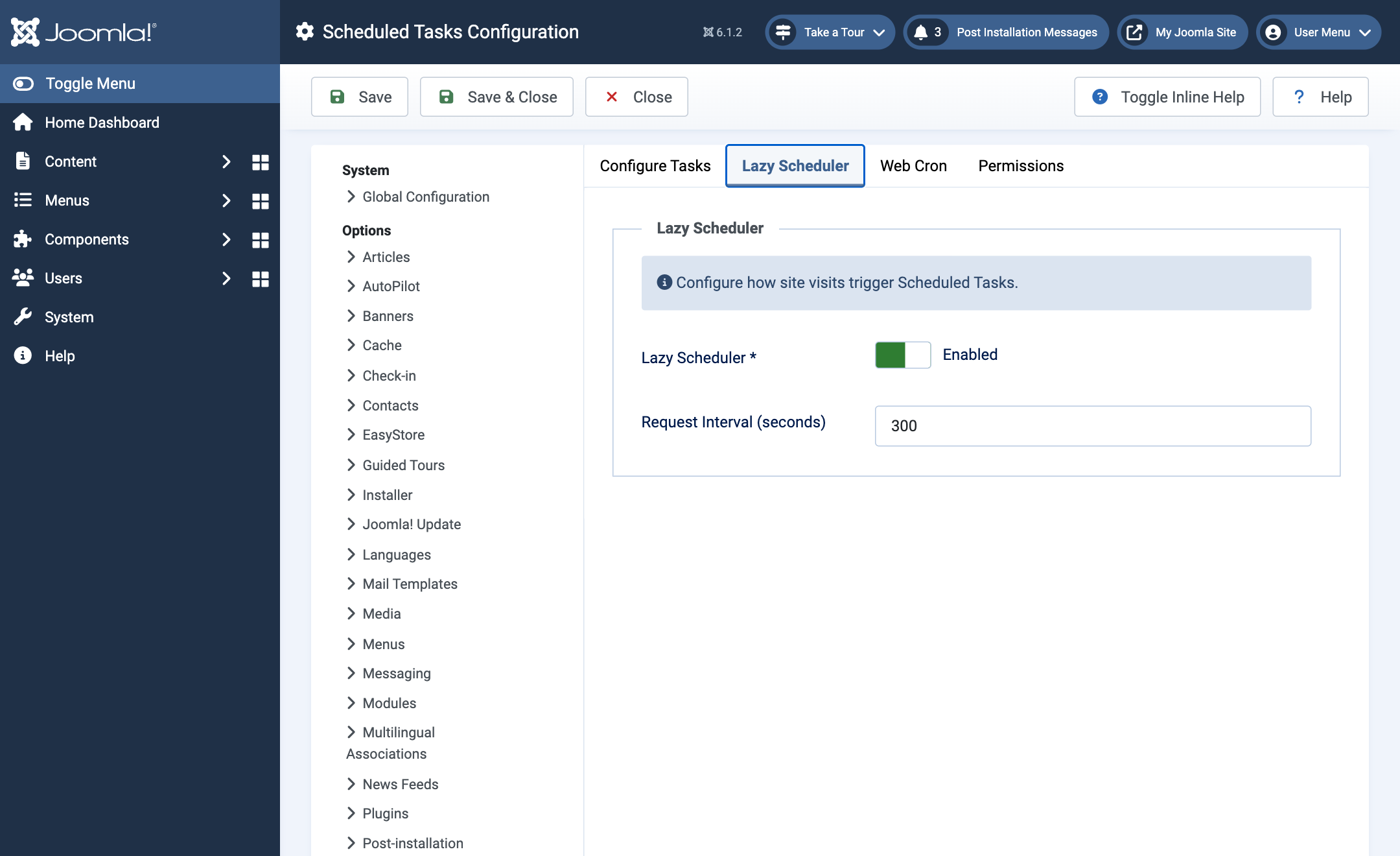
| Lazy Scheduler is enabled (also when you use a cron job, see below) | System → Scheduled Tasks → Options → Lazy Scheduler |
| The System - Schedule Runner plugin is enabled | System → Plugins, search for "Schedule Runner" |
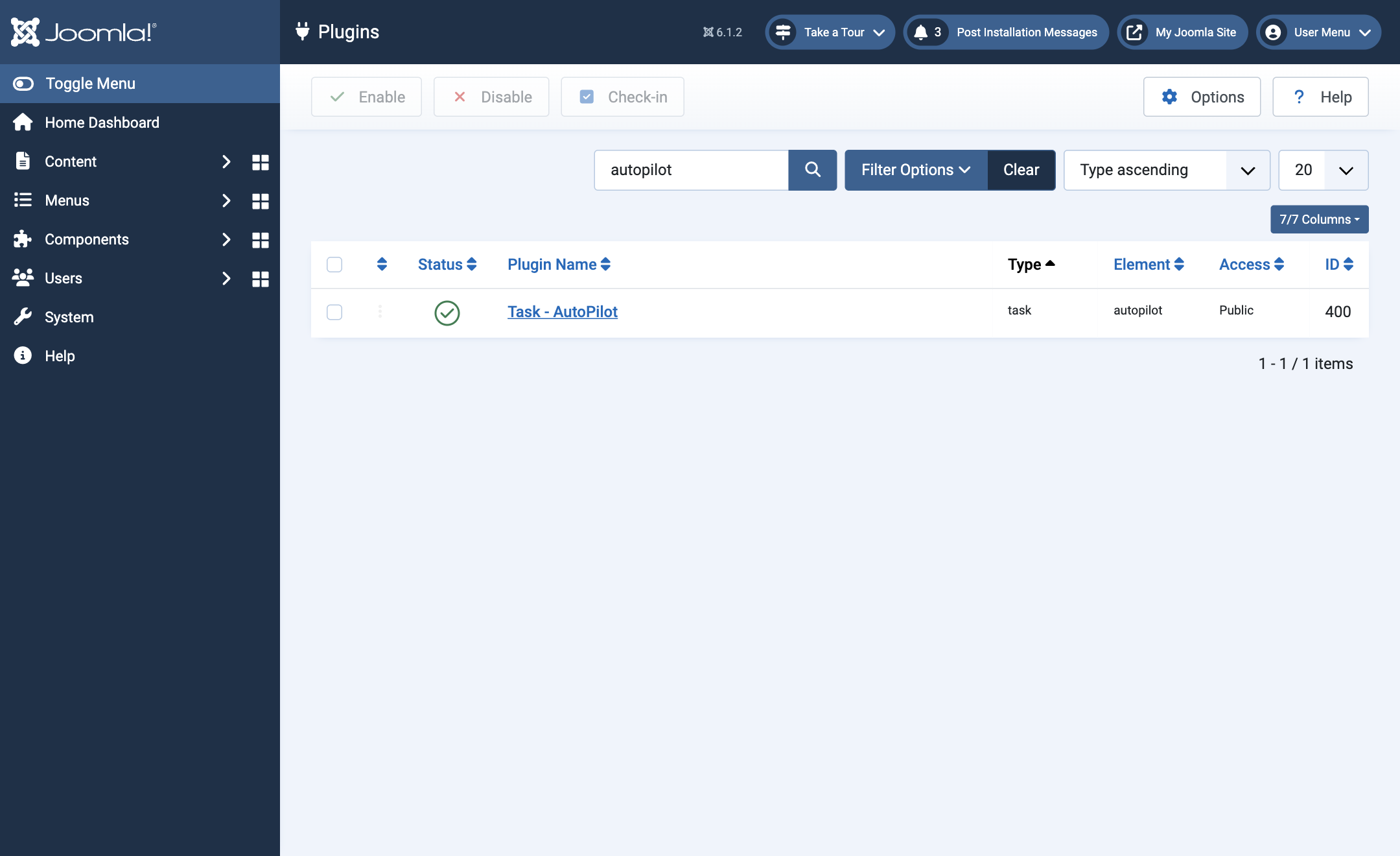
| The Task - AutoPilot plugin is enabled | System → Plugins, search for "AutoPilot" |
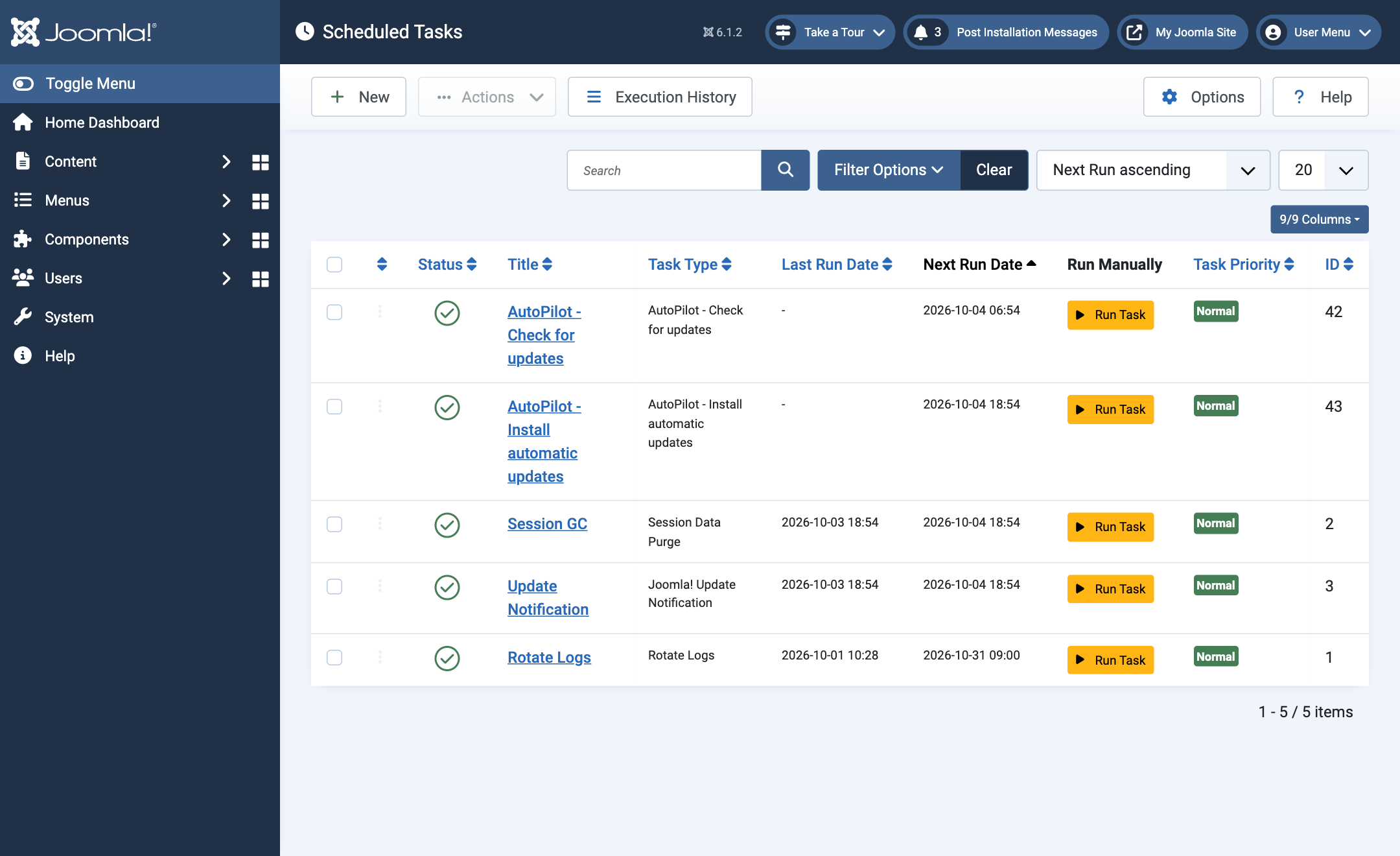
| AutoPilot's two scheduled tasks exist and are enabled | System → Scheduled Tasks |
When one of these is missing or switched off, a red panel appears at the top of the Overview:
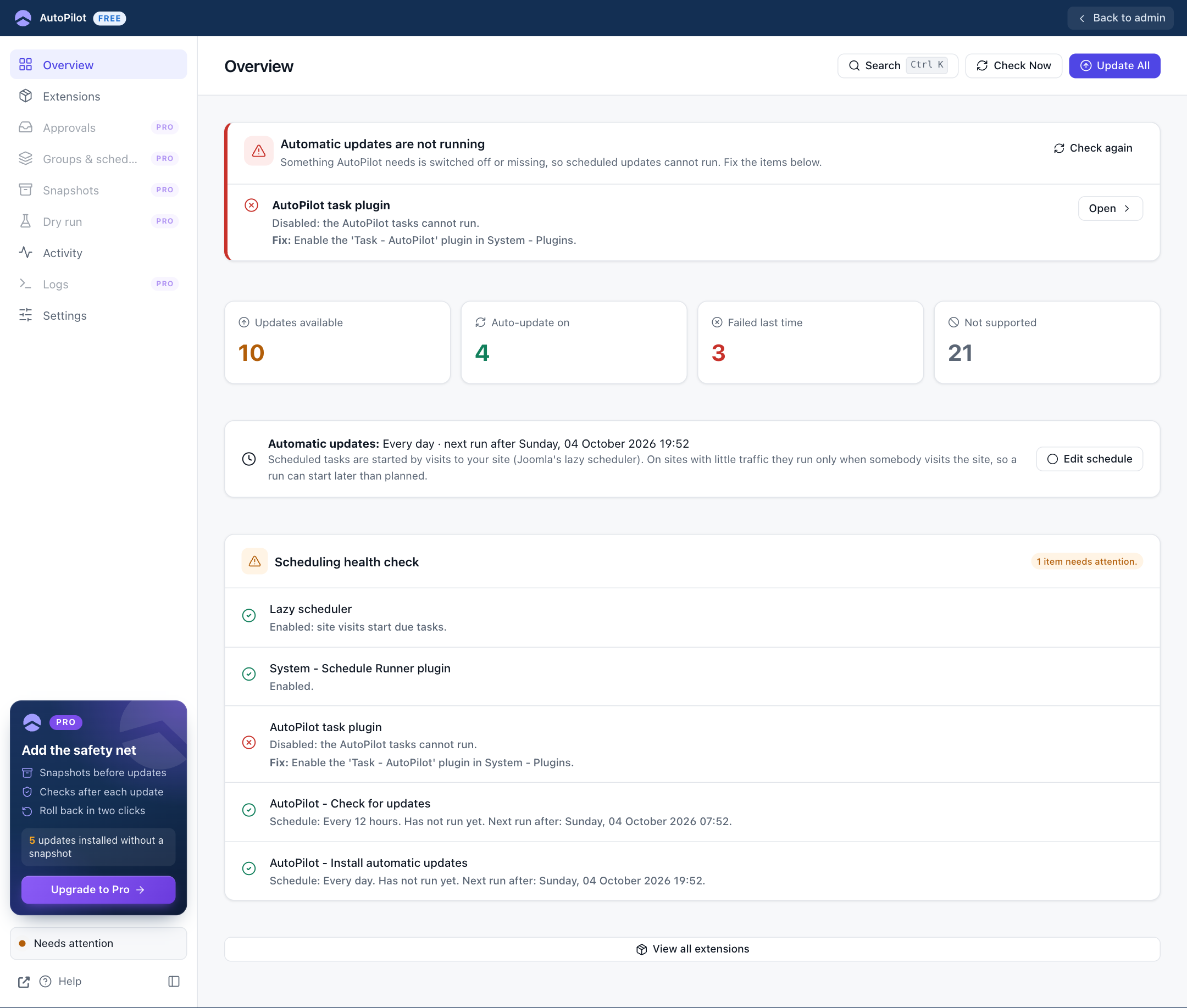
- Automatic updates are not running is the panel's title.
- Each problem is listed with what it means and the Fix.
- Open takes you straight to the right Joomla screen.
- When a task is missing completely, the panel offers Create missing tasks, which recreates it.
- Check again re-runs the checks after you fixed something.
The sidebar's status at the bottom changes from All systems go to Needs attention at the same time.
The Joomla screens involved
The AutoPilot task plugin, under System → Plugins:
AutoPilot's two tasks, under System → Scheduled Tasks. Here you can also change how often they run:
The Lazy Scheduler setting, under System → Scheduled Tasks → Options:
The Lazy Scheduler needs visitors
Out of the box, Joomla starts scheduled tasks with its Lazy Scheduler: when somebody opens a page of your site, a small script in that page asks Joomla to start a task that is due. No visit, no run.
- What counts as a visit: a page opened in a normal browser, on the public site or in the administrator. Search engine robots and uptime monitors usually do not count, because they do not run the script.
- What happens without visits: nothing is lost, but everything is late. A task that was due at 02:00 starts when the first visitor arrives, perhaps at 08:30.
- A large batch takes longer. A run works in short steps, and each step has to be started by a visit.
A busy site never notices any of this. Set up a cron job, as described below, if your site:
- has few visitors, or none at night or at weekends;
- should update at a fixed time, for example at night;
- is a staging site or an intranet that few people open.
A cron job starts the tasks on time, whether anybody visits or not. Joomla offers two kinds: Web Cron, which works on every hosting package, and a command line cron job, which needs shell access.
Setting up Web Cron
Web Cron gives your site a private link. Each time the link is requested, Joomla starts one task that is due. You then let your hosting account, or a cron service, request the link every five minutes.
1. Open the scheduler's options. Go to System → Scheduled Tasks and click Options at the top right. The button is in the screenshot of Scheduled Tasks above.
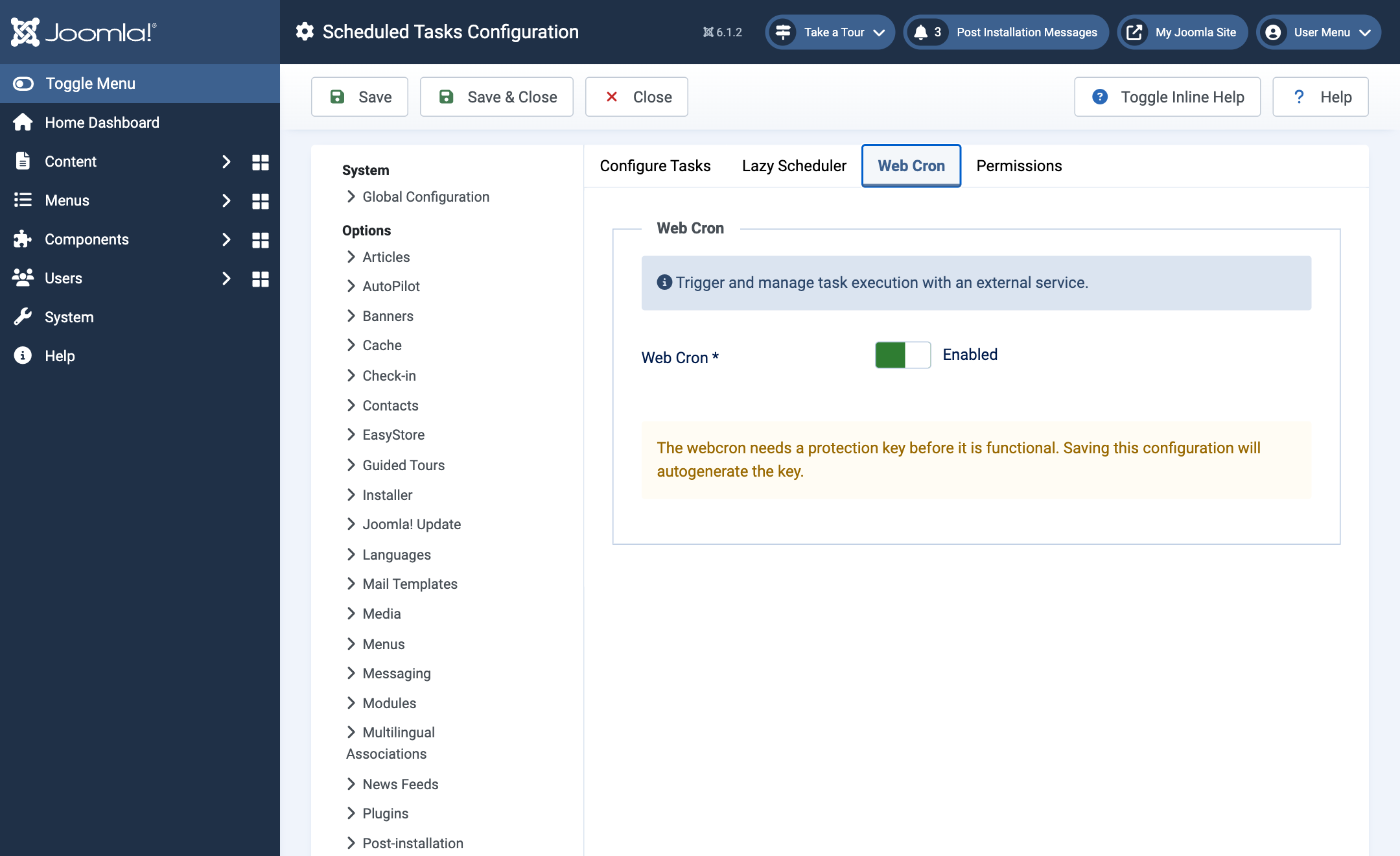
2. Switch Web Cron on. Open the Web Cron tab and set Web Cron to Enabled. The yellow note says that Joomla creates the protection key when you save.
3. Save and copy the link. Click Save, not Save & Close, so that you stay on the page. Open the Web Cron tab again if Joomla shows another one. It now has the field Webcron Link (Base). Click Copy.
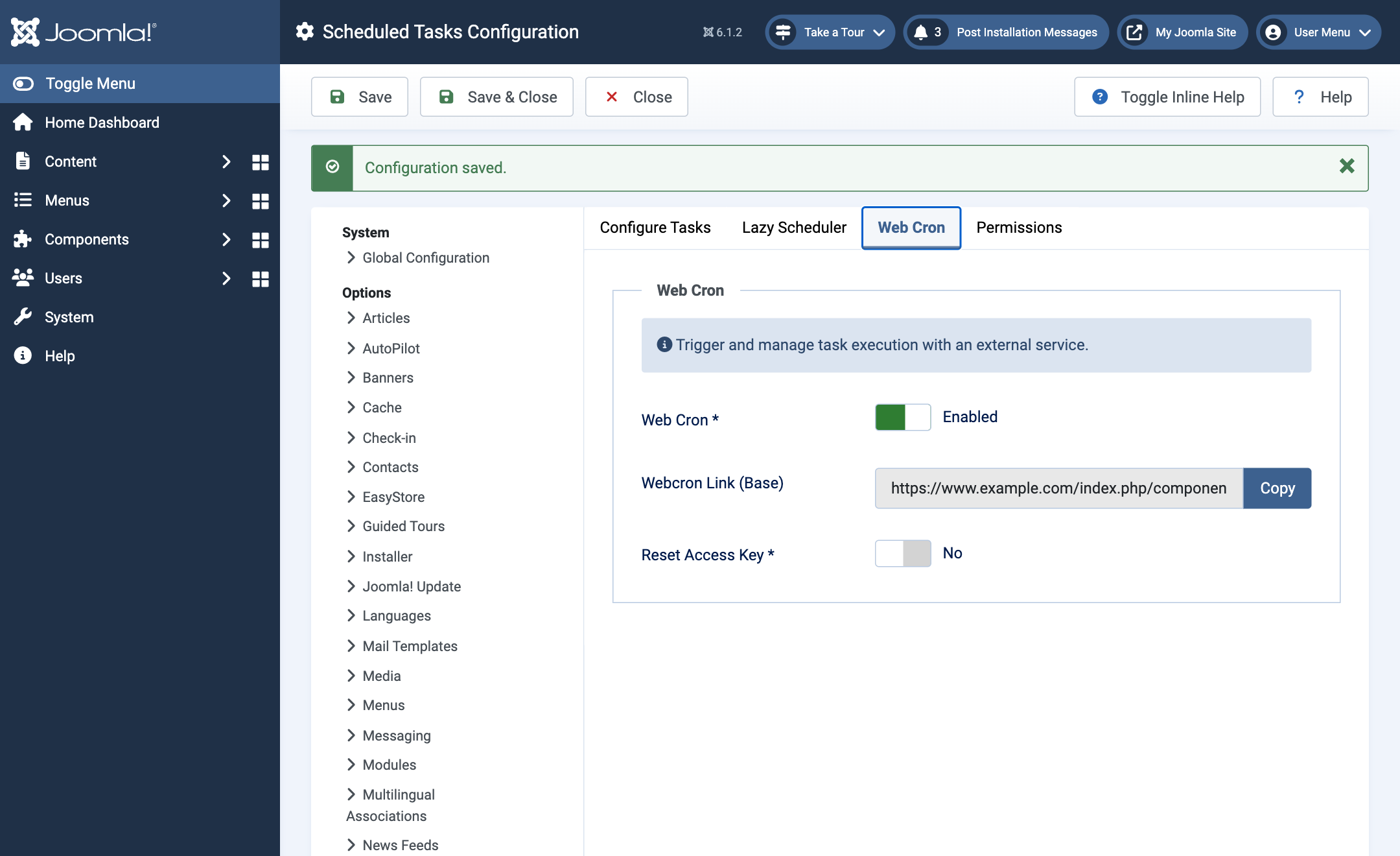
The link ends with the key. It looks like this:
https://www.example.com/index.php/component/ajax/?plugin=RunSchedulerWebcron&group=system&format=json&hash=Xk7pQ2mVw9RtLc4HsB8nAlways copy it from the field: its exact form depends on your site's address settings. Treat it like a password, because whoever knows it can start your scheduled tasks.
4. Test the link. Paste it into a new browser tab. The answer is one line of text:
| Answer | Meaning |
|---|---|
{"success":true, ...} |
The link works. |
{"success":false,"message":"You don't have permission to access this. ..."} |
The key is wrong, or Web Cron is not enabled. Copy the link again and check that you saved. |
5. Have the link requested every five minutes. Use your hosting control panel or a web cron service, whichever you have. These screens belong to your host or to the service and look different everywhere, so they are not shown here.
In your hosting control panel, look for Cron Jobs (cPanel) or Scheduled Tasks (Plesk). Create a job that runs every five minutes with this command, with your own link between the quotes:
curl -s "https://www.example.com/...your link..." > /dev/null 2>&1Written in the five time fields of a cron job, "every five minutes" is */5 * * * *. If your host has no curl, use wget -q -O /dev/null "...your link...". Keep the quotes: the link contains & characters.
With a web cron service, enter the link and an interval of five minutes. Any service that requests an address on a schedule will do.
6. Check that it works. Open System → Scheduled Tasks and note the Next Run Date of the AutoPilot task that is due next. Come back after that time: its Last Run Date must show the new run, within about five minutes of the planned time, without anybody having visited the site. The Scheduling health check on the Overview shows the same dates.
Good to know:
- Why every five minutes? One request starts one due task, and AutoPilot has two tasks, next to Joomla's own. A long update run is also continued by each request. A request that finds nothing due does nothing.
- Leave the Lazy Scheduler enabled. It does no harm next to a cron job, because Joomla never runs the same task twice at the same time, and it is a fallback if the cron job ever stops. AutoPilot's health check also expects it: with the Lazy Scheduler switched off, the Overview says "Automatic updates are not running", even when a cron job is doing the work.
- A new key. If the link got into the wrong hands, set Reset Access Key to Yes and save. Joomla then creates a new link. Put it into your cron job.
Or: a cron job on the command line
With shell access to the server you do not need the link. Add this line to the crontab of the user your site runs as:
*/5 * * * * php /path/to/your/site/cli/joomla.php scheduler:run --no-interactionIt does the same as Web Cron: every five minutes it starts one task that is due. Leave the Lazy Scheduler enabled here too.