

Email Notifications
AutoPilot Pro sends five kinds of email. Every email names the site it comes from: in the subject, in the sender name and in the header.
AutoPilot Pro sends five kinds of email. Every email names the site it comes from: in the subject, in the sender name and in the header. If you look after several sites, you see at once which one is writing.
- Subject:
[My Joomla Site (www.example.com)] Update of Events Calendar Module failed - Sender name:
My Joomla Site · AutoPilot Pro
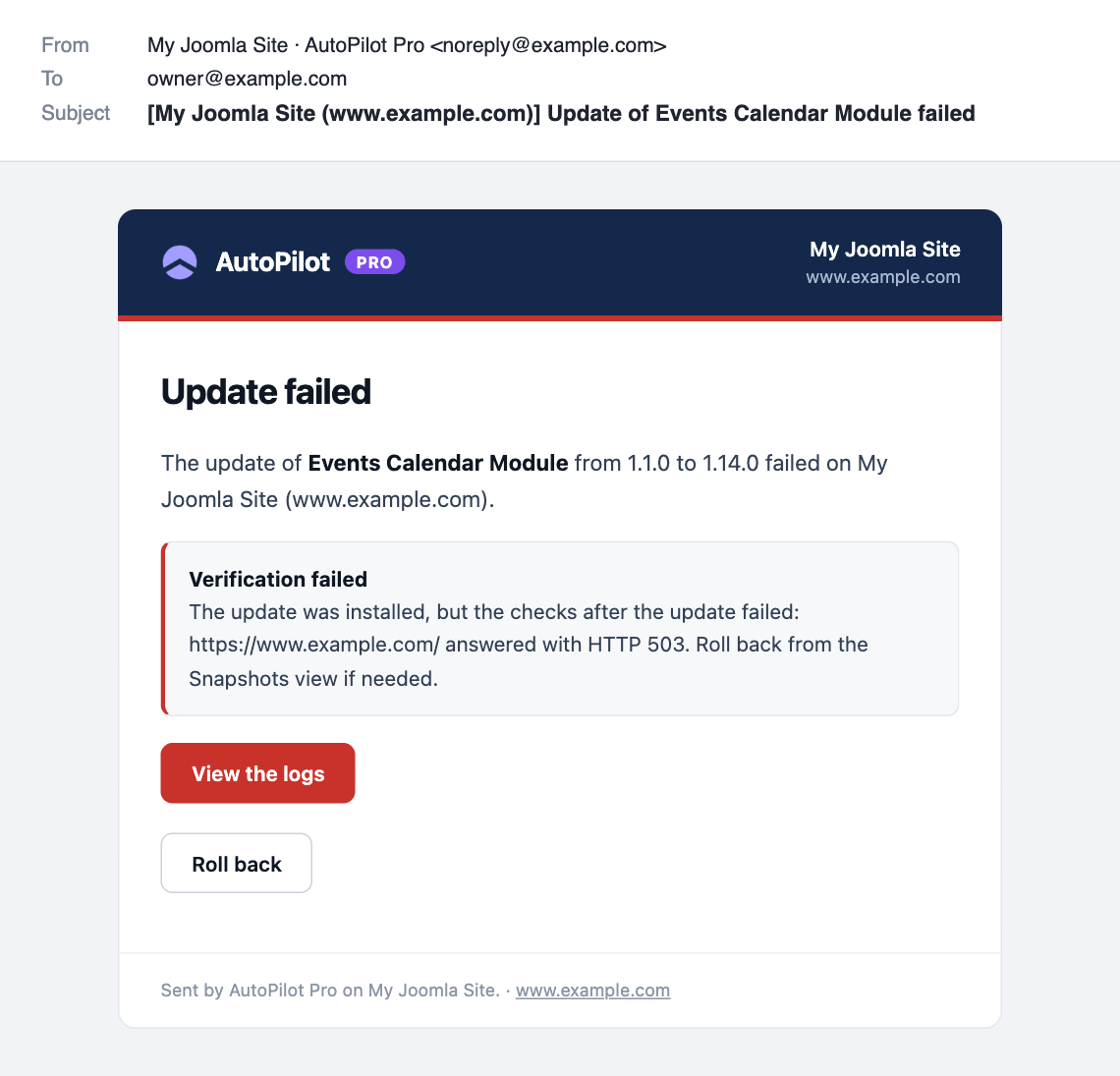
Update failed
Sent at once when an update fails, including when a check after the update fails. It names the extension, the versions and the reason. View the logs opens the log of that run. Roll back opens the rollback screen for the snapshot, when one was taken.
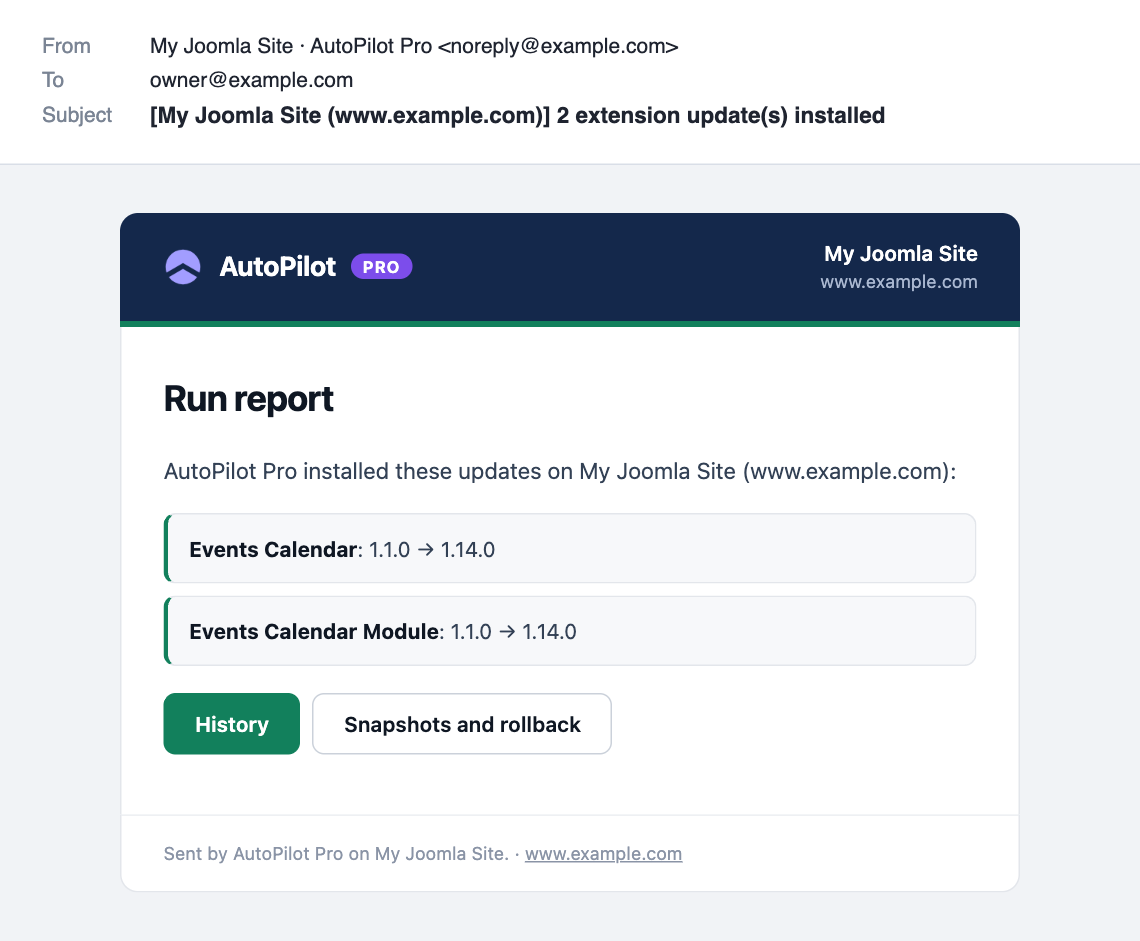
Run report
Sent after a run that installed at least one update. It lists what was installed and what failed.
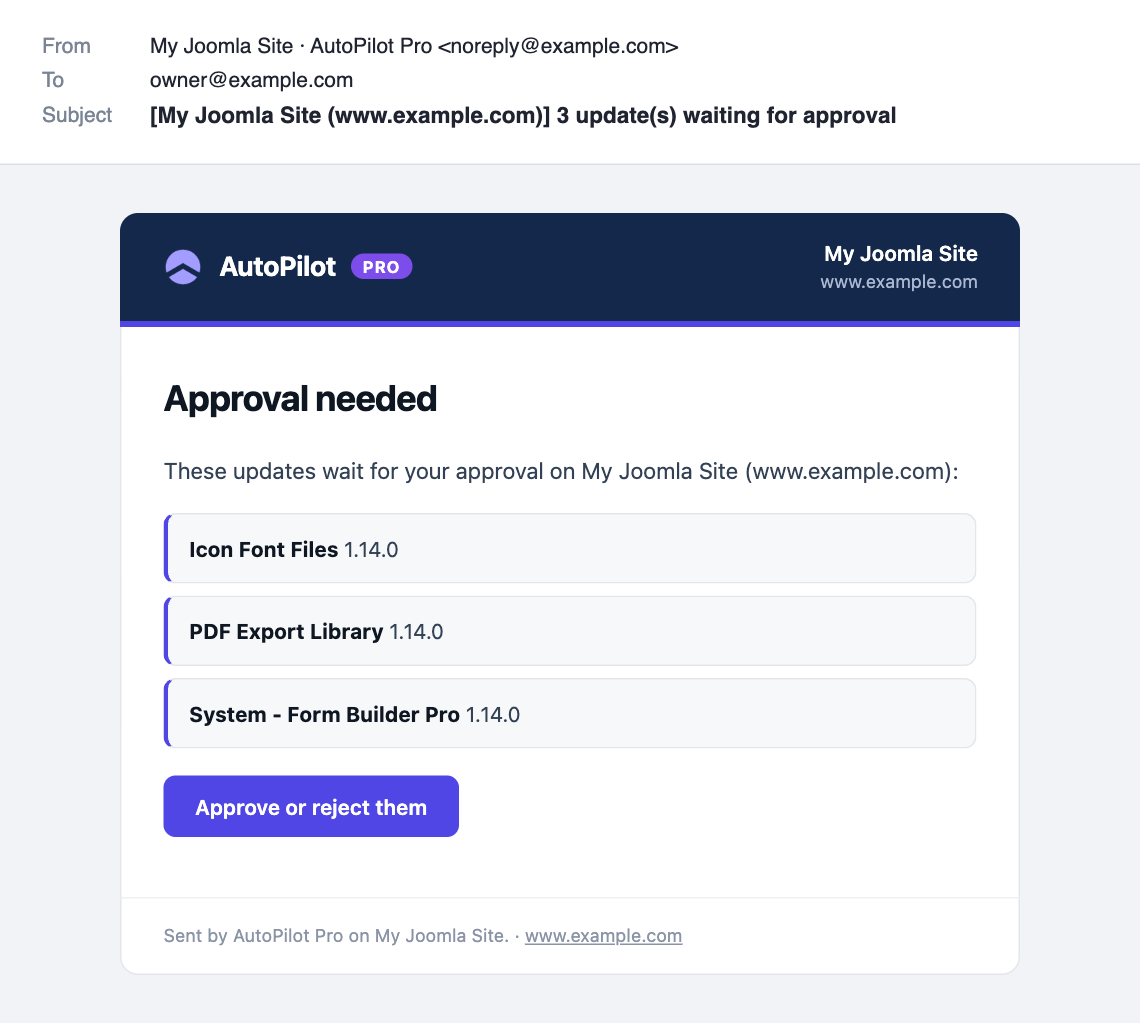
Approval needed
Sent when new updates are waiting for approval, with a button to the Approvals screen.
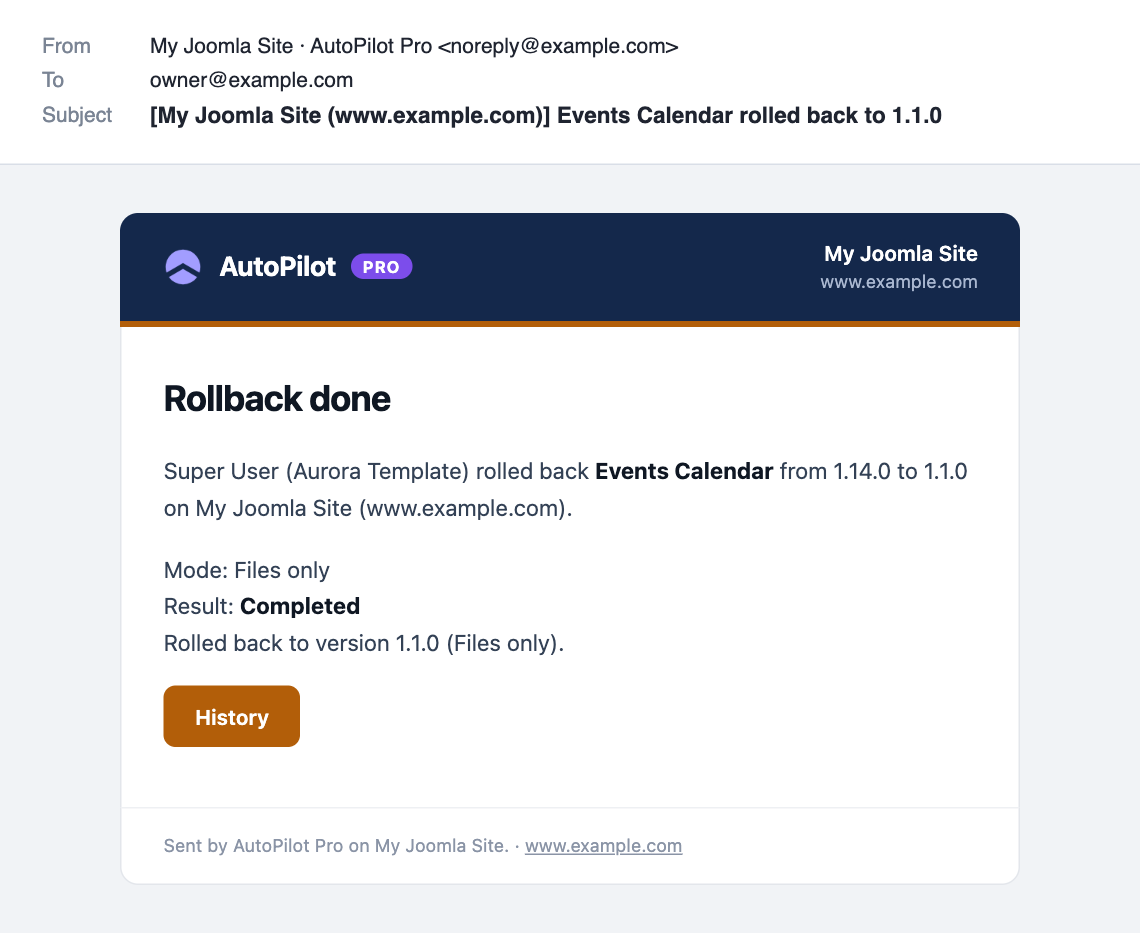
Rollback done
Sent after a snapshot was restored: which extension, from which version to which, in which mode, and by whom.
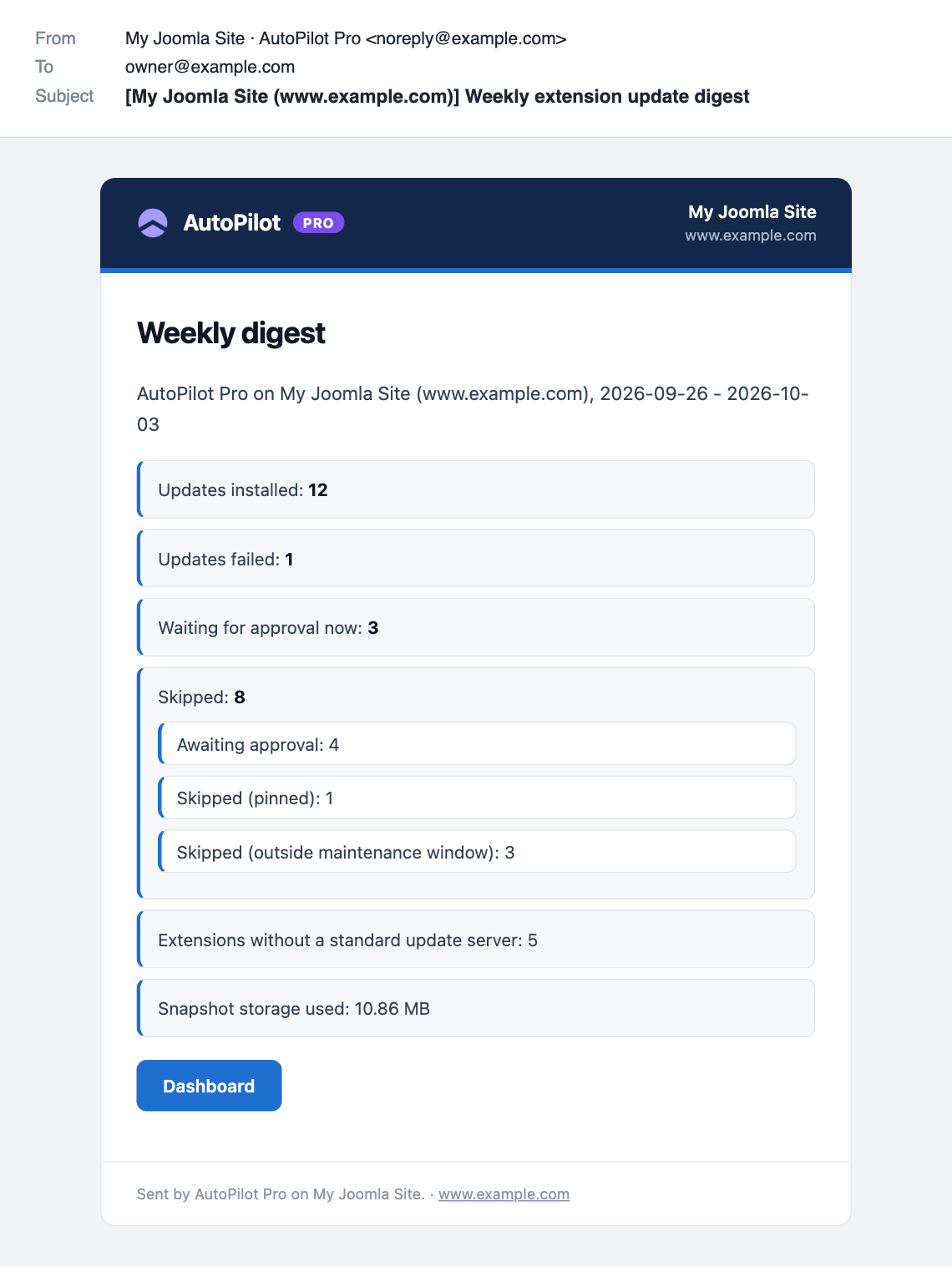
Weekly digest
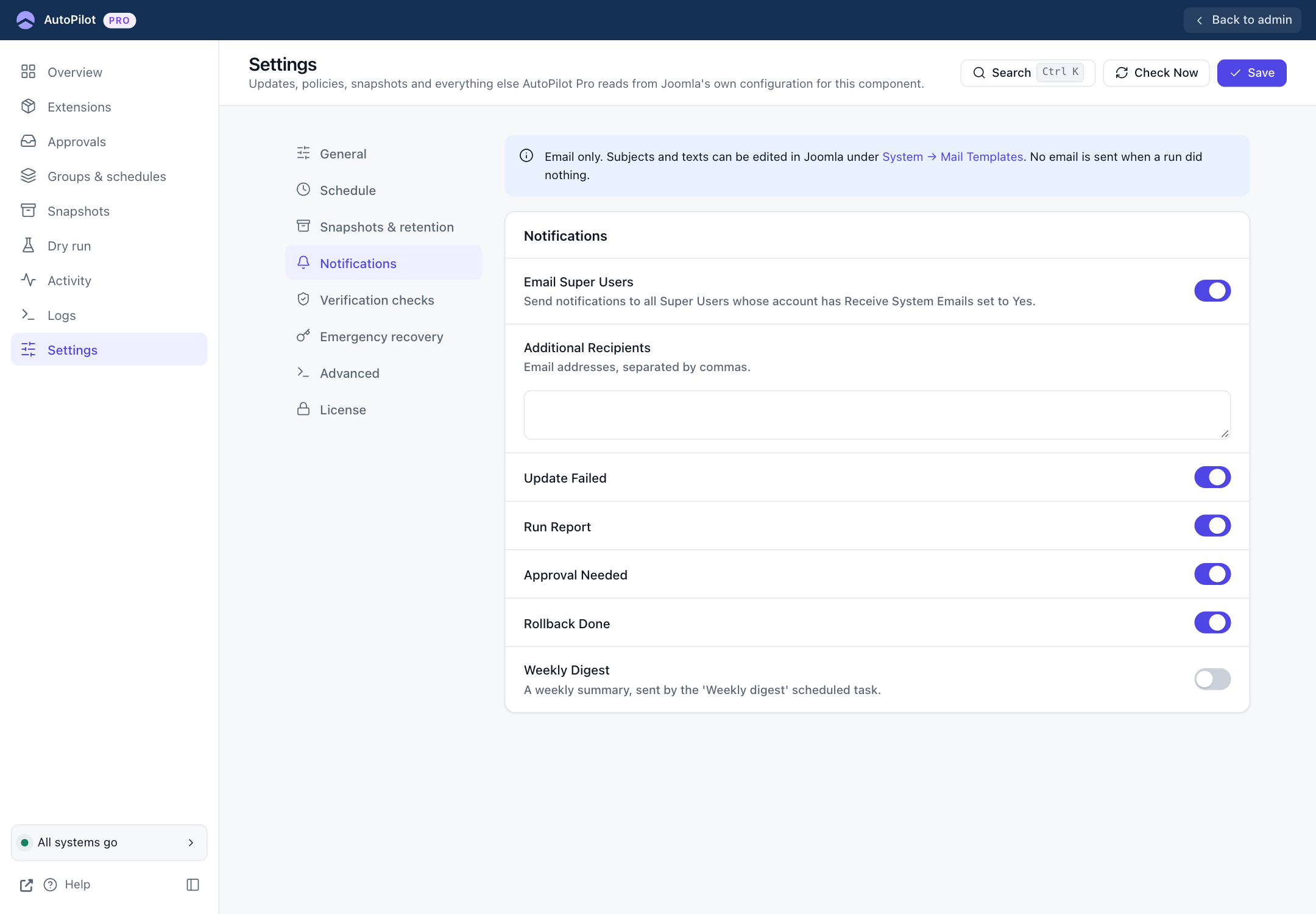
A summary of the past seven days: updates installed and failed, updates waiting for approval, what was skipped and why, extensions without an update server, and snapshot storage. It is off by default; turn it on under Settings → Notifications.
Who receives the emails
- every Super User with Receive System Emails set to Yes in their user account, when Email Super Users is on
- every address under Additional Recipients
The emails are sent through your site's normal mail settings (System → Global Configuration → Server → Mail). If other Joomla emails arrive, these will too.
Language of the emails
Each Super User receives the email in their own backend language, when it is one of AutoPilot's five languages. Otherwise, and for the additional recipients, the site's default administrator language is used, or English if AutoPilot does not have that one either. A German and an English administrator on the same site each get the email in their language.
Changing the texts
You can change the subject and the text of each of the five emails. They are ordinary Joomla mail templates, so you edit them on Joomla's Mail Templates screen. That is a screen in the Joomla administrator, not a plugin.
Two things to know before you start:
- Every AutoPilot email carries its text twice: a plain text version and a designed version (HTML). Mail programs show the designed one. Joomla lets you edit it only after one option is changed (step 2).
- Follow the steps in this order. Editing first and changing the option afterwards causes the problem described under "The HTML Body shows a code" below.
1. Open Mail Templates. In AutoPilot, go to Settings → Notifications and click System → Mail Templates in the note at the top. The link opens the list with AutoPilot's emails already selected.
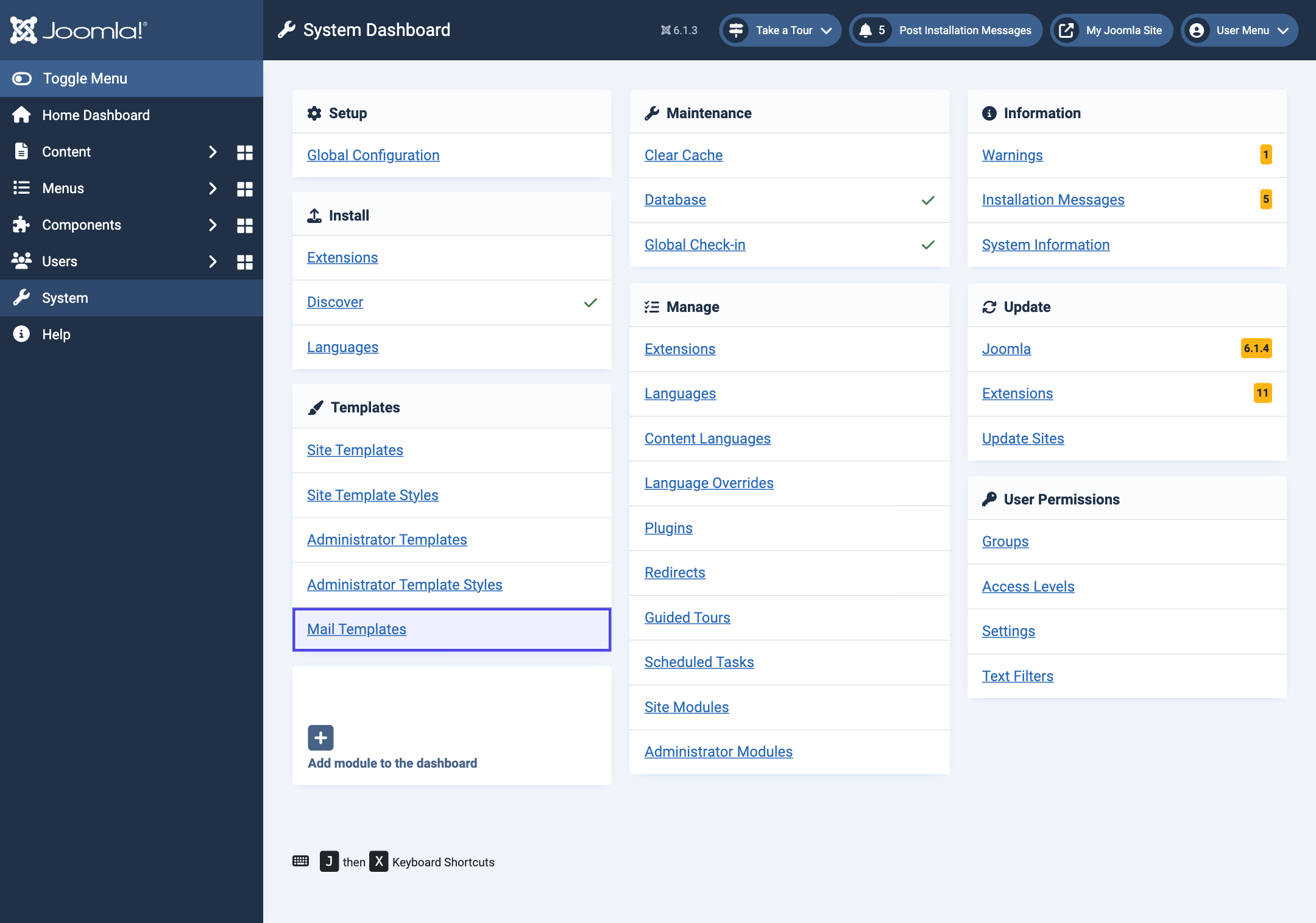
Without the link: in the Joomla administrator, click System in the left menu, then Mail Templates in the Templates box.
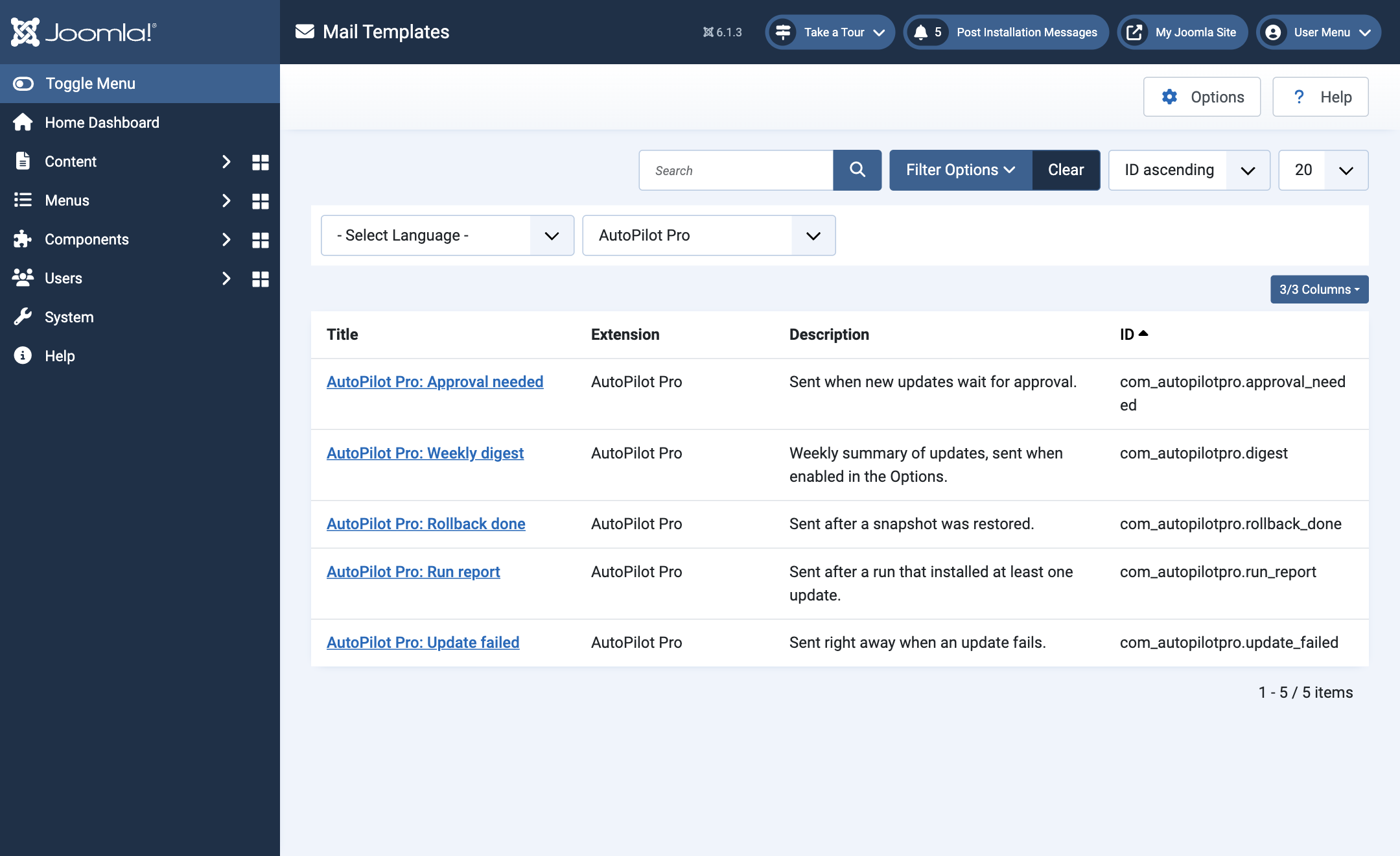
Choose AutoPilot Pro in the extension filter to see only AutoPilot's five emails. Click Filter Options if the filter is not shown.
2. Make the designed text editable. Click Options at the top right. Set Mail Format to Both and click Save & Close.
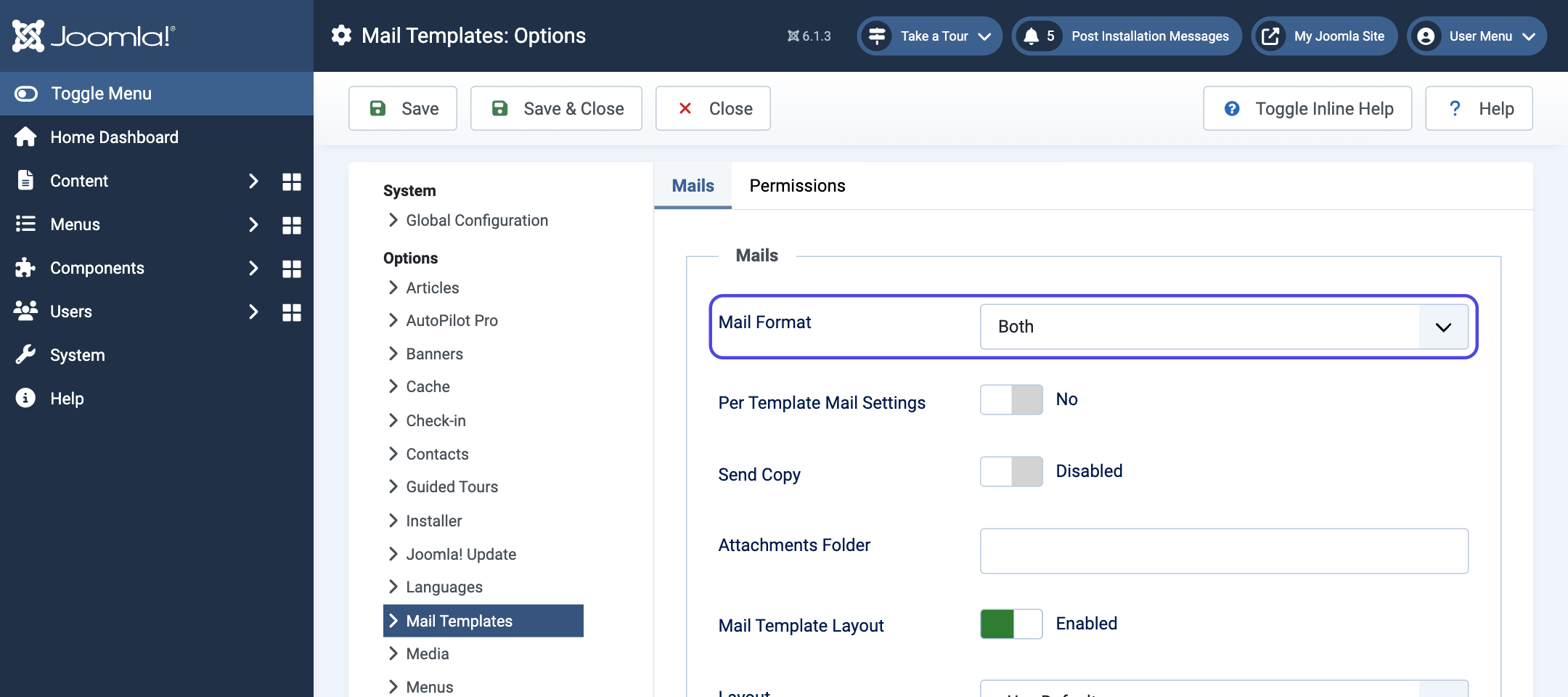
This option belongs to the whole site, not to AutoPilot. With Both, Joomla's own emails (password reset, new user and so on) are also sent with an HTML version, in Joomla's standard layout. If you do not want that, leave the option on Plaintext. You can then change the subject and the plain text version only, and most mail programs keep showing AutoPilot's standard designed text.
3. Open the email you want to change. Click its title, for example AutoPilot Pro: Update failed. On a site with several languages there is one version per language. Change each language your administrators use; see Language of the emails.
4. Change the texts.
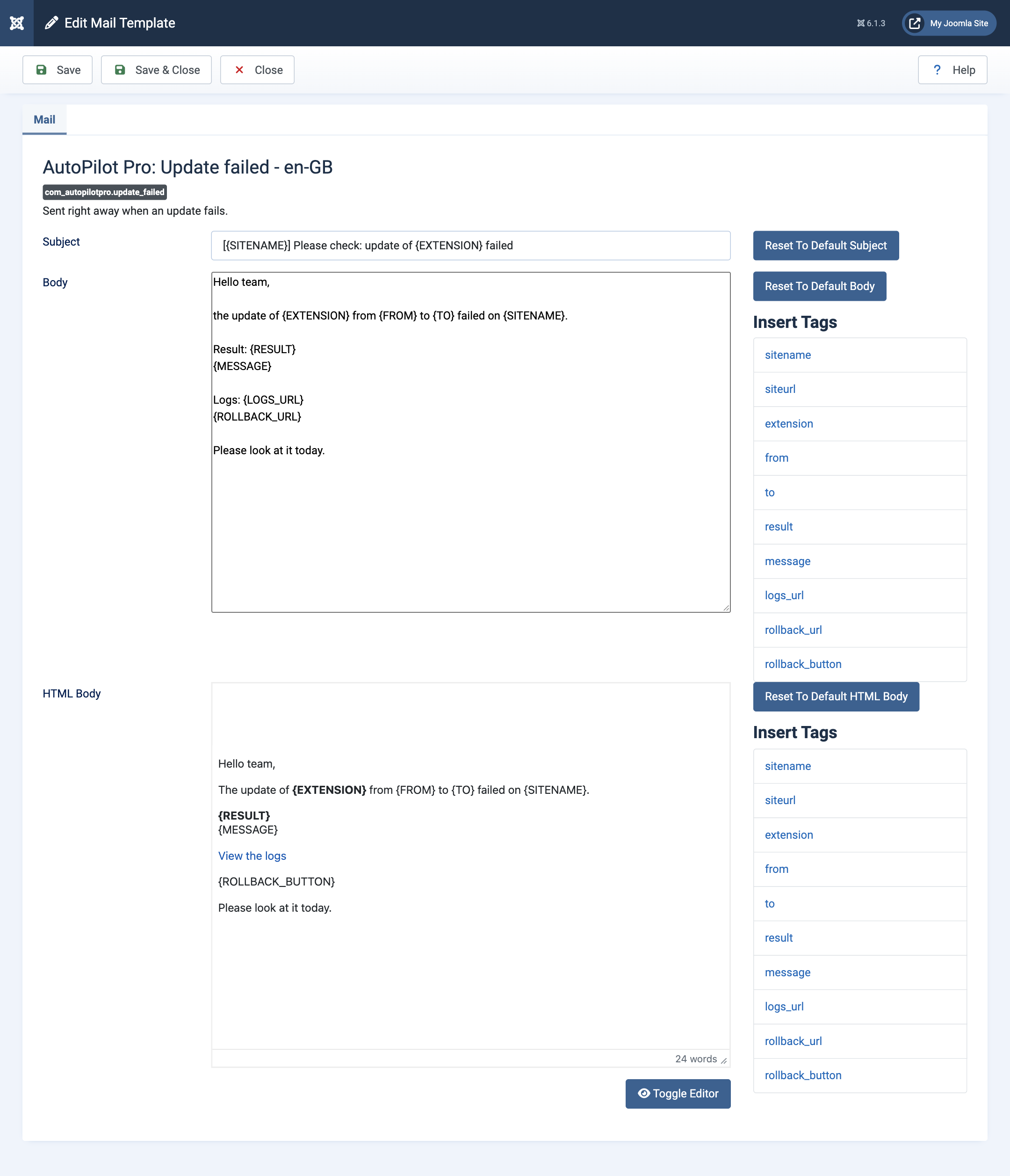
| Field | What it is |
|---|---|
| Subject | The subject line, for both versions. |
| Body | The plain text version. Few mail programs show it, but keep it in step with the other one. |
| HTML Body | The designed version, which is what people see. Only there when Mail Format is Both or HTML. |
The Insert Tags list next to each field shows the placeholders this email knows. Click one to insert it at the cursor. Placeholders are words in curly brackets, such as {SITENAME} or {EXTENSION}; AutoPilot fills them in when the email is sent.
A few rules keep the design working in the HTML Body:
- Do not change the spelling of a placeholder, and do not translate it.
- Leave the links in a paragraph of their own. A paragraph that contains nothing but links is turned into buttons; the first one becomes the coloured button.
{ROLLBACK_BUTTON}is the Roll back button. It leaves itself out when there is no snapshot.- A paragraph that starts with bold text followed by a line break becomes the highlighted box (the result and its message in the picture below).
- In the run report and the approval email, the line between
{UPDATES}and{/UPDATES}is repeated for every update. Keep both markers. The weekly digest does the same with{REASONS}and{/REASONS}. - The header with the logo and the site name, the headline and the footer are added by AutoPilot. They are not part of the template.
5. Save. Click Save & Close. The next email of this kind uses your text. In the example above, a greeting and a closing sentence were added and the subject was changed. This is the email that arrived:
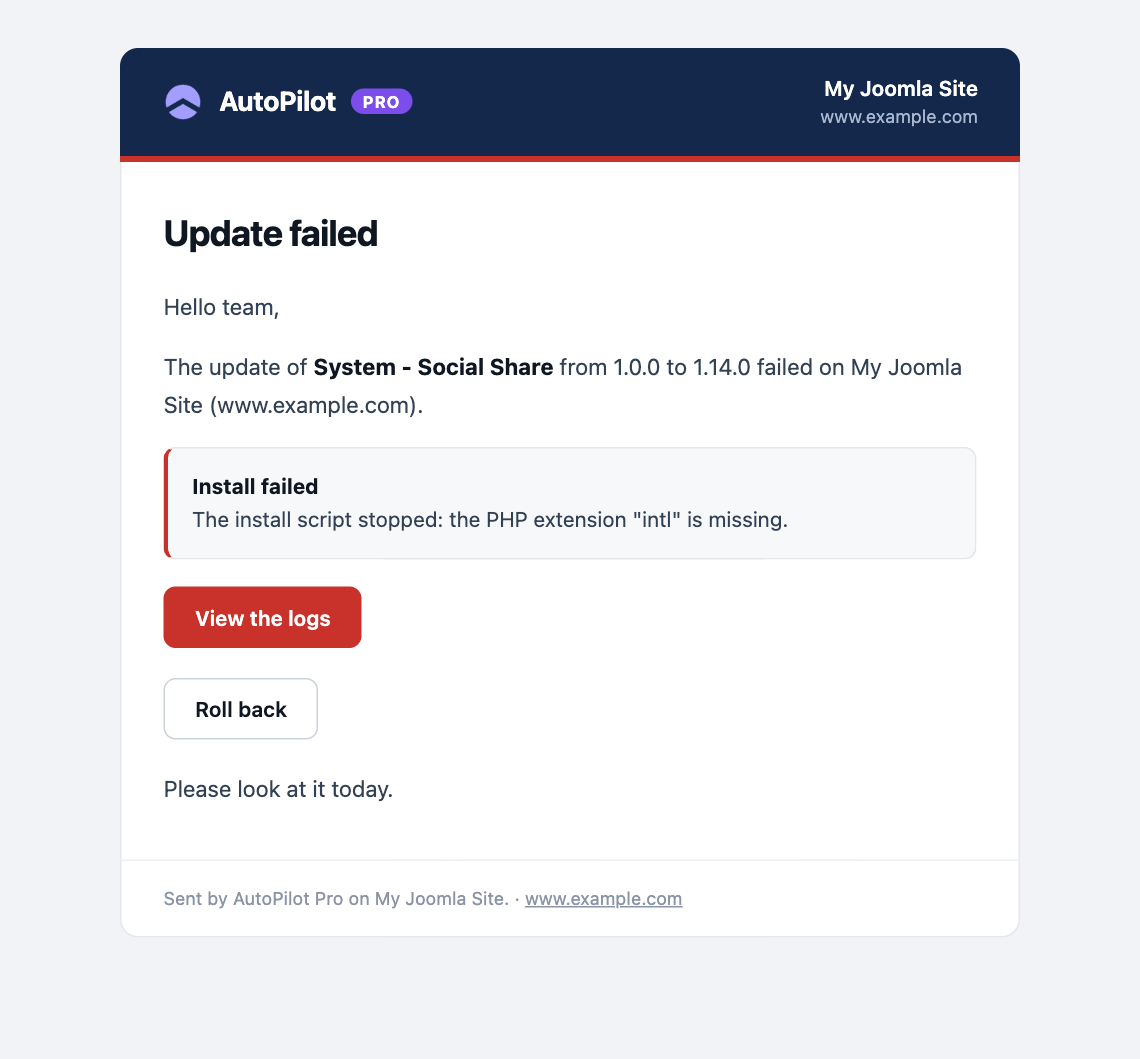
To go back to the standard text, open the template again, click Reset To Default Subject, Reset To Default Body or Reset To Default HTML Body, and save.
Good to know:
- Your texts stay when AutoPilot Pro is updated.
- "I changed the text, but the email looks the same." You changed the Body, the plain text version. Do step 2 and change the HTML Body as well.
- The HTML Body shows a code such as
COM_AUTOPILOTPRO_MAIL_UPDATE_FAILED_HTMLBODY. This happens when a template was saved while Mail Format was still Plaintext. Click Reset To Default HTML Body first; the standard text appears and you can edit it. Do not save while the code is shown, or the email will contain the code instead of a text.
The placeholders of each email:
| Placeholders | |
|---|---|
| Update failed | {SITENAME} {SITEURL} {EXTENSION} {FROM} {TO} {RESULT} {MESSAGE} {LOGS_URL} {ROLLBACK_URL} {ROLLBACK_BUTTON} |
| Run report | {SITENAME} {SITEURL} {UPDATES}…{/UPDATES} with {NAME} {FROM} {TO} inside, {COUNT} {HISTORY_URL} {SNAPSHOTS_URL} |
| Approval needed | {SITENAME} {SITEURL} {UPDATES}…{/UPDATES} with {NAME} {VERSION} inside, {COUNT} {APPROVALS_URL} |
| Rollback done | {SITENAME} {SITEURL} {USER} {EXTENSION} {FROM} {TO} {MODE} {RESULT} {MESSAGE} {HISTORY_URL} |
| Weekly digest | {SITENAME} {SITEURL} {PERIOD} {INSTALLED} {FAILED} {PENDING} {SKIPPED} {REASONS}…{/REASONS} with {REASON} {COUNT} inside, {UNSUPPORTED} {STORAGE} {DASHBOARD_URL} |