

Installing
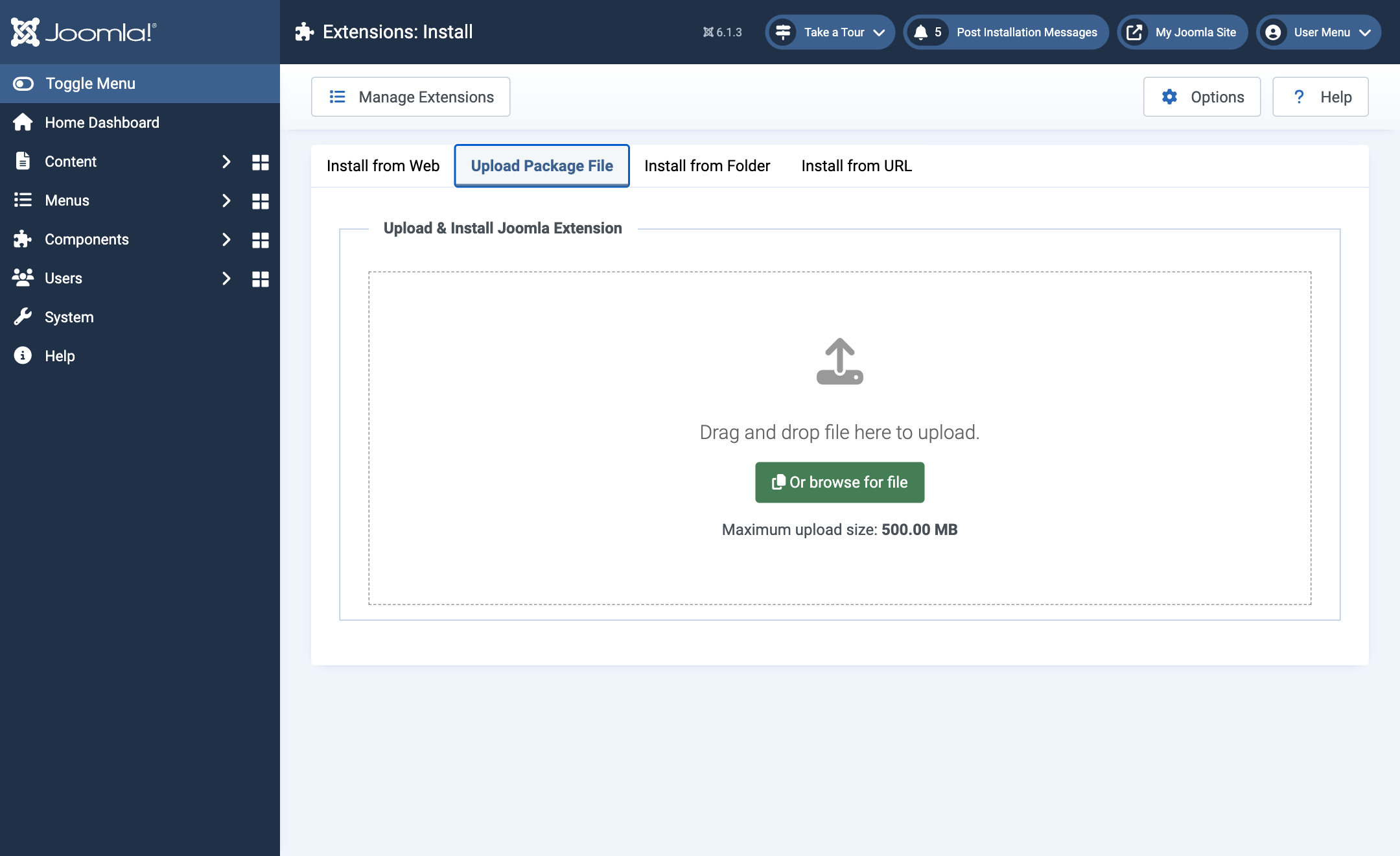
Download pkgautopilotpro-x.y.z.zip from your account at joomforge.com. In the Joomla administrator, open System → Install → Extensions.
- Download
pkg_autopilotpro-x.y.z.zipfrom your account at joomforge.com. - In the Joomla administrator, open System → Install → Extensions.
- Drag the zip file onto the upload area, or click Or browse for file.
The package installs three things together: the AutoPilot Pro component, the Task - AutoPilot Pro plugin (it runs the scheduled work) and the System - AutoPilot Pro plugin (it provides the recovery commands and moves snapshots when you change the snapshot folder).
What the installer sets up for you
You do not have to configure anything by hand before AutoPilot can run:
- Both AutoPilot plugins are enabled.
- The four scheduled tasks are created under System → Scheduled Tasks (see The scheduled tasks).
- If Joomla's own System - Schedule Runner plugin was switched off, the installer switches it on and tells you so. Joomla cannot run any scheduled task without it.
- If Joomla's Lazy Scheduler is switched off, the installer leaves it alone and shows a warning with a link to the setting. Sites that turn it off usually run a server cron job instead, so AutoPilot does not change it.
- An emergency recovery key is created and shown once in the install message.
- Auto-update is off for every extension. Nothing updates itself until you turn it on.
Copy the recovery key now. It is shown only this once. You need it to restore a snapshot when the administrator does not load. Keep it in a password manager, not on the site. If you lose it, you can create a new one under Settings → Emergency recovery. See Emergency recovery.
These automatic steps run on a new installation. When you install a newer version over an existing one, your plugins, tasks and settings are left as you had them.