

Snapshots and Rollback
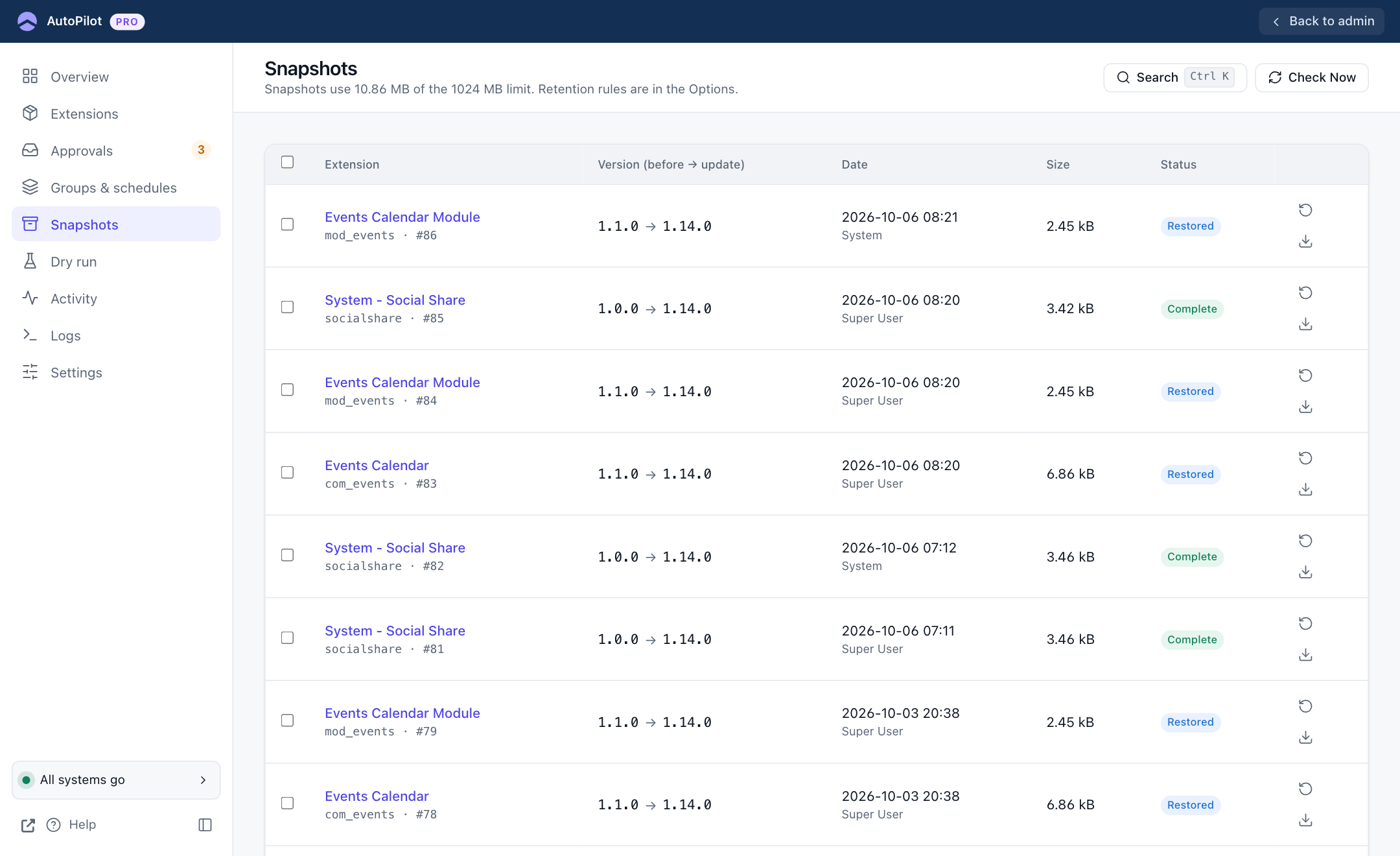
Sidebar → Snapshots. A snapshot is a copy of one extension, taken right before AutoPilot updates it.
Sidebar → Snapshots. A snapshot is a copy of one extension, taken right before AutoPilot updates it. It is what makes a rollback possible.
What a snapshot contains
- the extension's files, including every child extension of a package
- the extension's own database tables, with their structure and data
- the extension's records in Joomla's tables: the extension entry, update sites, schema version, administrator menu items and permissions
A snapshot is a backup of one extension, not of your site. It does not replace a full site backup.
The list
The line under the title shows how much space the snapshots use, against your limit.
| Column | Shows |
|---|---|
| Extension | The name, the technical name and the snapshot number. Click the name for the details. |
| Version (before → update) | The version that was saved, and the version the update installed. |
| Date | When it was taken, and by whom. "System" means a scheduled run. |
| Size | The size of the archive. |
| Status | Complete: ready to restore. Restored: it was used for a rollback and can be used again. Creating: being written right now. Failed or Corrupted: cannot be restored. |
The two icons at the end of a row are Restore (opens the rollback screen) and Download (downloads the archive; Super Users only). Tick rows and use Delete to remove snapshots you no longer need.
Old snapshots are removed automatically. The rules are in Settings → Snapshots & retention: by default the three newest per extension are kept, for at most 30 days, within a total of 1024 MB.
Snapshot details
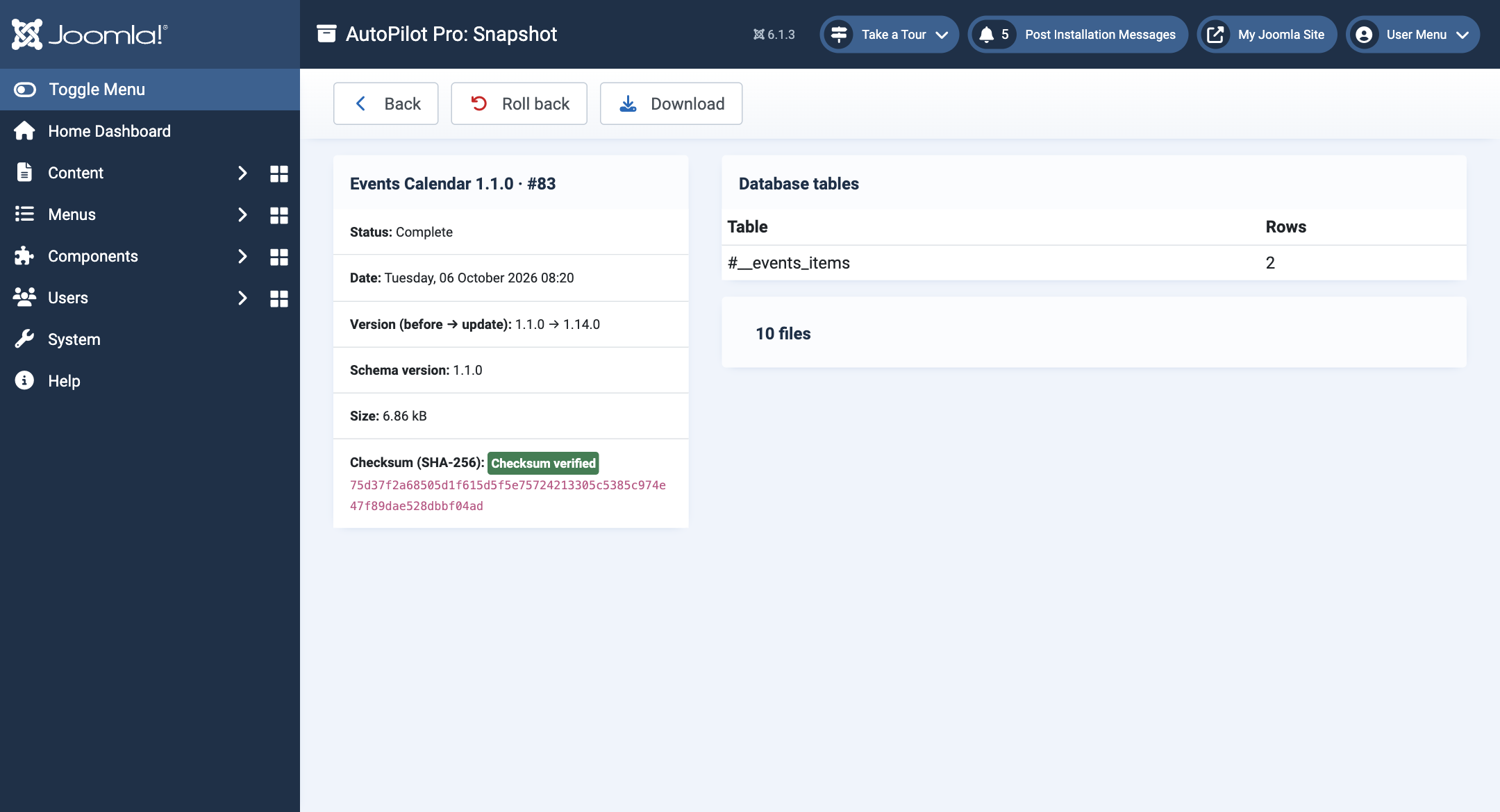
The details show the status, date, versions, schema version, size and the SHA-256 checksum. Checksum verified means the archive on disk is exactly what was written. Below are the database tables in the snapshot with their row counts, and the number of files.
Rolling back
Click the Restore icon in the list, or Review and roll back on the Overview after a failed check. AutoPilot first analyses the snapshot against the current site and shows you what a rollback would do. Nothing is changed yet.
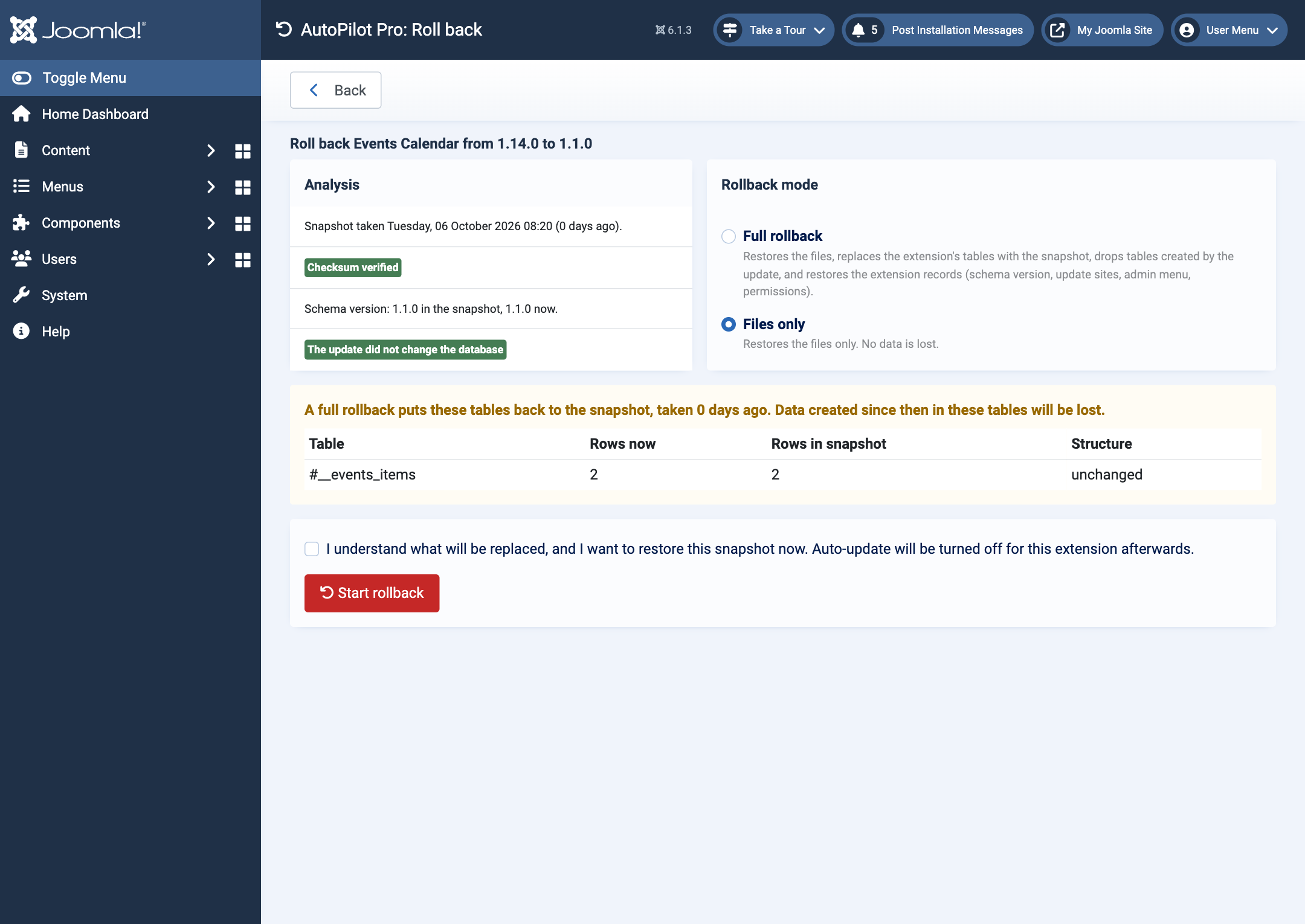
Analysis tells you:
- when the snapshot was taken
- whether its checksum is intact
- the database schema version in the snapshot and on the site now
- whether the update changed the database at all
Rollback mode:
| Mode | What it restores | When to use it |
|---|---|---|
| Full rollback | The files, the extension's tables (replaced with the snapshot), and the extension's records in Joomla. Tables the update created are dropped. | When the update changed the database. It is the only option then. |
| Files only | The files. The database is left alone, so no data is lost. | Offered and preselected when the update did not change the database. |
The yellow table matters for a full rollback. It lists every table that would be put back, with Rows now and Rows in snapshot. A full rollback returns these tables to the moment of the snapshot. Anything added since then, for example orders or form entries stored by this extension, is lost. Compare the two numbers before you continue.
To roll back, tick I understand what will be replaced… and click Start rollback.
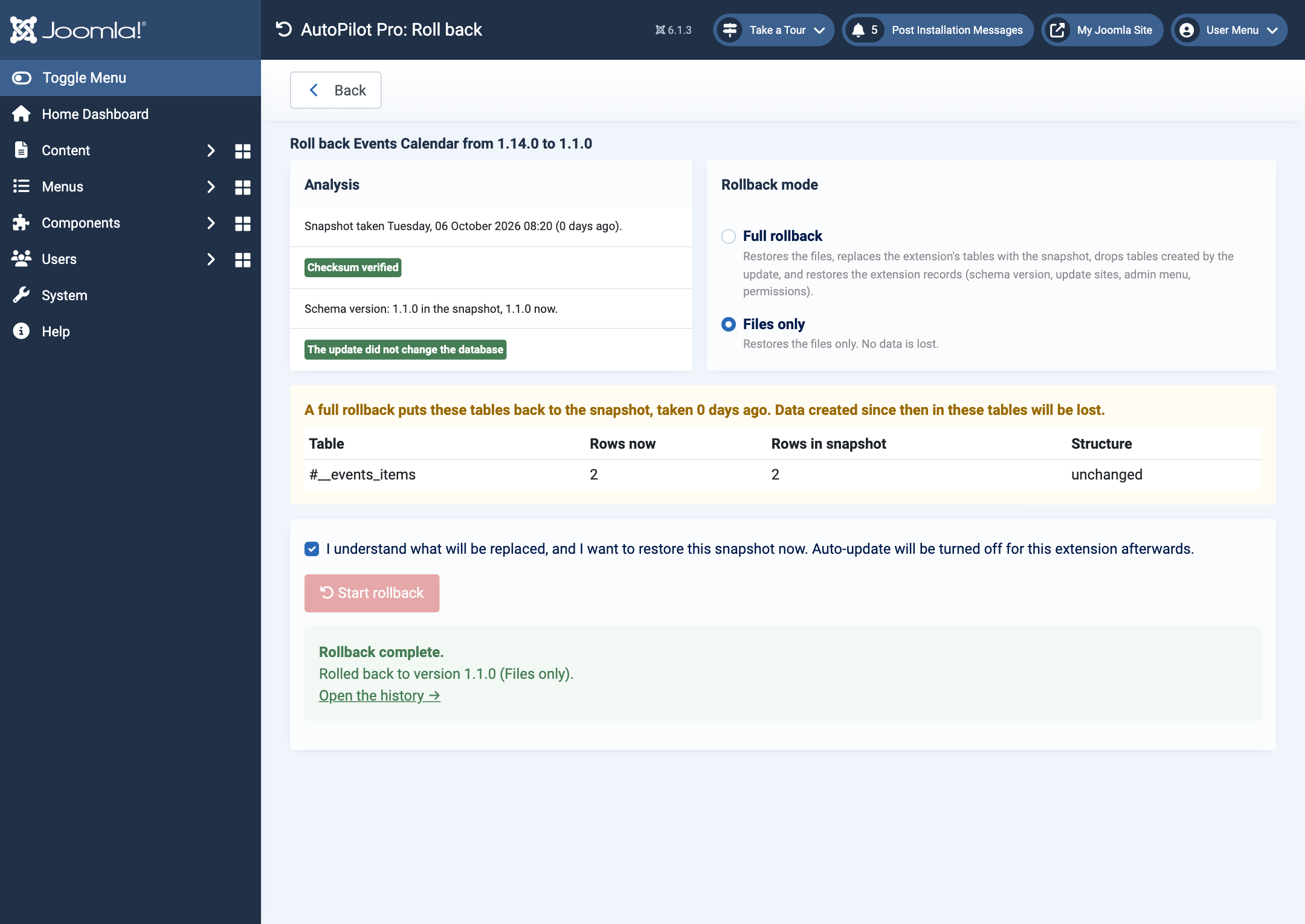
After a rollback:
- The extension is back on the old version.
- Auto-update is turned off for this extension, and a note explains why. Otherwise the next scheduled run would install the same update again. Turn auto-update back on when the developer has fixed the problem, or set a version pin.
- The rollback is recorded in Activity as Rolled back.
- A Rollback Done email is sent, if enabled.
If the administrator itself does not load any more, use Emergency recovery instead.