

Overview
Sidebar → Overview. The Overview answers one question: does anything need you right now? The large banner at the top changes with the state of the site: Extensions tracked: how many extensions AutoPilot manages.
Sidebar → Overview. The Overview answers one question: does anything need you right now?
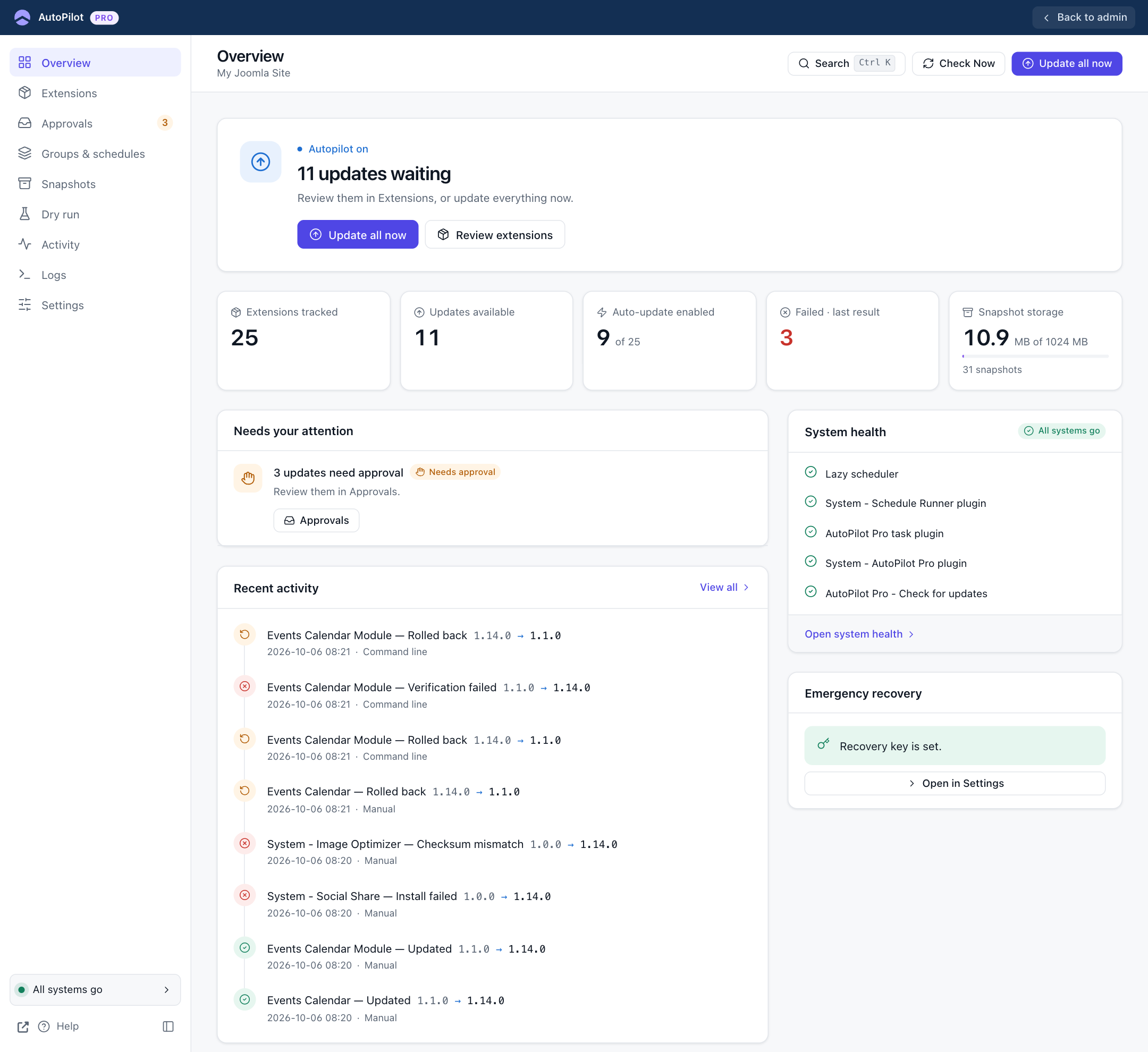
The status banner
The large banner at the top changes with the state of the site:
| Banner | When | Buttons |
|---|---|---|
| Autopilot is on. Every tracked extension is up to date. (green) | Nothing to do. | — |
| 11 updates waiting (blue) | Updates exist that are not installed yet. They may be waiting for their schedule, their window or your approval, or auto-update is off for them. | Update all now, Review extensions |
| Your site stays online during the update. (purple, with a progress bar) | An update run is working right now. | — |
| A post-update check failed. Action needed. (red) | An update was installed, but a check after it failed. | Review and roll back |
| Automatic updates are not running. (red) | Something scheduled updates depend on is off or missing. | Show how to fix it |
The five counters
- Extensions tracked: how many extensions AutoPilot manages. Joomla's core extensions are not counted while they are hidden.
- Updates available: extensions with a newer version on their update server.
- Auto-update enabled: how many extensions have the auto-update switch on.
- Failed · last result: extensions whose most recent update attempt failed. Red when above zero.
- Snapshot storage: space used by snapshots, against the limit from Settings → Snapshots & retention, and the number of snapshots.
Needs your attention
Up to three kinds of entries appear here:
- A failed check, with the extension name and the reason, and the buttons Review and roll back, Extension settings and Dismiss.
- Updates that need approval, with a button to the Approvals screen.
- Setup problems, with Show how to fix it.
When the list is empty it says "Nothing needs you right now".
When a check after an update failed
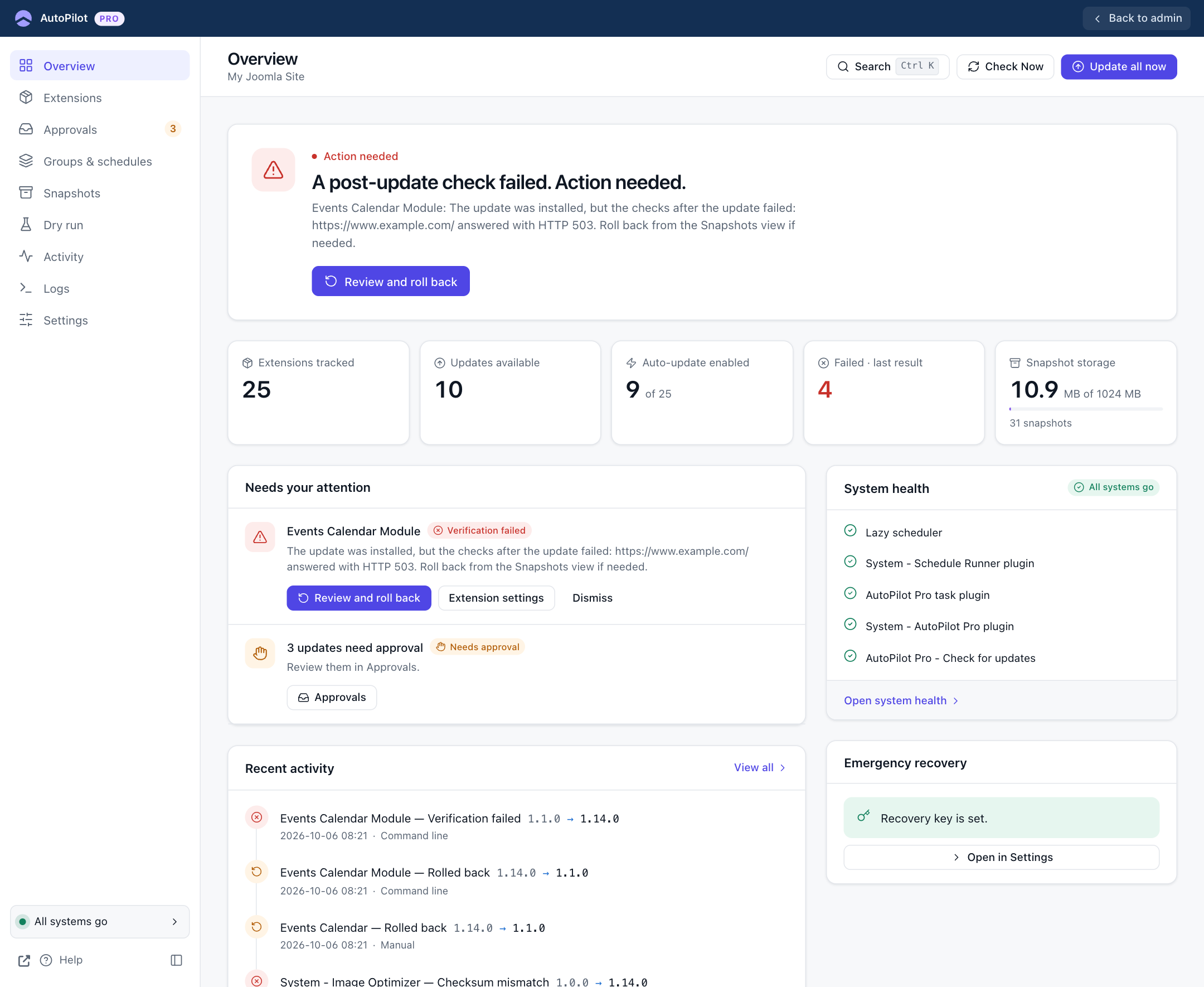
The update is installed, but one of the verification checks failed. In the example, the homepage answered with an error after the update. You have three choices:
- Review and roll back opens the rollback screen for the snapshot taken before this update.
- Extension settings opens the Extensions screen, for example to turn auto-update off for this extension.
- Dismiss hides the warning. Use it when you looked at the site and it works. The update stays installed and the snapshot is kept, so you can still roll back later from Snapshots.
The warning also disappears by itself when you roll the update back, or when a later update of the same extension succeeds.
System health, Recent activity, Emergency recovery
- System health shows the most important checks with a green or red mark. Open system health shows all of them with details. See System health.
- Recent activity lists the latest updates and rollbacks with the versions, the time and how each was started (Scheduled, Manual, Command line or Recovery script). View all opens Activity.
- Emergency recovery tells you whether a recovery key is set. Open in Settings takes you to the tab where you can create a new key.