

Extensions
Sidebar → Extensions. The list of everything AutoPilot tracks. This is where you turn auto-update on and off.
Sidebar → Extensions. The list of everything AutoPilot tracks. This is where you turn auto-update on and off.
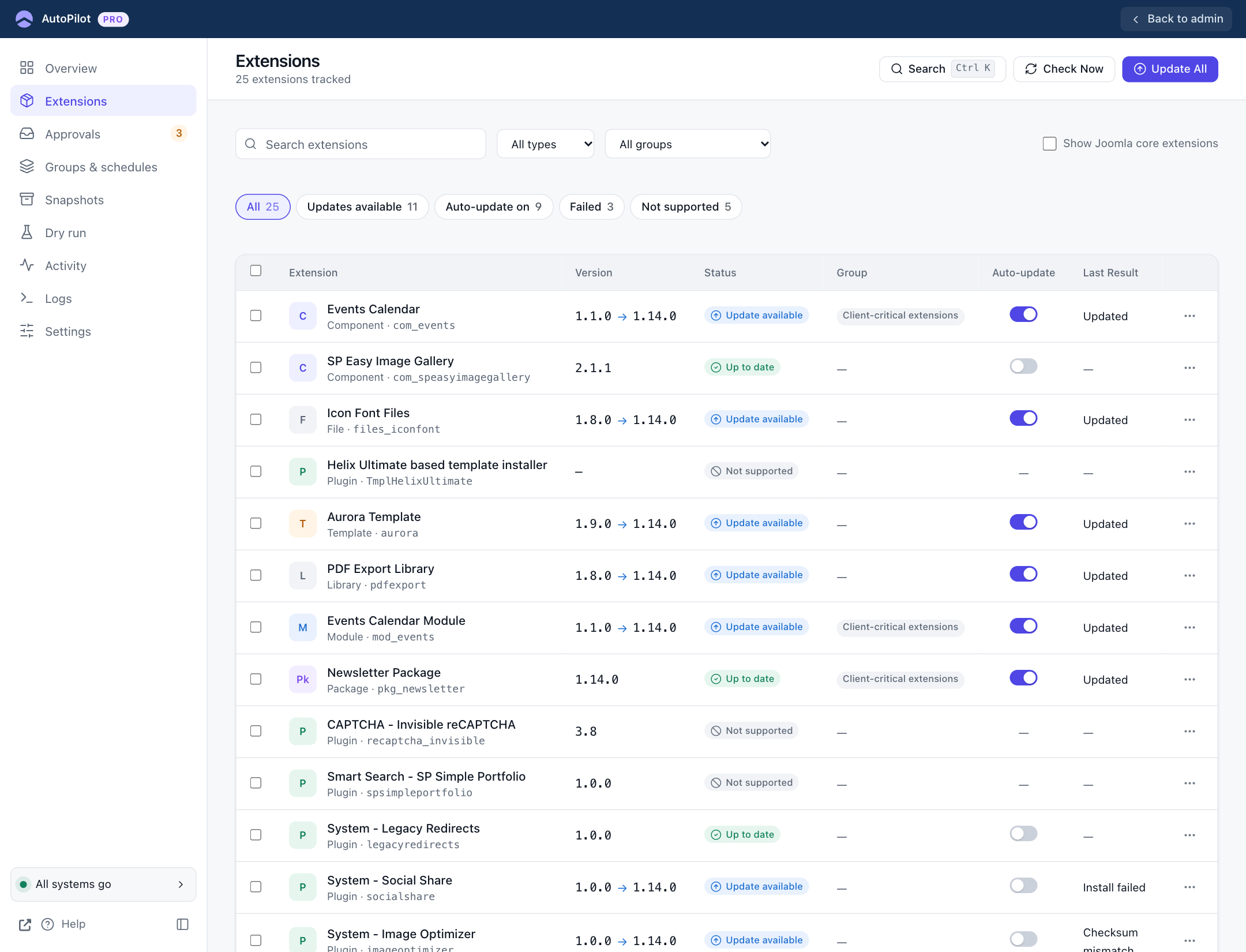
Finding extensions
Everything above the table filters the list immediately, without reloading the page:
- Search extensions searches the name and the technical name. Type
ID:123to find an extension by its ID. - All types limits the list to components, modules, plugins, templates, libraries, languages, packages or files.
- All groups shows one update group, or only extensions without a group.
- Show Joomla core extensions. Joomla ships with more than 200 core extensions. They are hidden by default to keep the list readable. The line below the table tells you how many are hidden, for example "25 / 25 · 247 Joomla core hidden". Tick the box to show them. Settings → Hide Core Extensions sets whether the box starts ticked.
- The chips are quick filters with a live count: All, Updates available, Auto-update on, Failed (the last update attempt failed, or the update site is disabled) and Not supported.
The filters are not remembered: Extensions in the sidebar always opens the full list. The counters on the Overview and the group cards open the list with the matching chip or group already selected. After a bulk action the list comes back with the same filters.
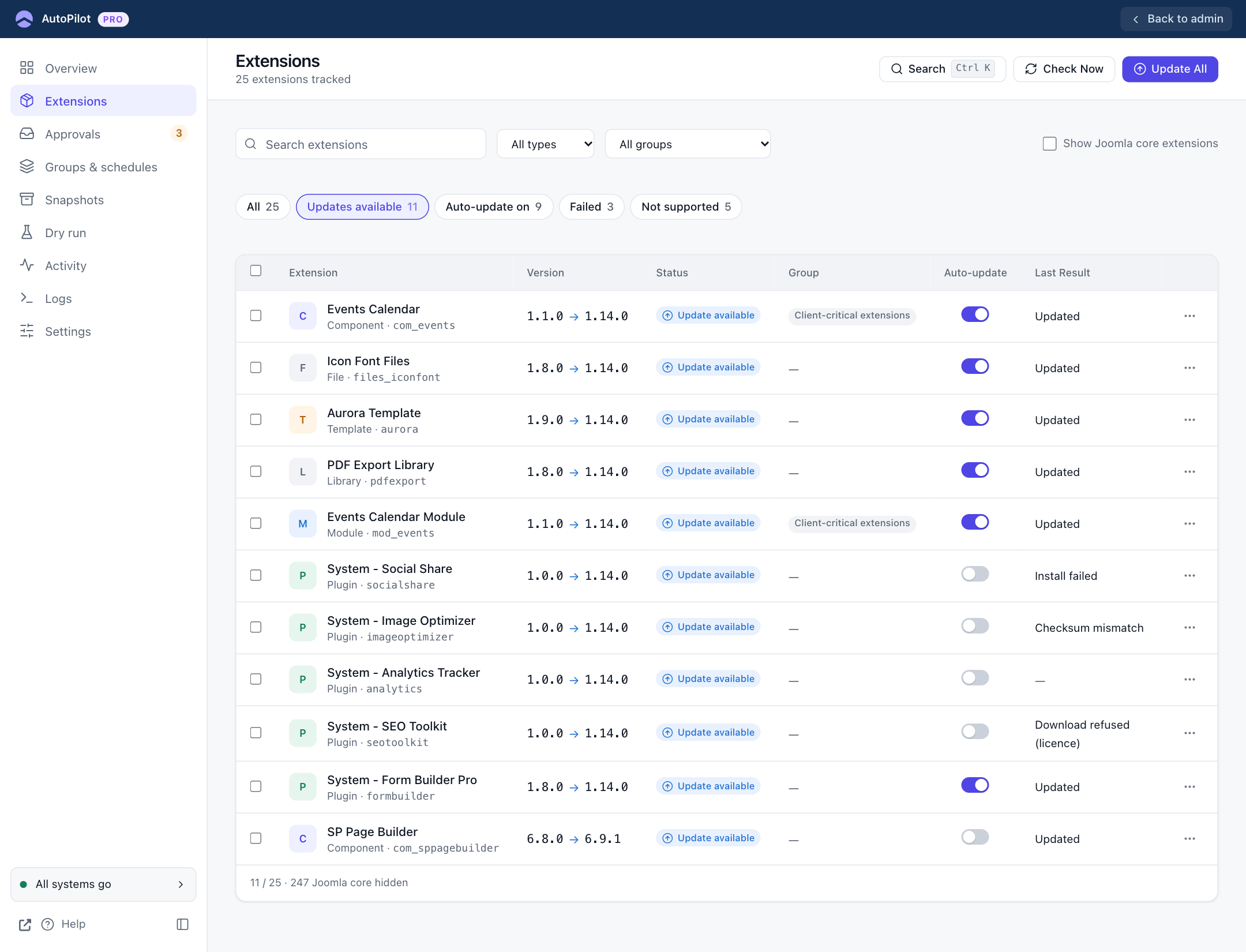
The columns
| Column | Shows |
|---|---|
| Extension | The name, the type and the technical name. The coloured letter marks the type (C component, M module, P plugin, T template, L library, F files, Pk package). A red "(Disabled)" appears when the extension is disabled in Joomla. |
| Version | The installed version. When an update exists: installed → available. The arrow is highlighted for a major version jump. |
| Status | See the table below. |
| Group | The update group, if any. |
| Auto-update | The switch. Click it to turn automatic updates on or off for this extension. |
| Last Result | The result of the most recent update attempt. See Results. |
| ⋯ | The row menu. |
| Status | Meaning |
|---|---|
| Update available | A newer version exists on the extension's update server. |
| Up to date | No newer version is known. |
| Update site disabled | The extension's update site is disabled in Joomla, so AutoPilot cannot check it. A link takes you to System → Update Sites to enable it. |
| Not supported | The extension has no standard Joomla update server. AutoPilot cannot update it; update it by hand. There is no auto-update switch for these. |
| Core | Part of Joomla. Updated together with Joomla. |
Extensions that were on the site before AutoPilot always start with auto-update off. Extensions you install later also start off, unless you turn on Settings → General → Auto-Update New Extensions.
Changing several extensions at once
Tick the boxes of the rows you want. A bar appears at the bottom:
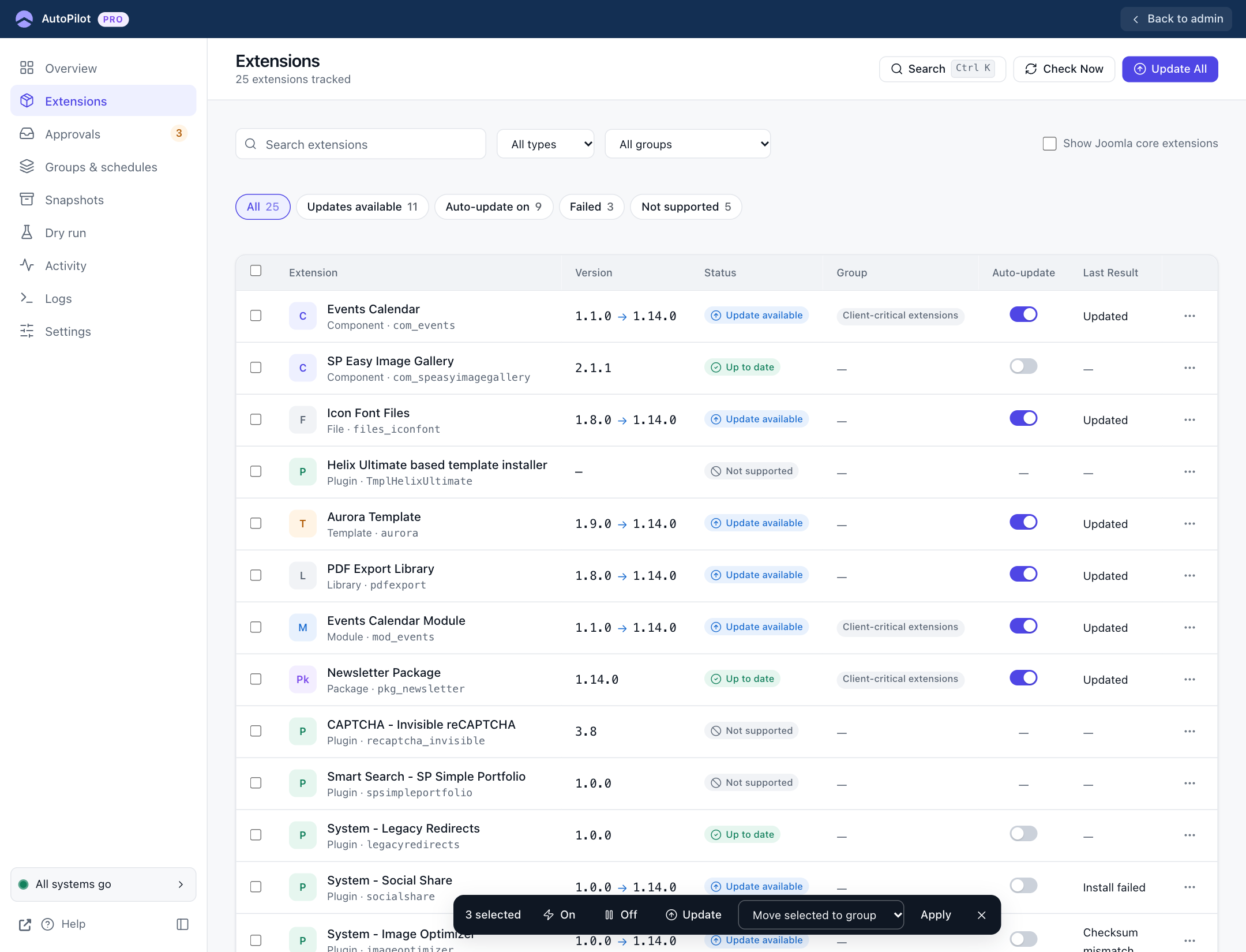
- On / Off turns auto-update on or off for all selected extensions.
- Update installs the available updates of the selected extensions now.
- Move selected to group puts them into an update group. Choose the group, then confirm.
- × clears the selection.
The box in the table header selects every row that is currently visible. Combine it with a filter: for example, choose the type "Plugin", tick the header box, and click On.
The row menu
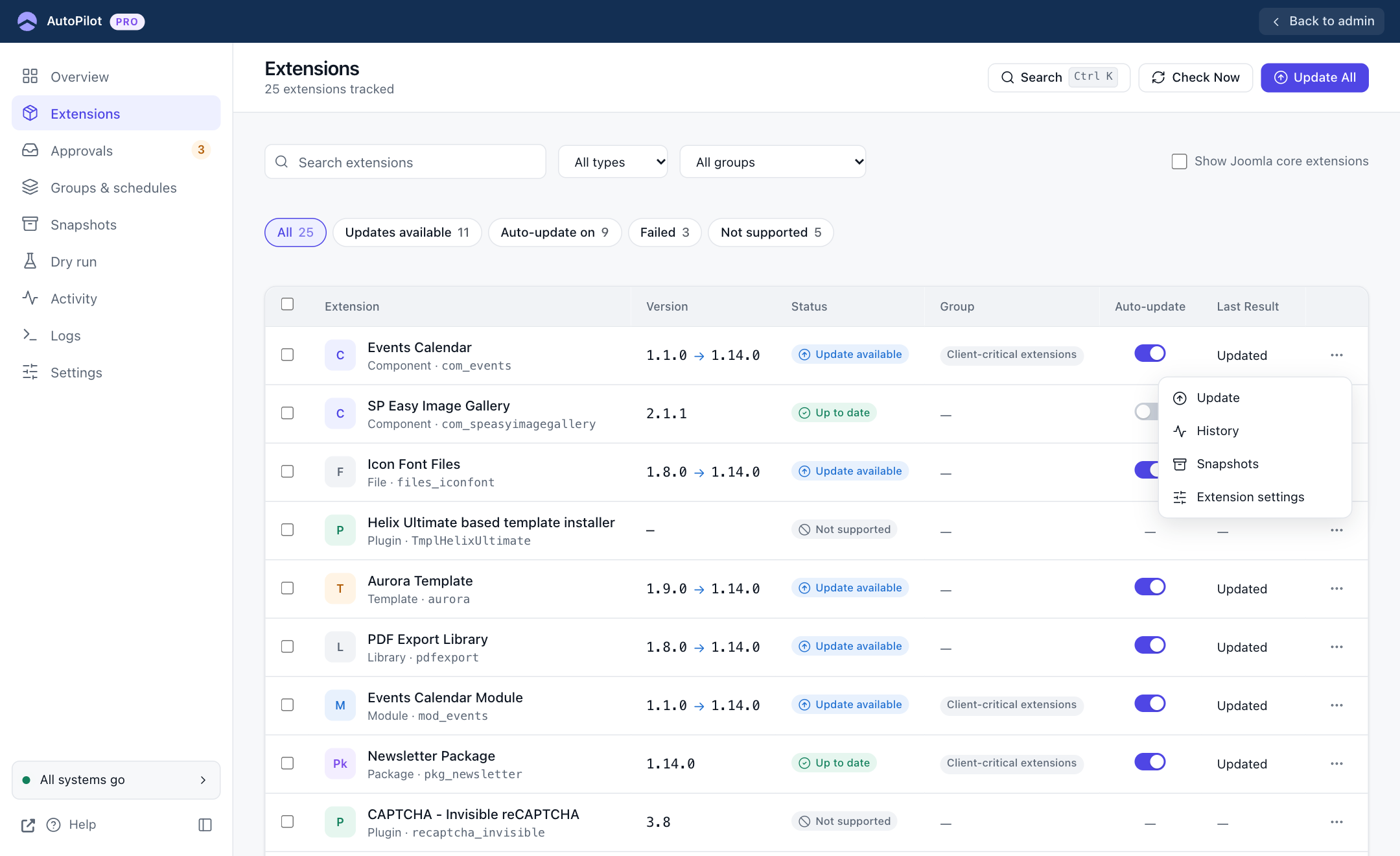
- Update installs this extension's update now. Shown only when an update is available.
- History opens Activity, filtered to this extension.
- Snapshots opens Snapshots, filtered to this extension.
A filtered list shows a "Showing: …" chip with Show all next to it. Opening a screen from the sidebar always shows the full list.
- Extension settings opens the panel described next.
Extension settings
A panel slides in from the right. The list stays visible behind it.
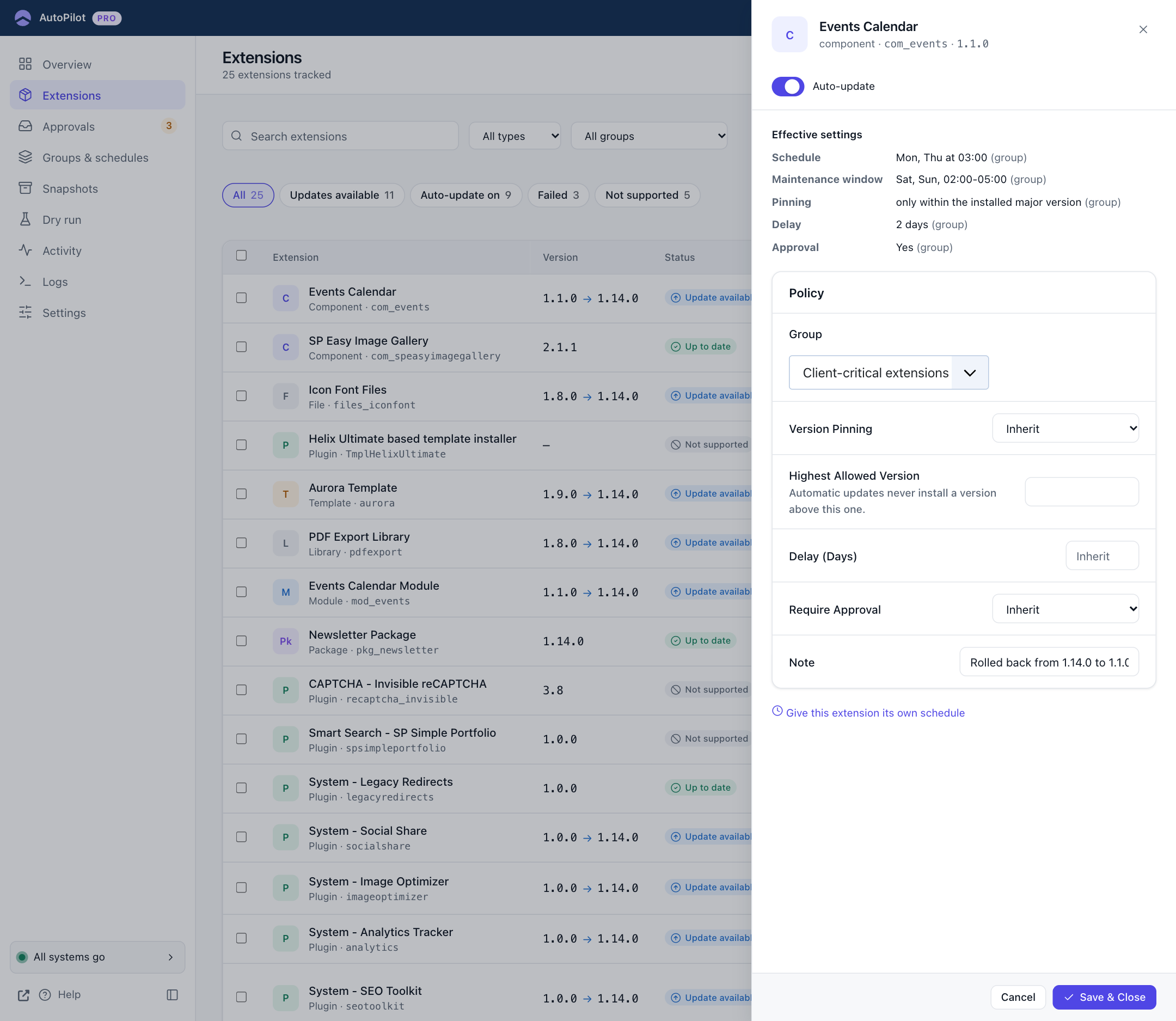
Auto-update at the top is the same switch as in the list.
Effective settings shows the rules that apply to this extension right now, and where each one comes from: (this extension), (group) or (global Options). In the screenshot every rule comes from the group "Client-critical extensions". This block is the quickest way to answer "why does this extension behave like this?".
Policy holds this extension's own settings. Anything left on Inherit takes the group's value, or the global value when the extension has no group.
| Field | What it does |
|---|---|
| Group | The update group this extension belongs to. An extension can be in one group, or none. |
| Version Pinning | Limits which versions automatic updates may install. Inherit uses the group's setting. Not pinned allows everything. Never above a version stops at the version you enter below. Same major version allows 4.2 → 4.9 but not 4.9 → 5.0. Patch updates only allows 4.2.1 → 4.2.7 but not 4.2 → 4.3. |
| Highest Allowed Version | Used with "Never above a version". Automatic updates never install a version above this one. |
| Delay (Days) | Wait this many days after a new version was first seen before installing it automatically. Empty inherits. Useful to let others find the bugs in a fresh release first. |
| Require Approval | Yes sends this extension's automatic updates to Approvals and waits for you. No installs them directly. Inherit uses the group or global setting. |
| Note | A free text note for yourself. AutoPilot writes one here after a rollback, for example "Rolled back from 1.14.0 to 1.1.0 on … Auto-update was turned off." |
Click Save & Close to store the changes, or Cancel to discard them.
A version pin only limits automatic updates. You can still install a newer version by hand; AutoPilot writes a warning to the log when you go past a pin.
Giving one extension its own schedule
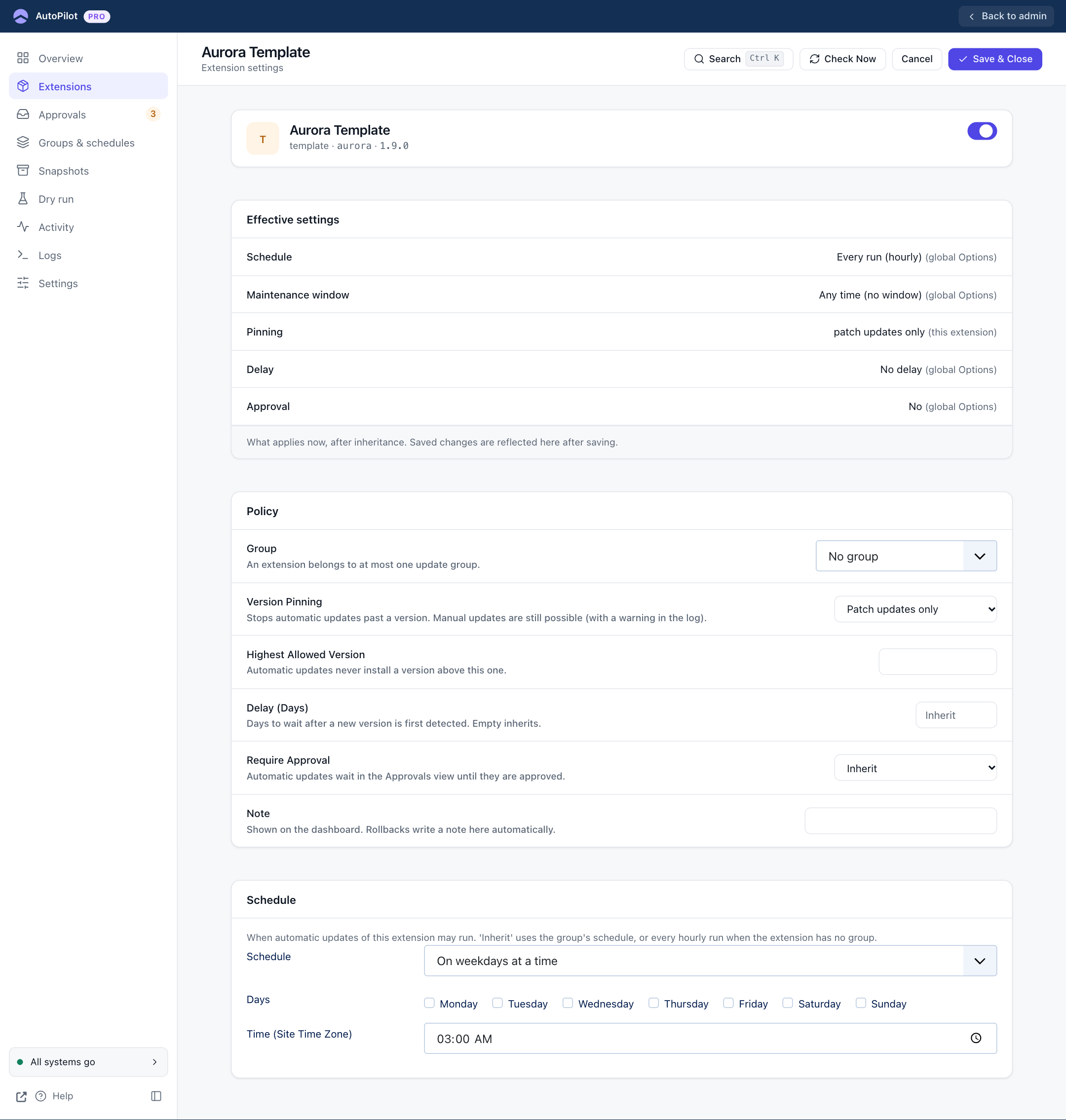
Click Give this extension its own schedule at the bottom of the panel. The full settings page opens, with the same fields and an extra Schedule section at the bottom:
| Schedule | Meaning |
|---|---|
| Inherit | Use the group's schedule. Without a group: every hourly run. |
| Every run (hourly) | The extension may be updated on every hourly run. |
| Every N hours or days | Set Every and Unit, for example every 2 days. |
| On weekdays at a time | Tick the Days and set the Time (site time zone), for example Monday and Thursday at 03:00. |