

Emergency Recovery
A bad update can break a site so badly that the administrator does not load any more. Then you cannot reach AutoPilot to roll the update back.
A bad update can break a site so badly that the administrator does not load any more. Then you cannot reach AutoPilot to roll the update back. Emergency recovery is made for exactly this case: a small page that restores a snapshot without Joomla.
This chapter has three parts: how it works, what to prepare today, and what to do on the day a site is down.
How it works
- A page of its own. The recovery page is one PHP file inside AutoPilot Pro's folder. It does not start Joomla, so an extension that stops Joomla cannot stop it. It needs only PHP, the database and the snapshot archive.
- It does one thing. It restores a snapshot that AutoPilot made before an update: the same result as Rollback inside AutoPilot. It cannot change settings, install anything or show you site data.
- A key instead of a login. Your Joomla login cannot be checked while Joomla is down. So the page asks for the recovery key, a random key of 40 characters that belongs to this site. Only a fingerprint (a hash) of the key is stored on the site. Nobody can read the key there, not even you.
- Guarded against guessing. After 5 wrong keys the page is locked for 15 minutes for that visitor. A session on the page ends after 15 minutes without a click.
The address of the recovery page is always the same, with your own domain in front:
https://www.example.com/administrator/components/com_autopilotpro/recovery/recover.phpPrepare it today
Emergency recovery only helps if you have the key outside the site on the day you need it. Four small steps, five minutes.
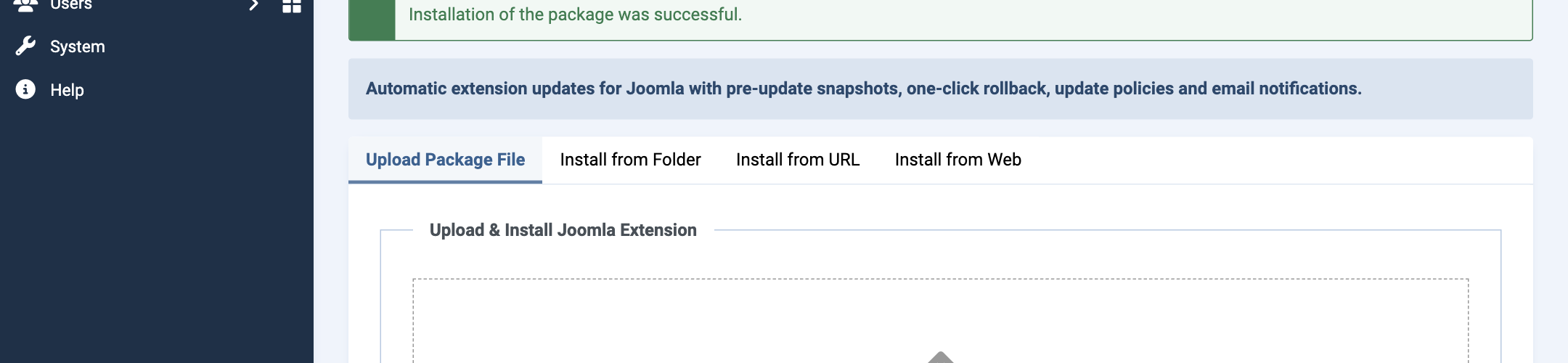
1. Save the key that the installer showed. When AutoPilot Pro is installed, a yellow message shows the recovery key once:
Put it in your password manager, next to the site's other logins. Do not keep it only in a file on the same server, or in a mailbox that is hosted on the same server: when the server has a problem, both are out of reach.
2. No key at hand? Create a new one. Open Settings → Emergency recovery. The tab tells you whether a key exists and when it was created, and it shows the address of the recovery page for your site.
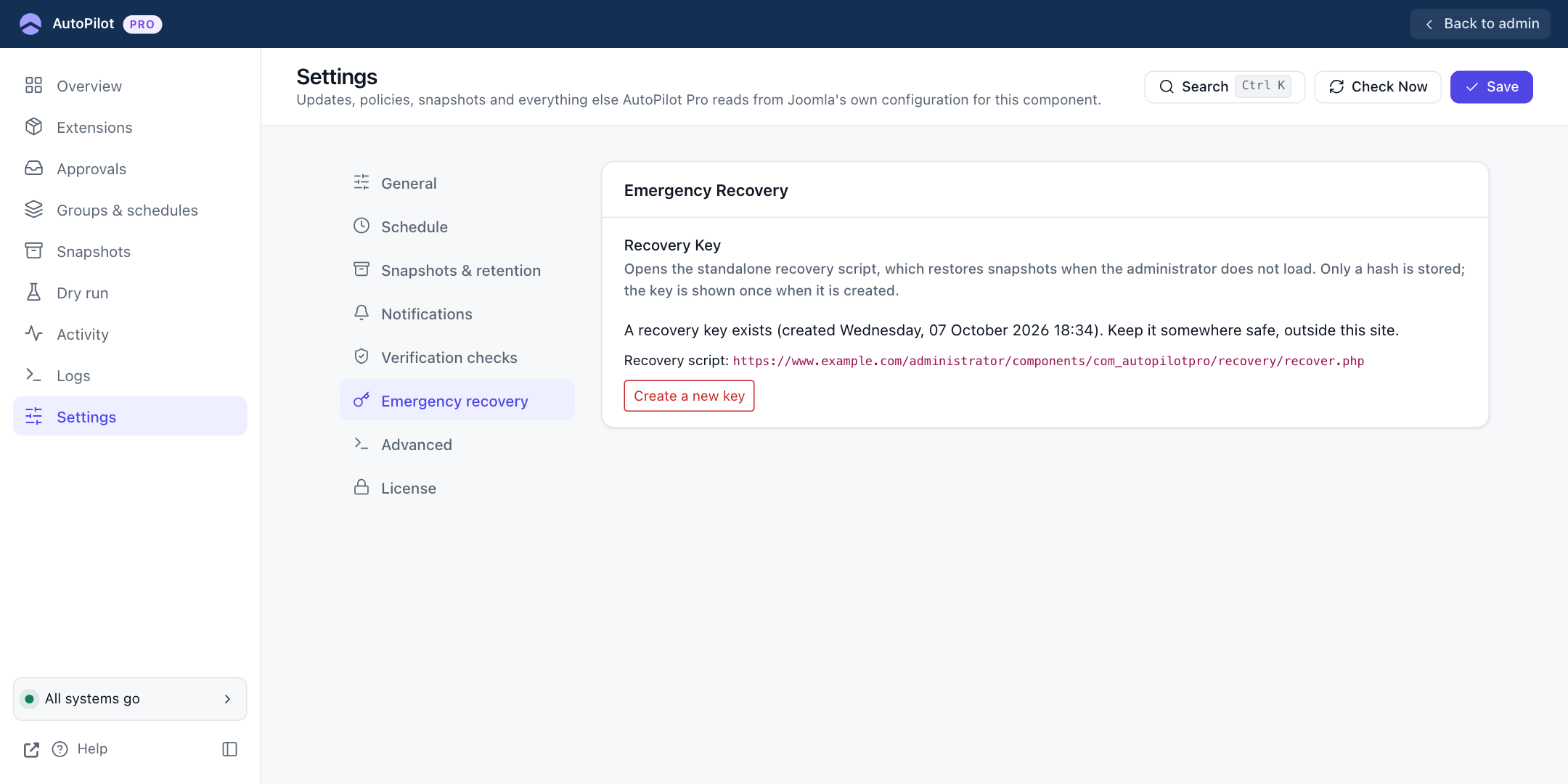
Click Create a new key and confirm. The new key appears at the top of the tab, with a Copy button:
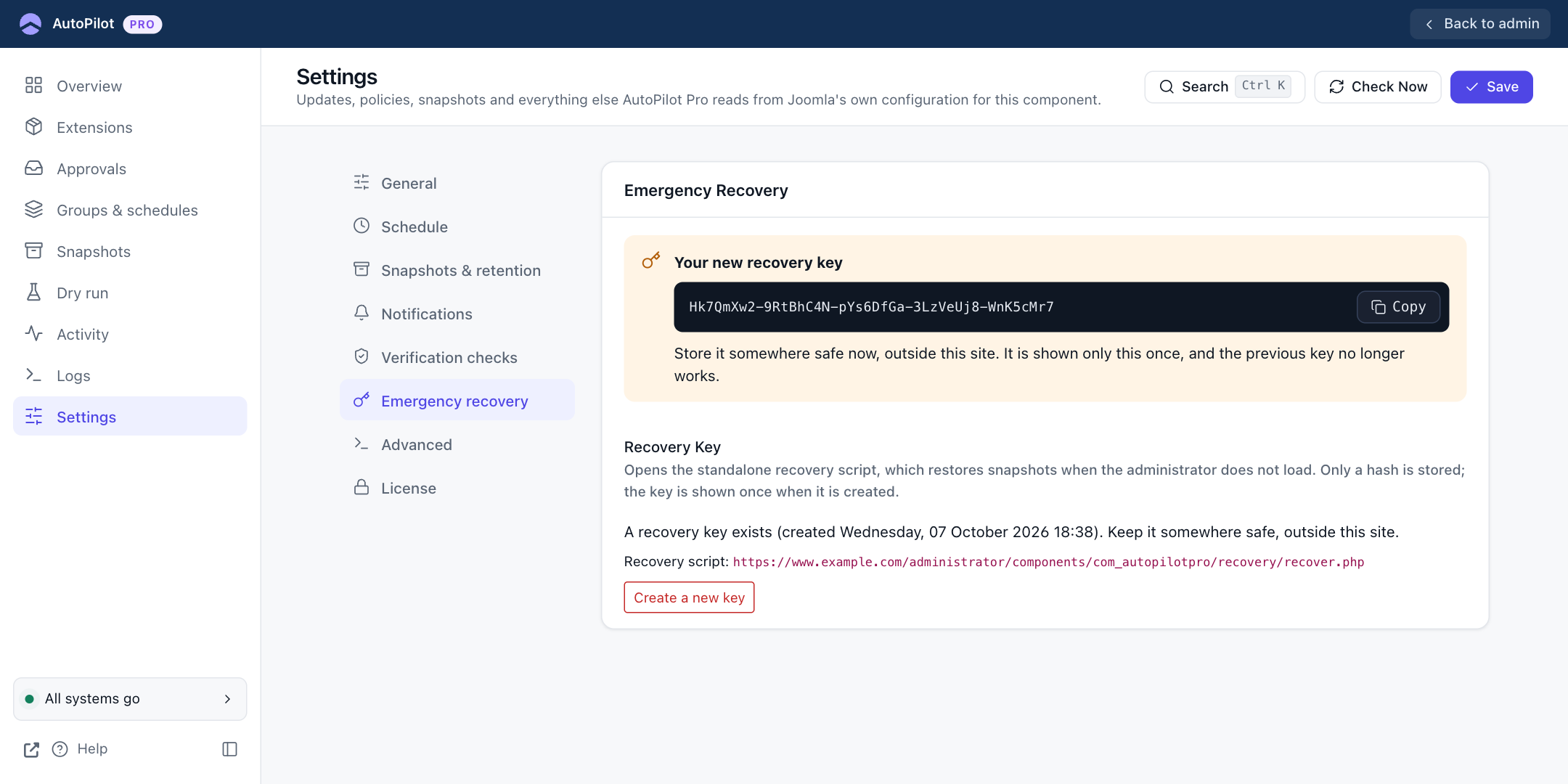
- The key stays on the screen until you leave the page. After that it is never shown again.
- The old key stops working at that moment, and a recovery session that is open with the old key ends.
- Creating a key needs the permission Configure ACL & Options, which Super Users have.
3. Save the address of the recovery page together with the key. It is on the same tab.
4. Try it once. Open the address in your browser and enter the key. If you see the list of snapshots, everything works. On a site where AutoPilot has not updated anything yet, the page says "There are no snapshots that can be restored" instead, which is just as good a sign. Then close the tab. Nothing on the site changes until you click Restore snapshot, two screens later.
If the page does not open at all (a "403 Forbidden" or "404 Not Found" error), a security extension or a server rule blocks PHP files inside component folders. Allow this one file there, so that you do not find this out on the day you need it.
When the site is down: step by step
The pictures below are from a real test. A scheduled run installed an update of the plugin "System - Analytics Tracker". The new version contained an error that stops Joomla, so the website and the administrator both answered with an error page:
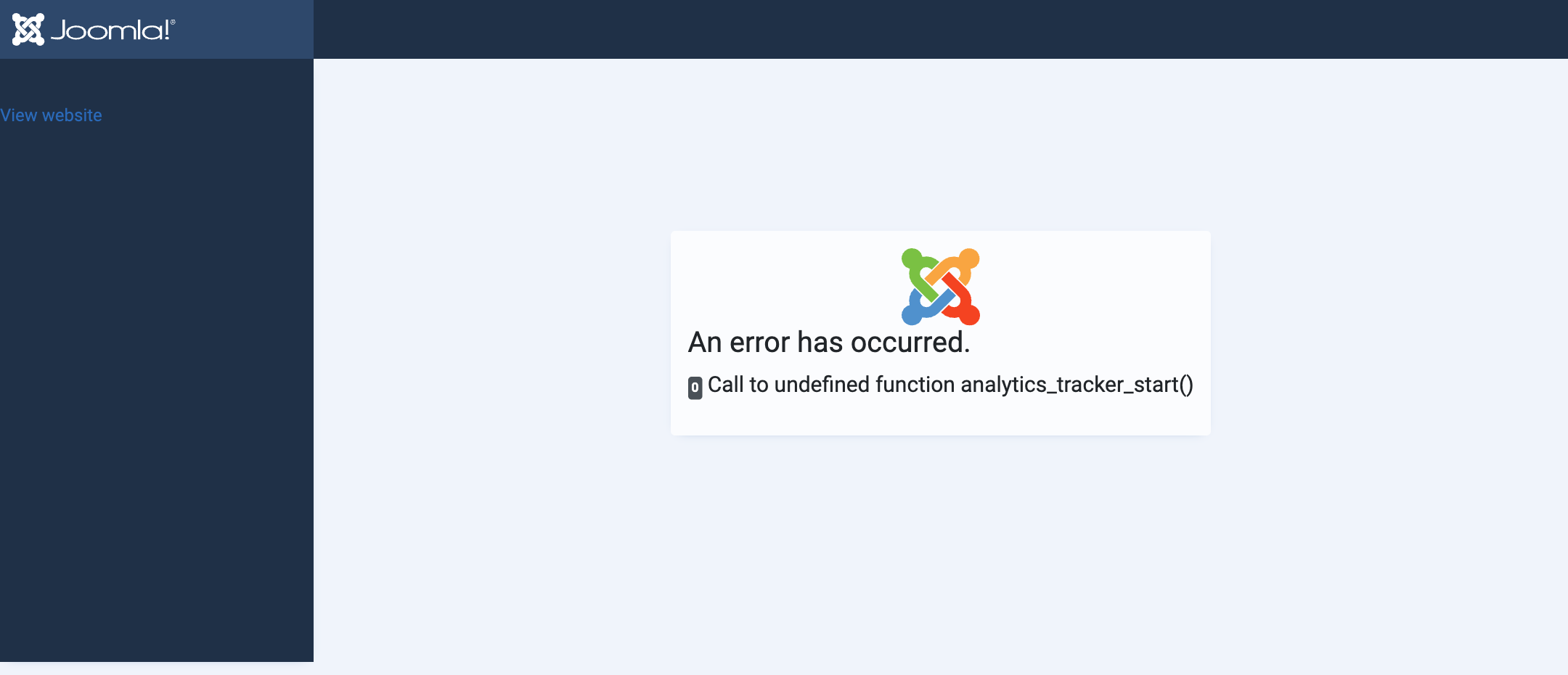
AutoPilot noticed it. Its checks after the update failed, the update was recorded as Verification failed, and the email "Update of … failed" went out. That email names the extension, which is all you need to know for the next steps.
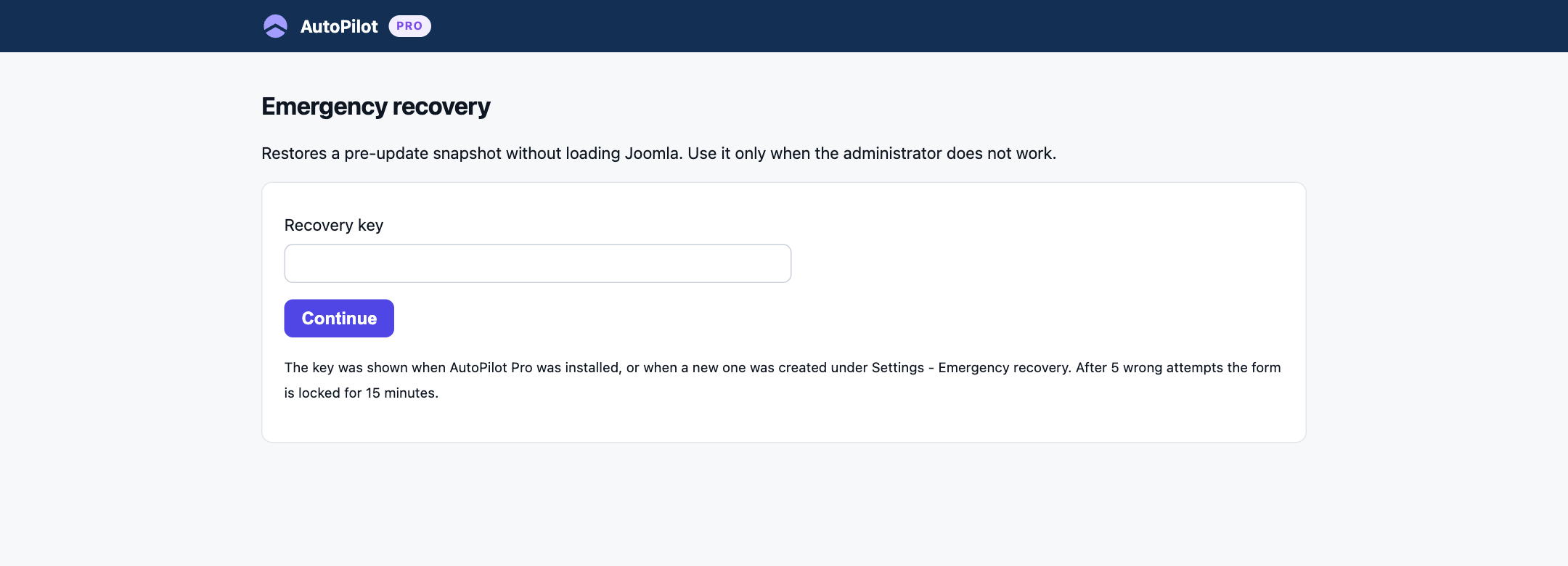
1. Open the recovery page and enter your key. Use the address you saved. Type or paste the recovery key and click Continue. Capital and small letters matter, and the hyphens belong to the key.
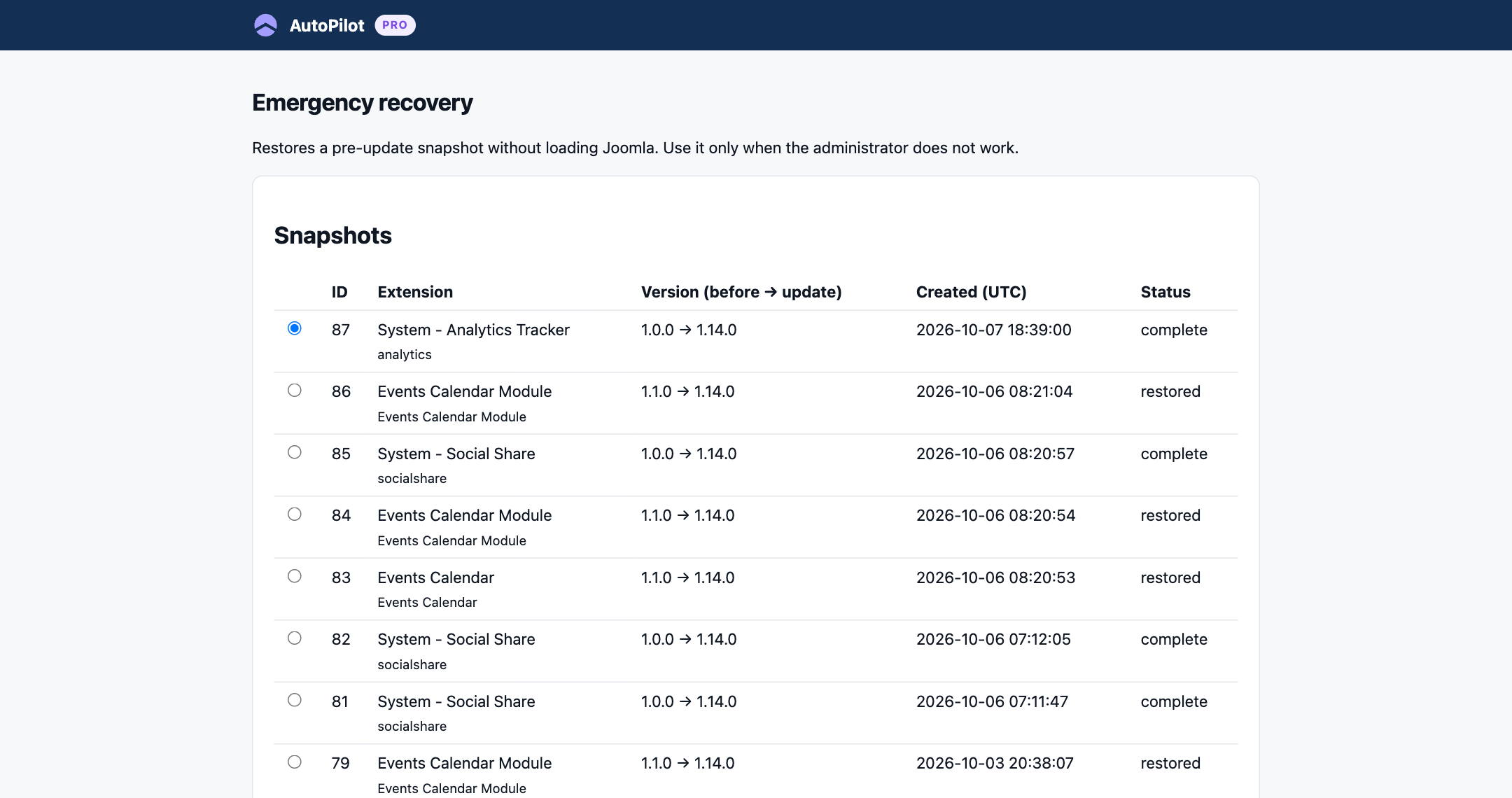
2. Choose the snapshot. The page lists the snapshots that can be restored, newest first, with the extension, the version before and after the update, and the time in UTC. The newest one is already selected. Choose the snapshot of the extension that was updated last, here "System - Analytics Tracker 1.0.0 → 1.14.0", and click Check selected snapshot.
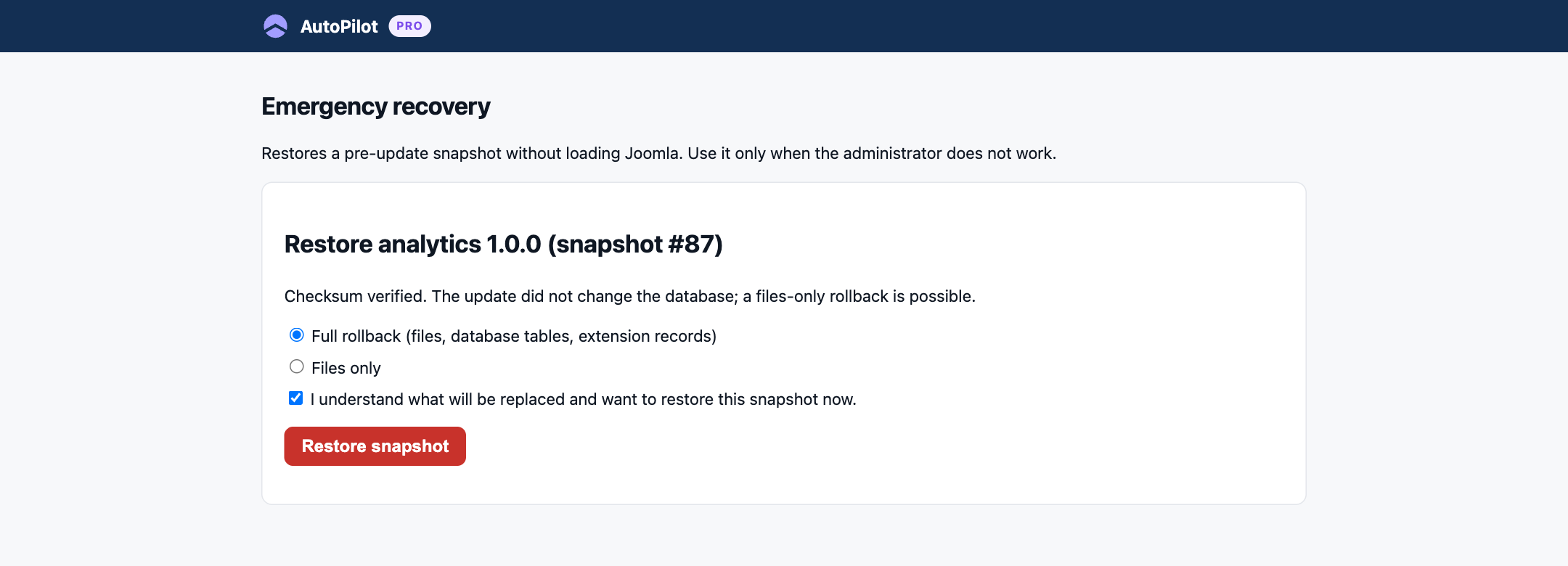
3. Read the check and choose what to restore. The page first verifies the archive ("Checksum verified") and looks at what the update changed.
| Choice | What it restores | When to use it |
|---|---|---|
| Full rollback | The extension's files, its database tables and its records in Joomla. | Always possible. Required when the update changed the database. |
| Files only | The files. The database stays as it is now. | Only offered when the update did not change the database. Keeps all data that was stored since the snapshot. |
When database tables would be replaced, the page lists each table with the number of rows now and in the snapshot, and warns that data created since the snapshot will be lost. Read these numbers before you go on.
Tick I understand what will be replaced and want to restore this snapshot now, then click Restore snapshot.
4. Wait for the result. The page lists what it did:
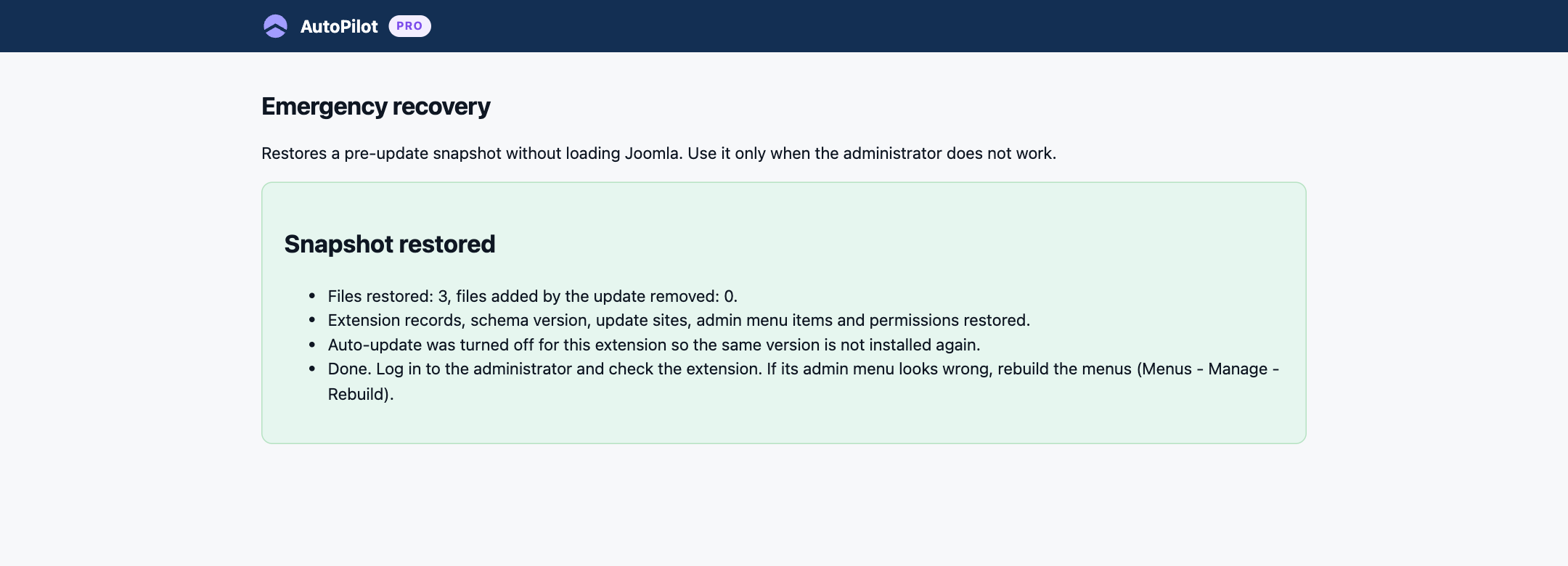
It restored the files, put the extension's records back, cleared Joomla's caches, and turned auto-update off for this extension, so the same broken version is not installed again by the next run.
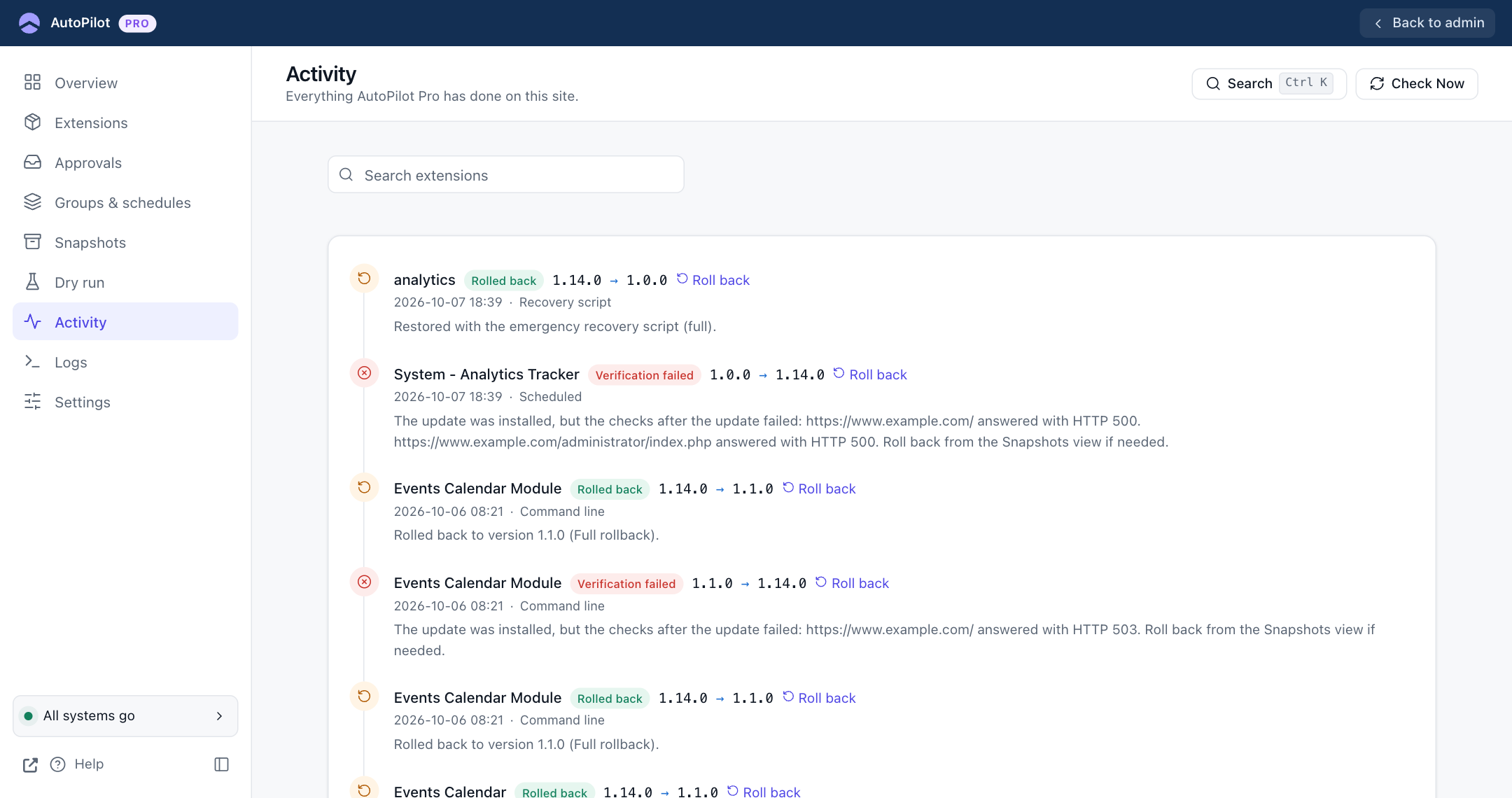
5. Log in and check. The website and the administrator work again. Open Activity: the failed update and the restore are both there, the restore with the result Rolled back, started by Recovery script.
Then finish the job:
- Look at the extension itself. If it is a component and its menu entry in the administrator looks wrong, use Menus → Manage → Rebuild.
- Leave auto-update off for this extension until its developer has released a fixed version. The Note in the extension's settings says why it is off.
- Tell the developer about the broken version.
If something does not go as planned
| What you see | What it means | What to do |
|---|---|---|
| "The recovery key is not correct." | The key does not match. | Check capital and small letters and the hyphens. If you created a new key at some point, the older one no longer works. |
| "Too many failed attempts. Try again after 14:25 UTC." | Five wrong keys were entered. | Wait for the time shown. It is 15 minutes after the last attempt. |
| "The session expired. Enter the recovery key again." | 15 minutes passed without a click. | Start again with the key. Nothing was changed. |
| "No recovery key is set." | The site has no key. | A key can only be created in the administrator. See "The key is lost" below. |
| "There are no snapshots that can be restored." | AutoPilot made no snapshot of the extension, or the snapshots were cleaned up. | The page cannot help. Restore your site backup. |
| "The database connection failed." | The database is not reachable. | This is not an extension problem. Ask your host; the recovery page needs the database too. |
| "Restore stopped", with a list | The restore ended early. The red message above the list says why, and the list shows how far it came. | Remove the cause, for example a folder that PHP may not write to, and run the same restore again. |
| The site is still broken after the restore | Another extension was updated in the same run, or the cause is something else. | Open the recovery page again and restore the snapshot of the next extension that was updated at that time. |
The key is lost and the administrator does not load. The recovery page cannot be used without the key. What remains:
- Try the command line (below). It works when the error does not stop Joomla there as well.
- Otherwise switch the broken extension off by hand, for example by renaming its folder with your host's file manager. Your host's support or a Joomla developer can do this in a few minutes. When the administrator loads again, roll back normally under Snapshots and create a new recovery key.
- Or restore your full site backup.
On the command line
With SSH access you can restore a snapshot without the recovery page. Run these from the site's root folder:
php cli/joomla.php autopilot:snapshots
php cli/joomla.php autopilot:rollback --snapshot=62
The first command lists the snapshots with their numbers, the second restores one. See Command line for all options.
Joomla's command line starts Joomla. If the broken extension stops Joomla itself, as the plugin in the example above did, these commands end with the same error, and the recovery page is the way to go.
Is it safe to have this page on my site?
The page is reachable by anyone who knows its address, as every login page is. That is why it is built carefully:
- Without the key it shows nothing but the form: no snapshot names, no versions, no site details.
- The key is long and random, only its fingerprint is stored, and five wrong attempts lock the form.
- It can only restore snapshots that AutoPilot made on this site. It cannot upload, install or change anything else.
- If you ever think the key got into the wrong hands, create a new one. The old key and any open session stop working at once.