

Updating by Hand
You can install updates yourself at any time: Update all now on Overview, or Update All on Extensions, installs every available update AutoPilot can install.
You can install updates yourself at any time:
- Update all now on Overview, or Update All on Extensions, installs every available update AutoPilot can install. It asks for confirmation first.
- Update in a row menu installs one extension.
- Update in the bulk bar installs the selected ones.
A panel opens on the right and shows the run as it happens:
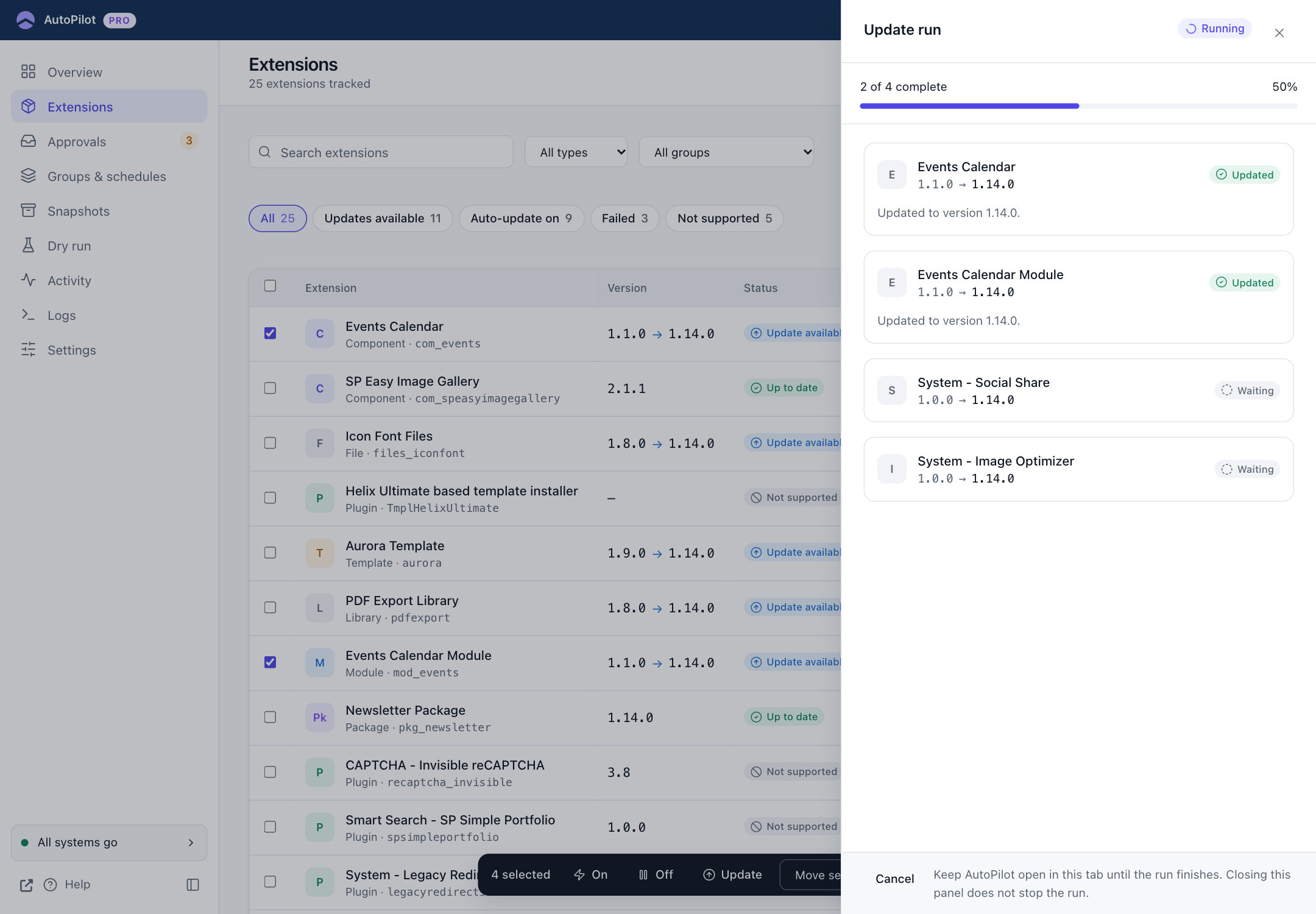
Each extension has a card with the version change and its state: Waiting, a spinner while it is being updated, then the result. The bar at the top shows the overall progress.
- Cancel stops the run after the extension that is being updated right now. Extensions that were already updated stay updated.
- You can close the panel with × and keep working in AutoPilot. The run continues. When you open another AutoPilot screen, it picks the run up, and an Update running… button in the top bar reopens the panel.
- Keep AutoPilot open in this browser tab until the run finishes. A manual run is driven by your browser. If you leave AutoPilot, the run pauses, and it continues when you open AutoPilot again. If you do not come back within the lock timeout (15 minutes by default), the run is closed and the remaining extensions are left as they were. You can start them again.
When the run is done, the panel shows every result with its message:
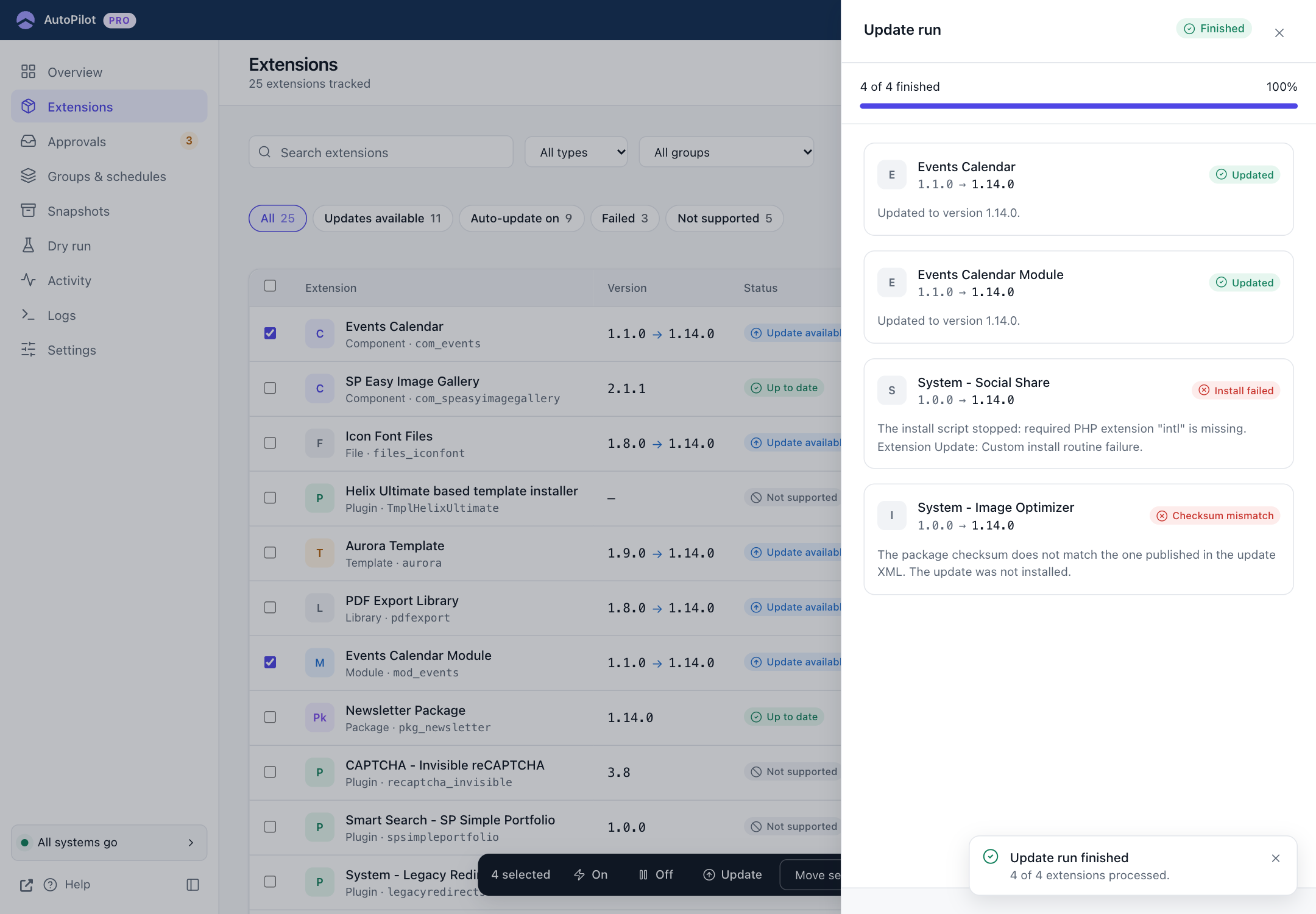
In this example two extensions were updated, one install script refused the update, and one package did not match its published checksum. Failed updates are not installed, and your site keeps the old version. See Results for each message.
Manual updates are your decision, so they skip the waiting rules. Maintenance windows, delays and approvals do not apply to them. A snapshot is still taken (unless you turned off Snapshot Before Manual Updates), and the verification checks still run.